Patent Details
The patent viewer organizes a patent document into tabs across the top: Details, PDF, Family, Legal, and Citations. A Drawings toggle in the header opens a side panel with patent figures.
Details
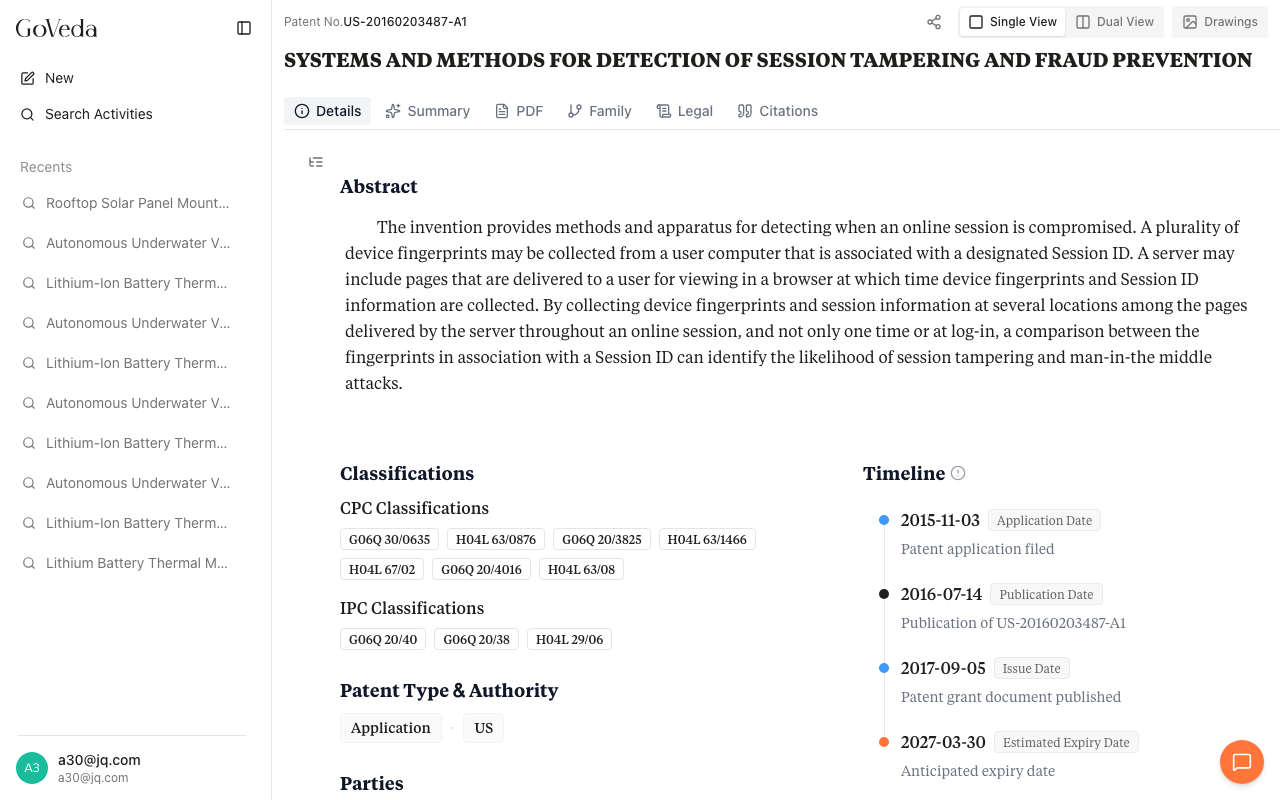
The Details tab is the default view. It shows the full patent document in structured form.
Abstract
The abstract appears at the top. For patents with structured content, the abstract is rendered as individual paragraphs. For older patents, it may appear as a single block of text.
Overview
Below the abstract, the Overview section is laid out in two columns on wide screens.
Left column contains Classifications (CPC and IPC codes with hover descriptions), Patent Type and Authority, and Parties (Current Assignee, Original Assignee, and Inventors).
Right column contains the Timeline with the current status and key dates: Priority Date, Application Date, Effective Date, First Publication Date, Grant Publication Date, and Estimated Expiry Date. A hollow dot marks the estimated expiry.
Claims
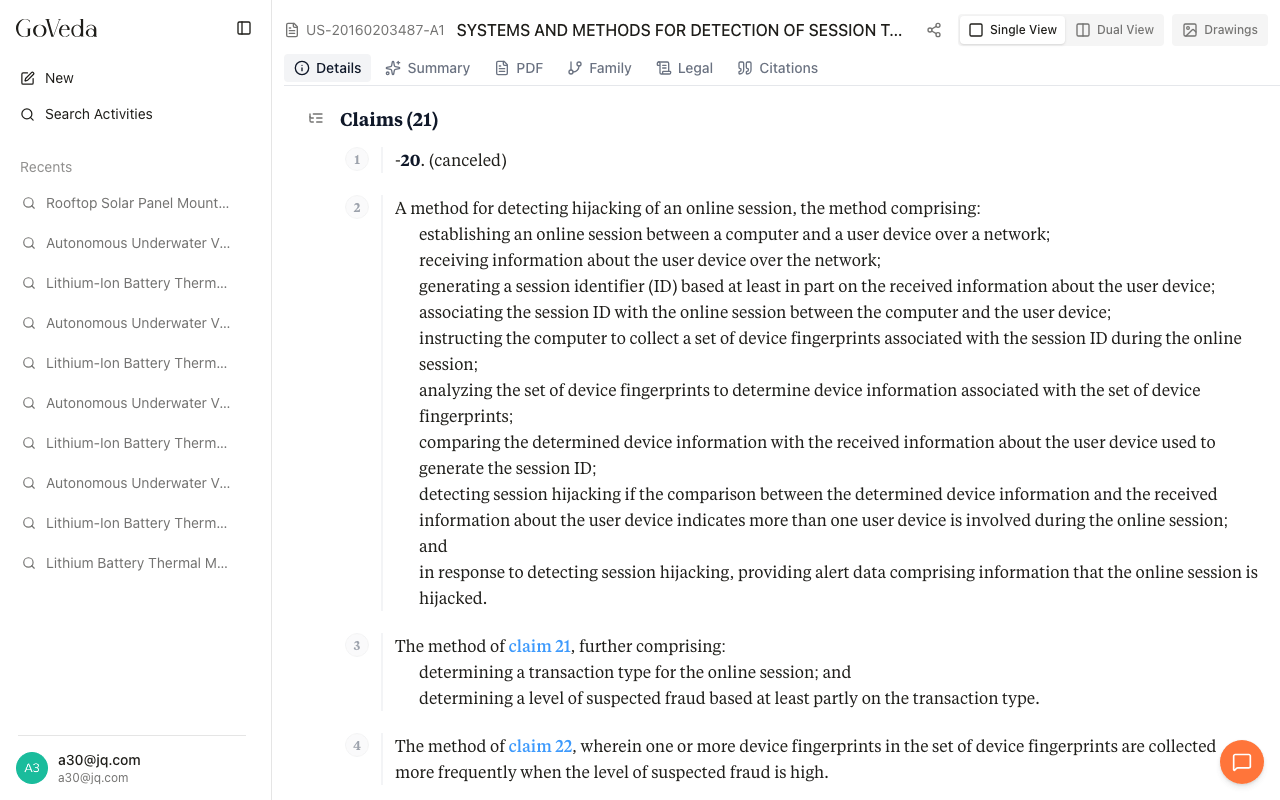
The Claims section lists every claim in the patent, numbered sequentially. Each claim has a number badge and a left border to separate it from neighboring claims. The total claim count appears in the section heading.
Description
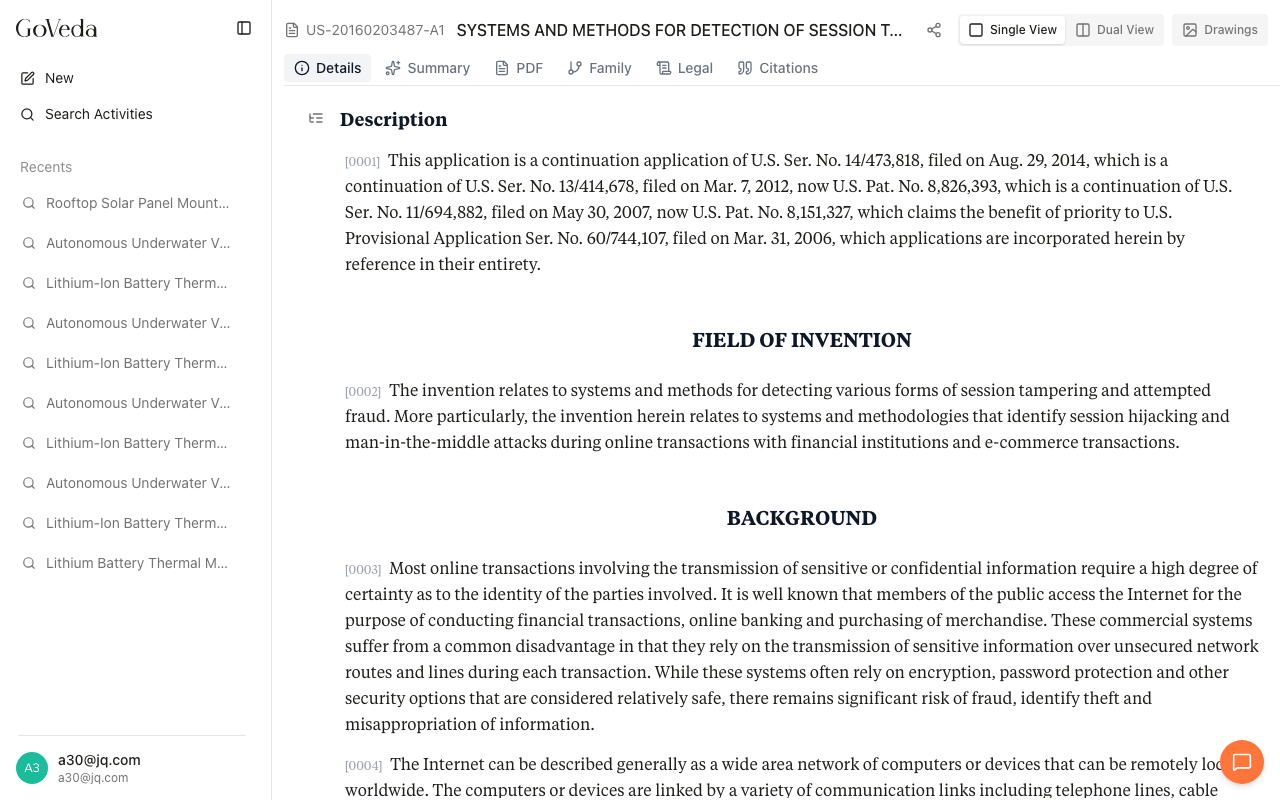
The Description section contains the full specification text. For structured patents, this includes named subsections such as Field of the Invention, Background, Summary of the Invention, and Detailed Description, all rendered as flowing paragraphs.
Section navigation
On desktop, a small table-of-contents icon appears to the left of the content area. Select it to open a panel with links to Abstract, Overview, Claims, and Description. The active section updates as you scroll.
Language and translation
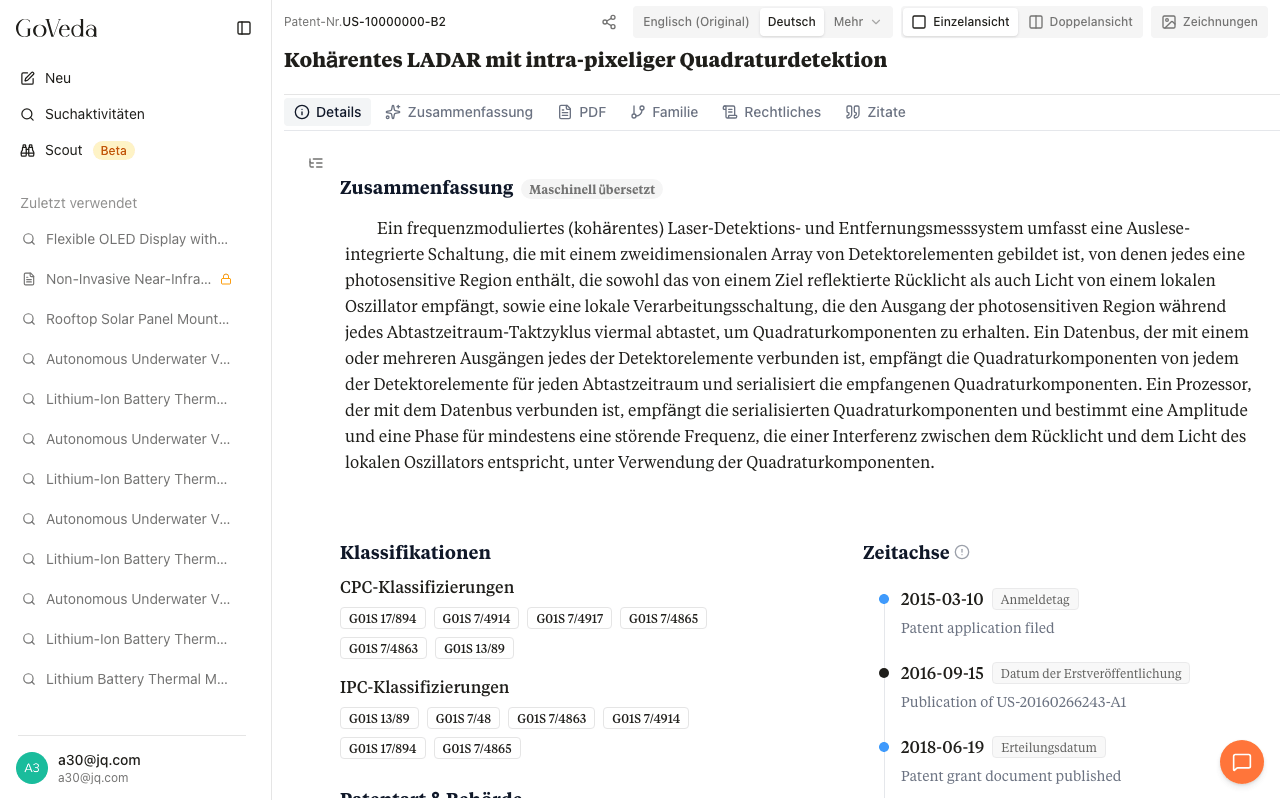
A Language control sits in the header next to the view toggles, as a set of tabs for the patent body (abstract, claims, and description):
- {Language} (original) — the patent’s source language. Select it to read the original text.
- Your interface language (for example, German) — select it to read the body in that language. If the patent isn’t natively available in it, GoVeda machine-translates the body on the fly.
- More — a dropdown listing any other languages the patent natively ships in, plus Translate to {language} options for the other supported interface languages.
Supported languages are English, Chinese, Japanese, Korean, French, German, and Spanish.
When your interface language isn’t English and the patent isn’t natively available in it, GoVeda auto-translates the body the first time you open the patent. While a translation runs, the target tab shows a spinner. If it can’t be translated, the tab shows an amber icon; select the tab to try again. To return to the source text, select the (original) tab.
Translated sections are marked so you know what you’re reading: a Machine-translated badge on a GoVeda-translated section, a faint Translation hint on text from a legacy translation engine, and Shown in {language} when a section falls back to its source language (with a refresh control to regenerate it). If only part of a section could be translated, an icon notes that some segments stay in the source language.
The PDF tab renders the original patent document from the patent office. You can scroll through the PDF in-browser or download it using the download button in the toolbar.
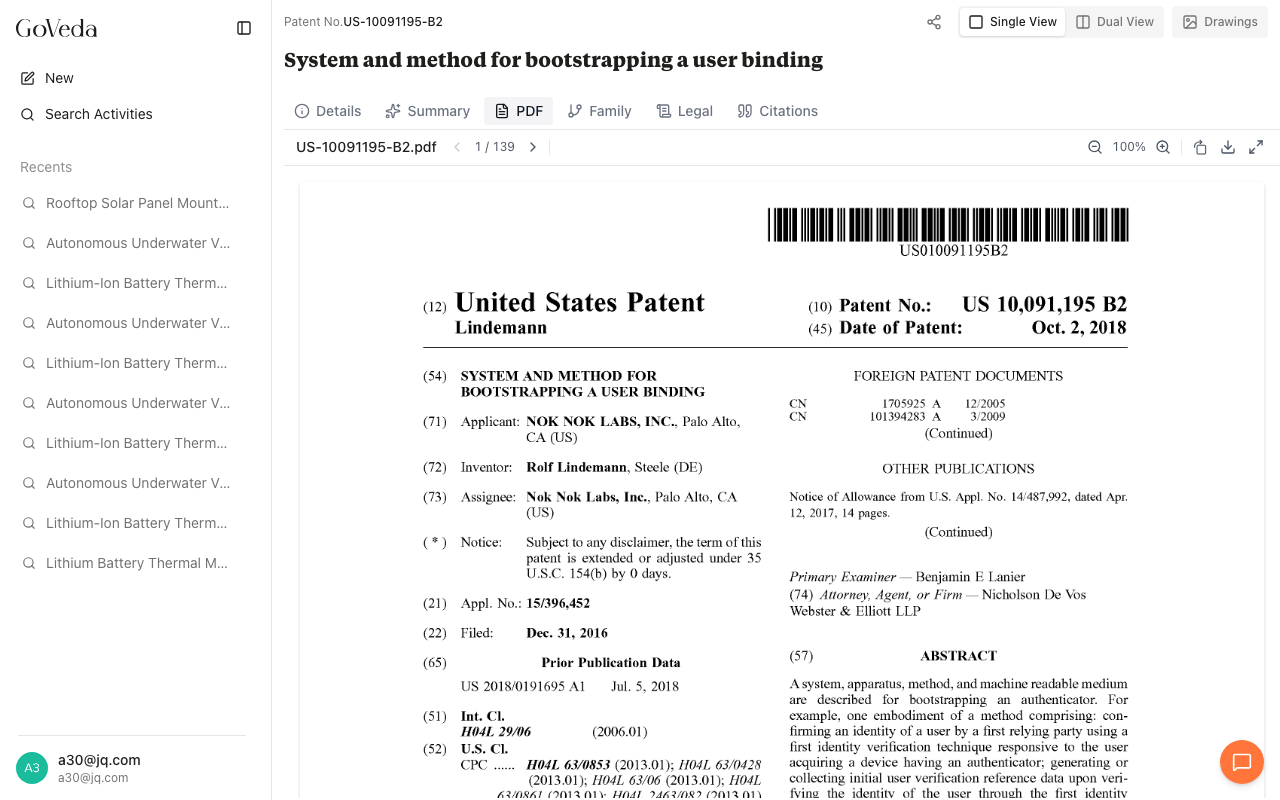
PDF availability depends on the patent office. Some older or non-US patents may not have a PDF available.
Family
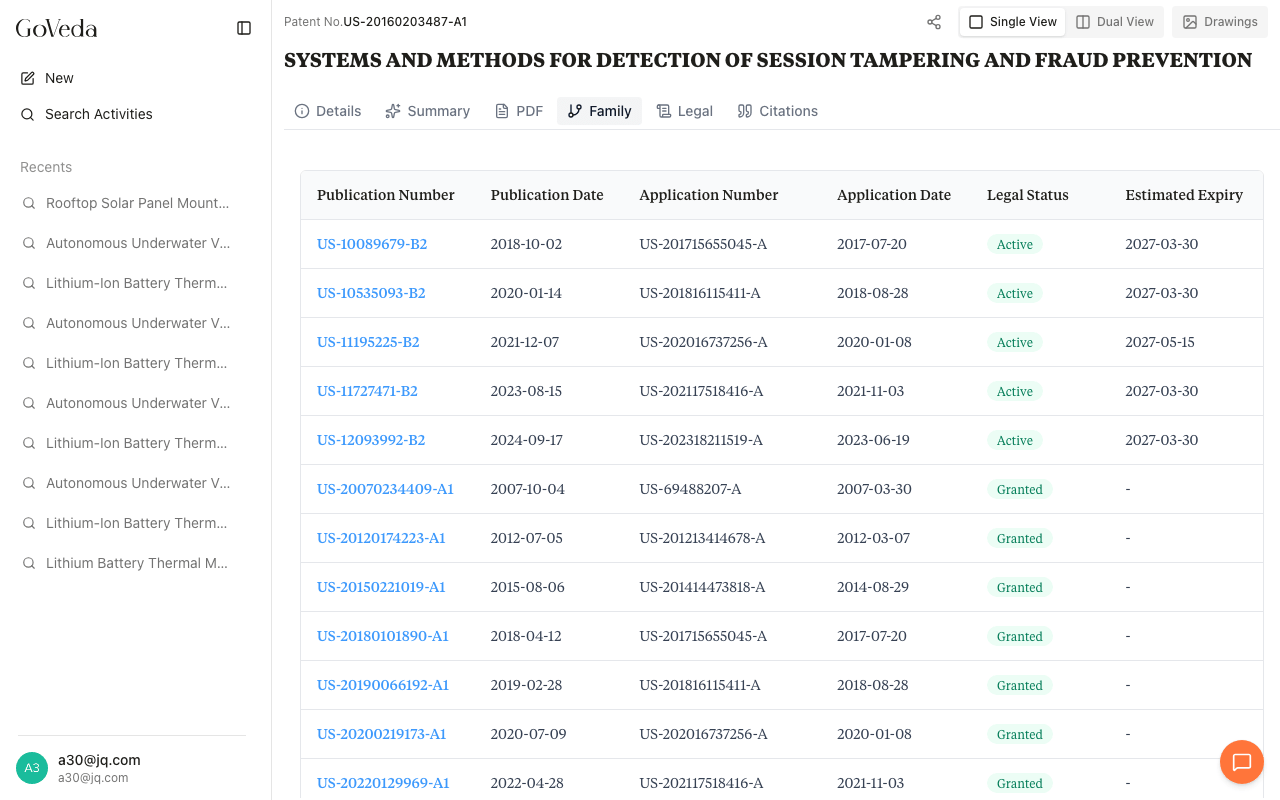
The Family tab lists the other members of the patent’s family (applications and grants in different countries and regions that share a common priority). Each row shows the Publication Number, Publication Date, Application Number, Application Date, Legal Status, and Estimated Expiry.
Legal
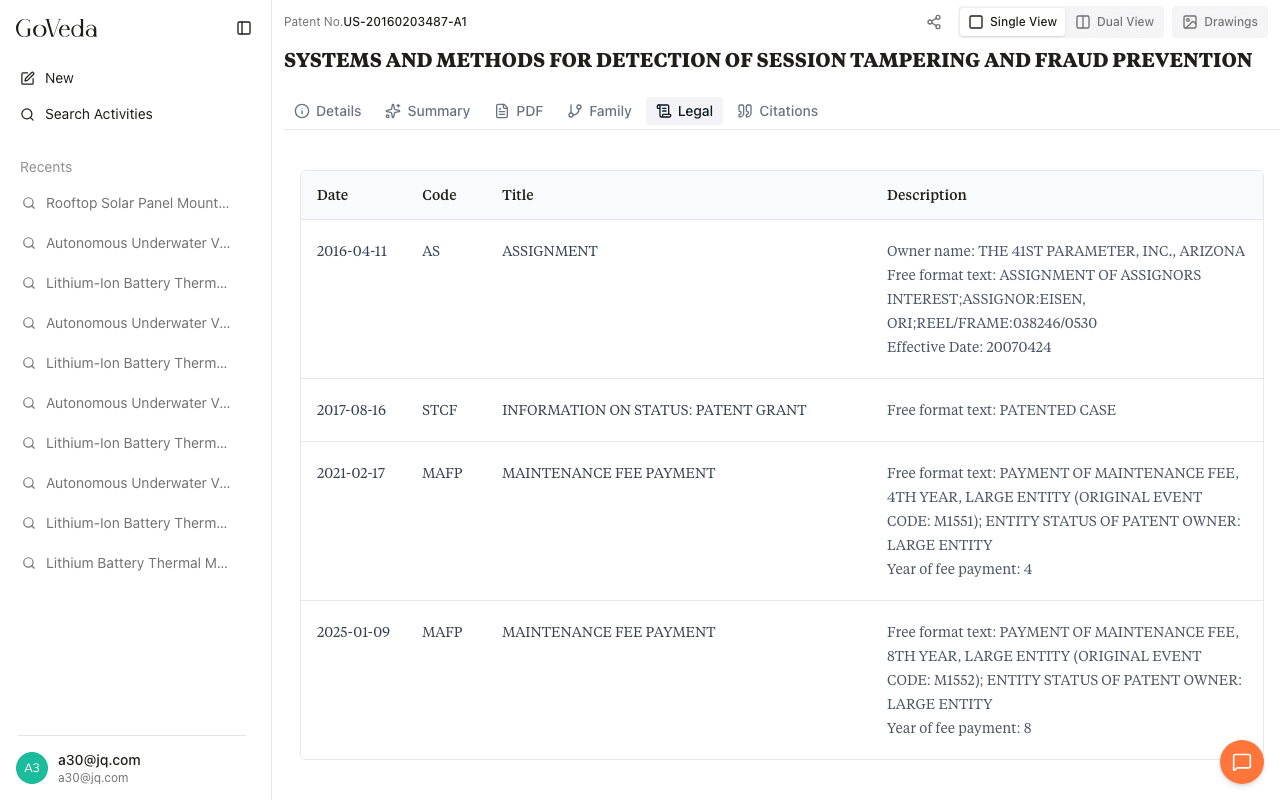
The Legal tab shows the patent’s legal event history sourced from INPADOC. Each event includes a date, an event code, a title, and a description. Common event types include assignment recordings, maintenance fee payments, grant issuance, and lapse notices.
Citations
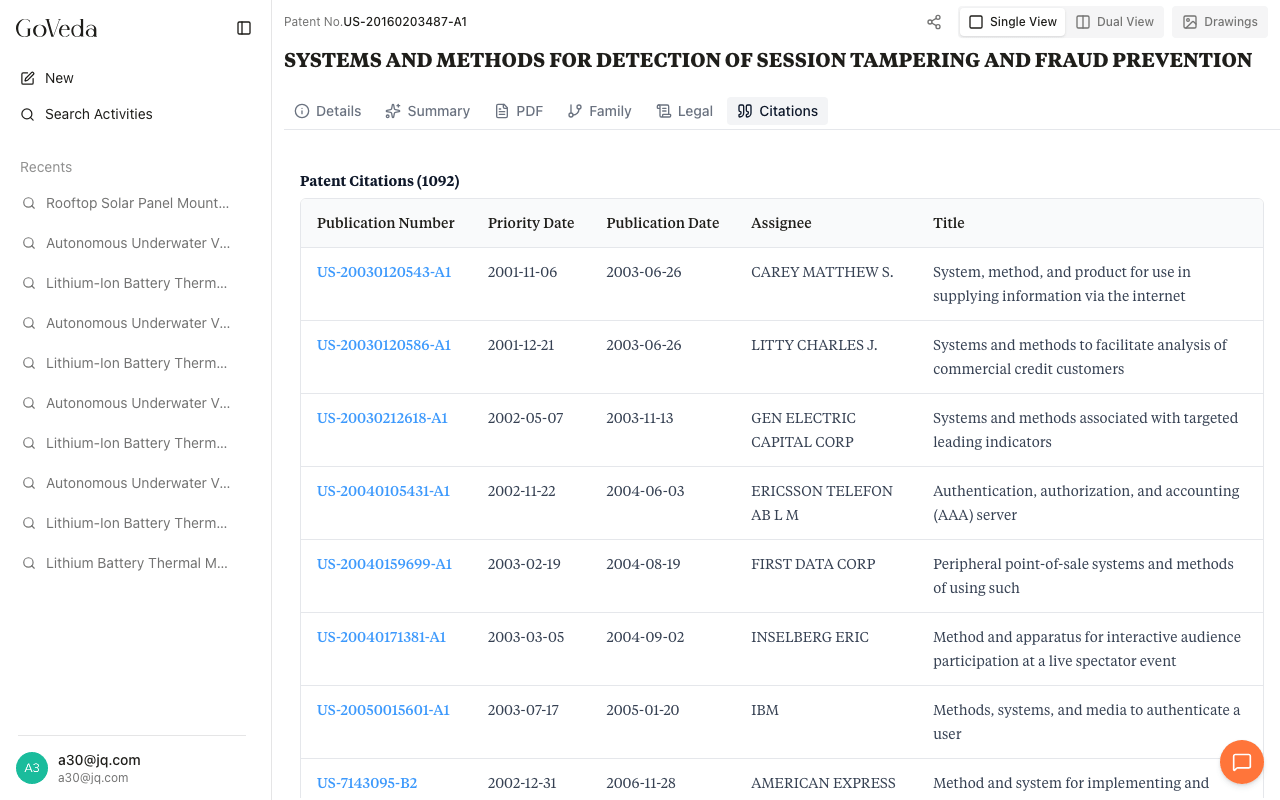
The Citations tab groups the patent’s references into Patent Citations, Non-Patent Citations (papers, office actions, and other literature), and Cited By (later patents that reference this one), each with a total count. Patent citations show metadata like dates, assignee, and title, and open in the viewer when you select them. Longer lists load a page at a time.
Drawings
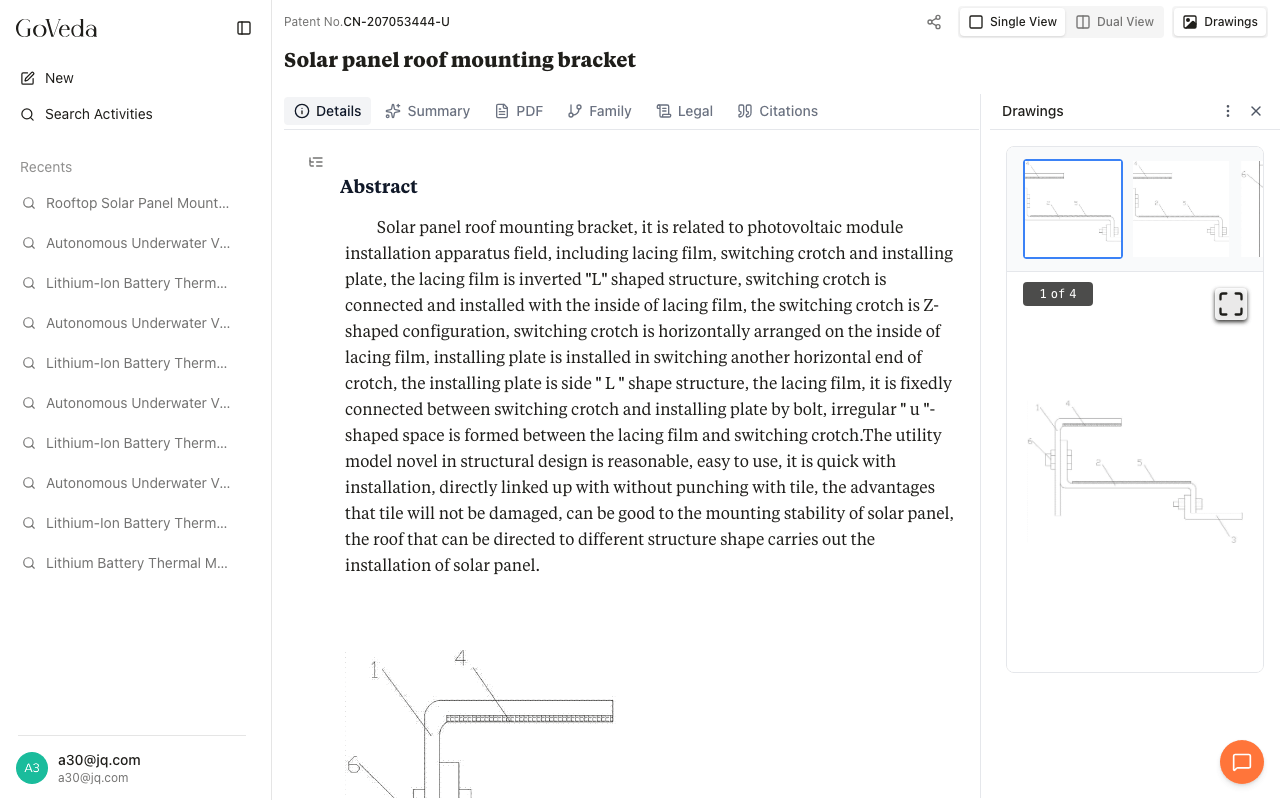
Select the Drawings toggle in the top-right header to open a side panel showing the patent’s figures. The toolbar has buttons for moving between figures, zooming and rotating. In a narrow panel, they move into its ⋮ menu. On mobile, Drawings appears as a separate tab.
Patent not found
If a patent number can’t be matched, the viewer shows an error along with up to three “did you mean” suggestions. Select a suggestion to open that patent.