Get Started
GoVeda Agent researches IP questions for you. It searches and reads more than 220 million patents from 108 countries and regions, 350 million papers and the live web alongside your own files, using GoVeda’s own IP models for patent search. It answers in the chat or delivers a PDF, Word, PowerPoint or Excel file, and works on your files in a private workspace. See Security for how your data is protected.
This page takes you through your first chat.
Start your first chat
Start with your task
Select Agent, then New chat. Begin in any of these ways, then send your message:
- Type a question about the IP matter or technology you’re working on. Say what you want to find out or produce.
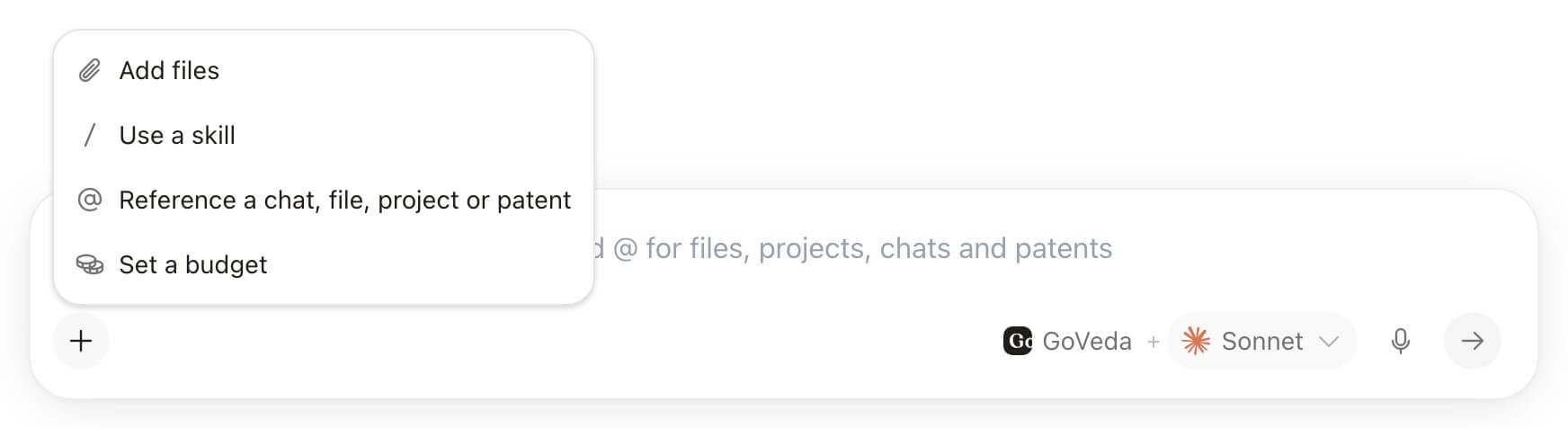
- Drag a file into the message box, paste it, or select + › Add files. Wait for the file check to finish, then say what GoVeda Agent should do with it.
- At the bottom of the page, open Examples, then choose a starting point such as Explore a technology or Check product risk, then an example. The example fills in the message box without sending it, so you can edit it first.
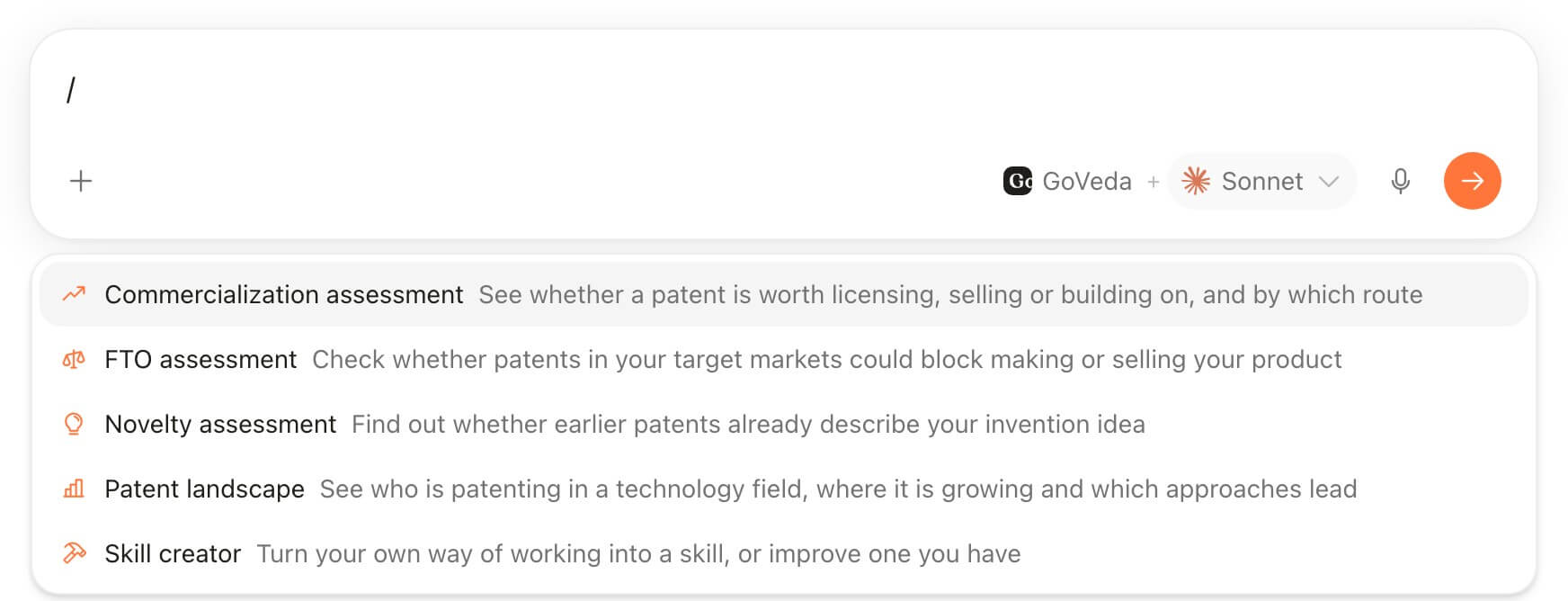
- Type
/to choose a skill: a GoVeda skill, a Community skill you’ve turned on, or one of your own.
With a brief or other source document attached, try:
Summarize this IP brief for our team. Separate facts supported by the file from open questions, and suggest what we should research next.For larger tasks, see Write a clear request below and Custom IP Work in a Chat.
Attach files
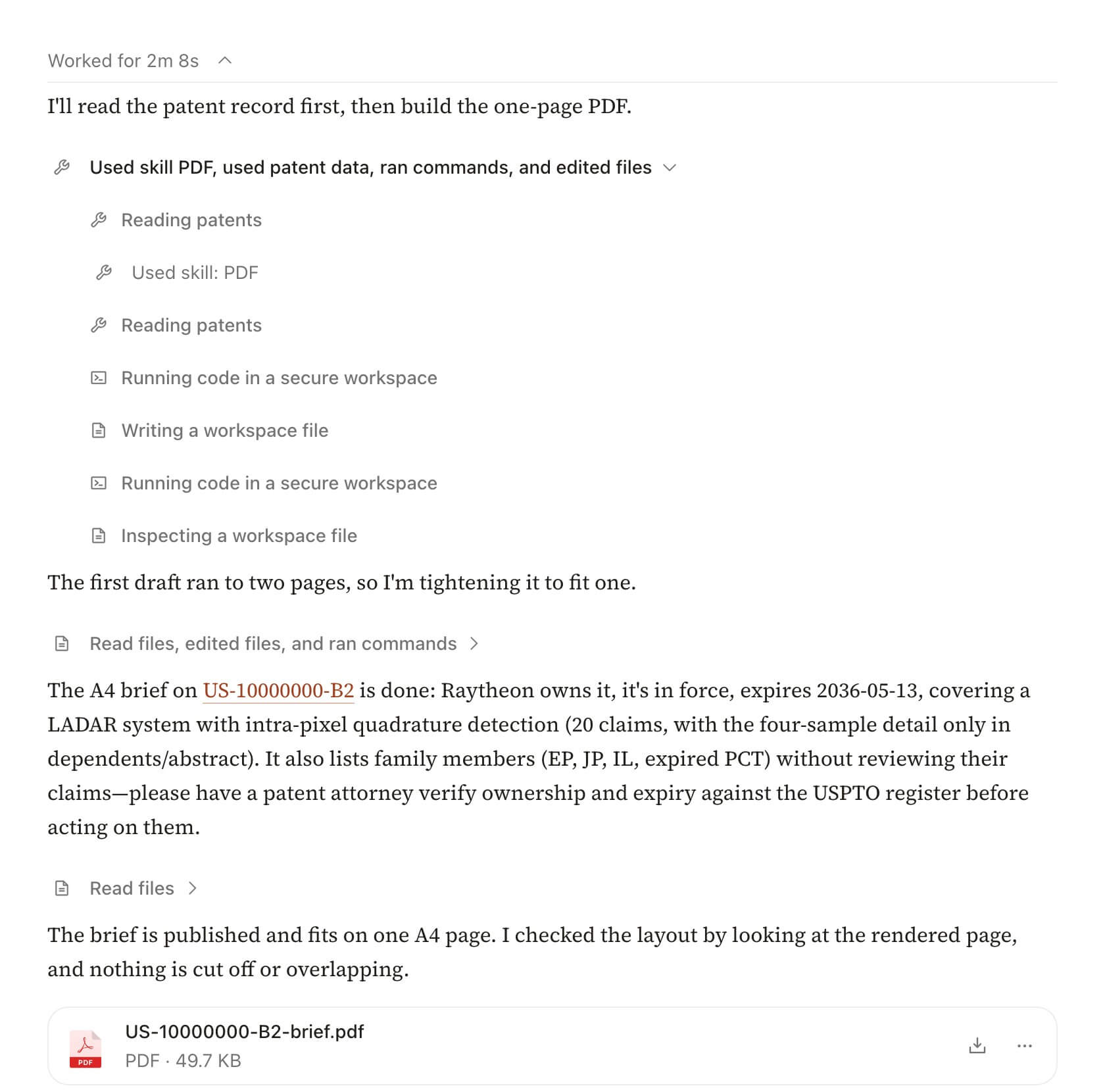
Check the result
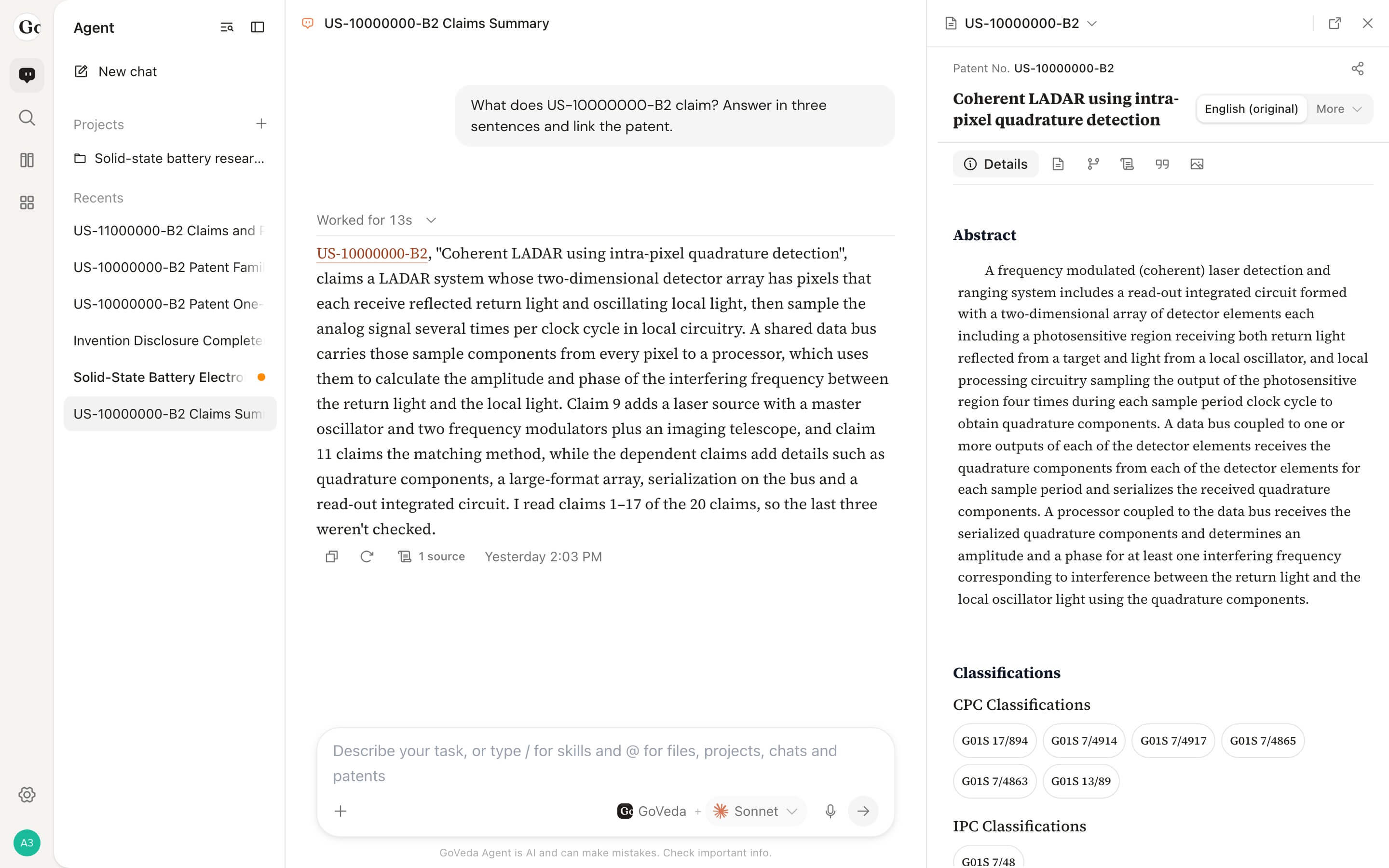
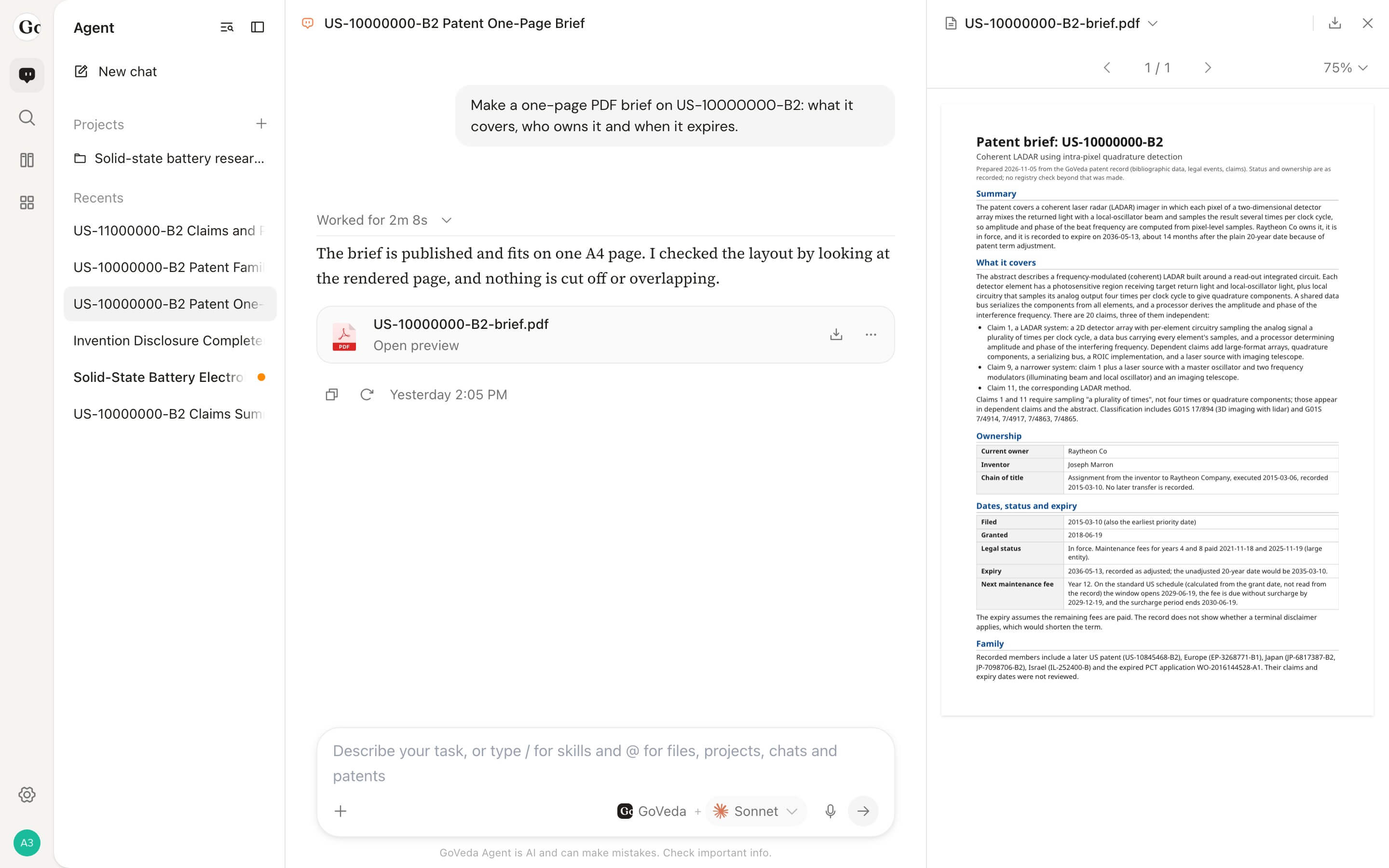
Read the answer and check important statements against the source files and references. For patent research, open the linked records. For a file, open its card and select Download.
Keep working on it
Continue in the same chat; GoVeda Agent keeps the earlier messages, files and findings in view.
- Refine it: narrow the scope, correct an assumption, add a file or ask for more evidence on one point.
- Change the format: ask for a PDF report, Word document, PowerPoint deck or Excel spreadsheet. Files it makes are also saved to Vault.
- Go back a step: Edit an earlier message or Regenerate an answer. See Edit, regenerate or retry.
- Keep a matter together: use Move to project in the chat’s ⋯ menu to keep it with the other chats, files and instructions for that matter. See Projects.
When you move on to a different question, start a new chat.
While a longer task runs
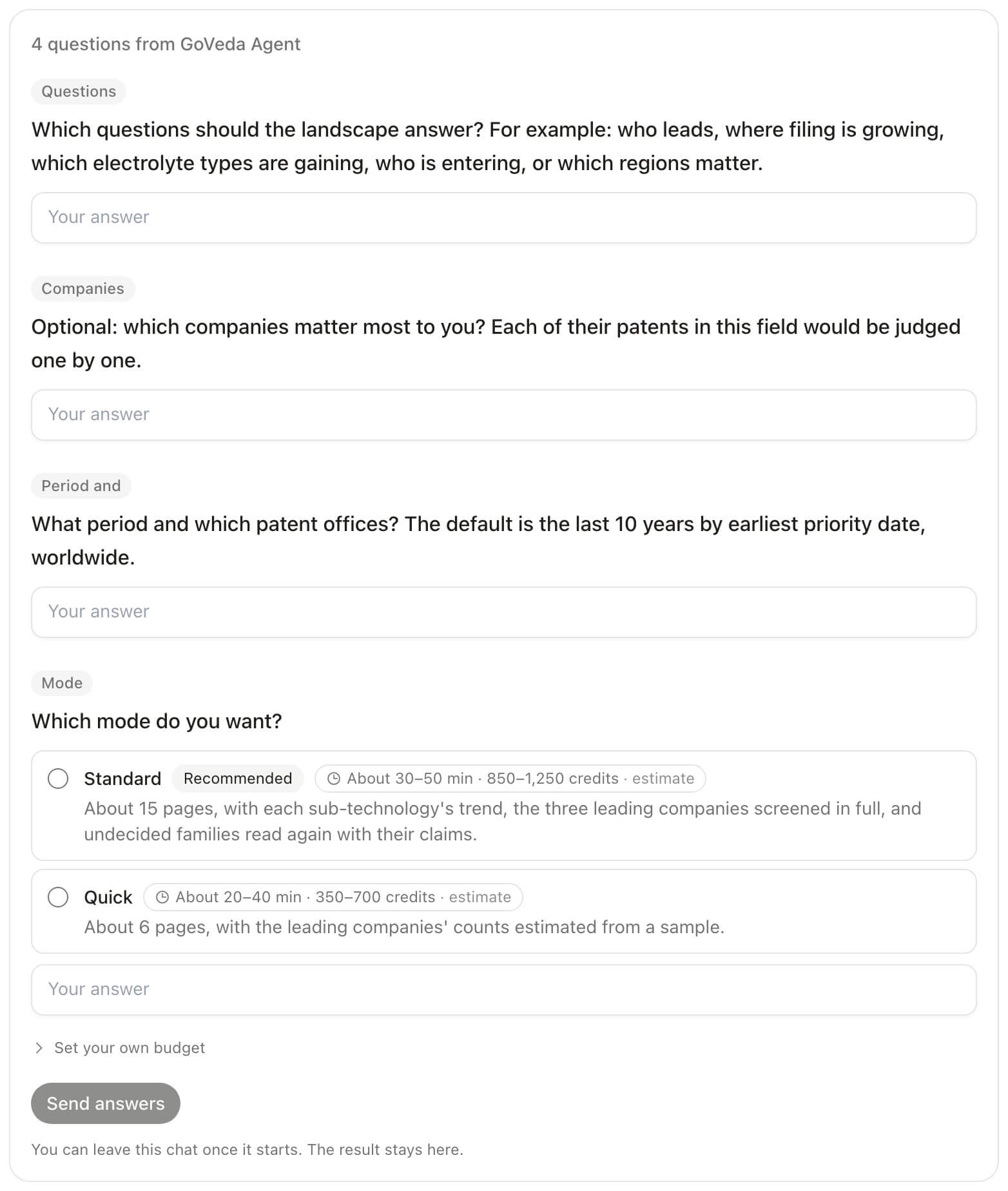
Closing the page doesn’t stop the work, and you can run tasks in several chats at once. Icons in the sidebar show whether a chat is running, has finished or failed, or is waiting for your answer; open a chat that is waiting for you so the work can continue. To add a correction, queue a follow-up or stop a task, see Steer, queue or stop a task.
A quick question uses a few credits, and an IP skill uses hundreds to a few thousand. Each message stops at 1,000 credits unless you set a budget or choose a depth for an IP skill, which comes with its own budget. See Credits & Usage.
Answer a question
Find your way around
Use the left rail to move between work areas, and the sidebar next to it to return to your own work.
- Select a destination in the left rail. On a phone, open the navigation first.
- Select Agent, then New chat, to start a chat. Use Pinned, Projects or Recents to return to earlier work.
- Select the GoVeda mark at the top of the rail to return to the Agent home page.
| Entry | What you will find |
|---|---|
| Chats (speech bubble icon) | New chat starts one; Pinned and Recents in the sidebar list your earlier chats. See Chats. |
| Projects | Chats, files and instructions for one matter or topic, listed under Projects in the sidebar. See Projects. |
| Search (magnifier icon) | Search and read patents yourself. See Patent Search. |
| Vault (books icon) | Files made in chats and files you uploaded. See Vault. |
| Capabilities (grid icon) | Patent search and reading under Tools, your skills and how often you use them. See Capabilities. |
| Settings (gear icon) | Preferences, models, memory, credits and usage. See Settings. |
Pin the chats and projects you return to often from their ⋯ menu in the sidebar; see Chats. You can collapse Pinned, Projects and Recents to shorten the sidebar.
Find earlier work
Use Global search to find chats, searches, files and projects. To search for patents yourself, use Patent Search.
- Select Global search at the top of the sidebar, or press ⌘K on Mac or Ctrl+K on Windows.
- Type what you want to find. Use the tabs to narrow results to chats, searches or Vault files.
- Select a result to open it.
Chat search matches a chat’s title and the text of its messages.
Get help
Open the avatar menu at the bottom of the left rail, then Help:
- Quick start replays the introduction tour.
- Keyboard shortcuts lists the shortcuts. See Settings.
- User guide opens this documentation.
For anything else, email support@goveda.com with a link to the chat. See also When something goes wrong.
Tasks to try
Start with your goal, then add the materials and scope the Agent needs. These examples cover IP team work, technology research and patent-specific questions.
To see a finished task first, open one of the Example chats on the home page when it shows them. Example chats are read-only; select Start a chat with this question to try the same request yourself.
For a full IP assessment, start with an IP skill or see Custom IP Work in a Chat.
Write a clear request
Ask in your own words; there is no required format. You don’t need to fit everything into the first message: add what you missed when GoVeda Agent asks, or in the same chat after you review the result. A clear request covers:
- Purpose: say what decision you need to make and who will read the result.
- Background: describe the technology, product or IP matter, and identify the relevant files and references. For an invention, explain how it works: name the components, how they relate and the conditions that matter.
- Requirements: agree on the scope, jurisdictions, dates, cutoff and language. For novelty work, give your filing or priority date. Name the file format, such as PDF, Word, PowerPoint, Excel or CSV. For a large task, ask for a plan first.
- Evidence: ask GoVeda Agent to quote the claim or paragraph behind each match, so you can check it.
To reuse a way of working, save it as a personal skill.