Memory
Memory helps GoVeda Agent reuse lasting preferences and background across your chats. Use it for stable preferences and facts, not as an archive of every document. For exact, standing requirements about one matter, use a project’s Instructions; projects also keep their own memory, separate from yours.
All memory controls are in Settings › Memory.
Let GoVeda Agent remember
Generate memory from chats is on by default. GoVeda Agent remembers preferences and background from your chats, and a chat shows Memory updated when it saves something.
To remember, correct or forget something, just tell GoVeda Agent in a chat:
Remember that I prefer short English research briefs with a conclusion first, followed by patent links and a list of unverified points.Pause or reset memory
- In Settings › Memory, turn off Generate memory from chats.
- In Turn off memory, choose Pause memory to keep what GoVeda Agent remembers without using it or saving anything new, or Reset memory to delete your personal memory and turn it off.
- Select the button for your choice.
Reset memory and Clear personal memory permanently remove your personal memory. They don’t delete project memory, chats, uploads or reports.
Review your memory summary
GoVeda Agent keeps your personal memory as a Memory summary and reads it at the start of each chat. Only you and GoVeda Agent can see it.
- Open Settings › Memory.
- Once you have a summary, select Manage to read it.
- To change it, select Ask GoVeda Agent to change it and describe the correction.
The summary updates a short while after a change. To remove everything GoVeda Agent remembers about you, select Clear personal memory.
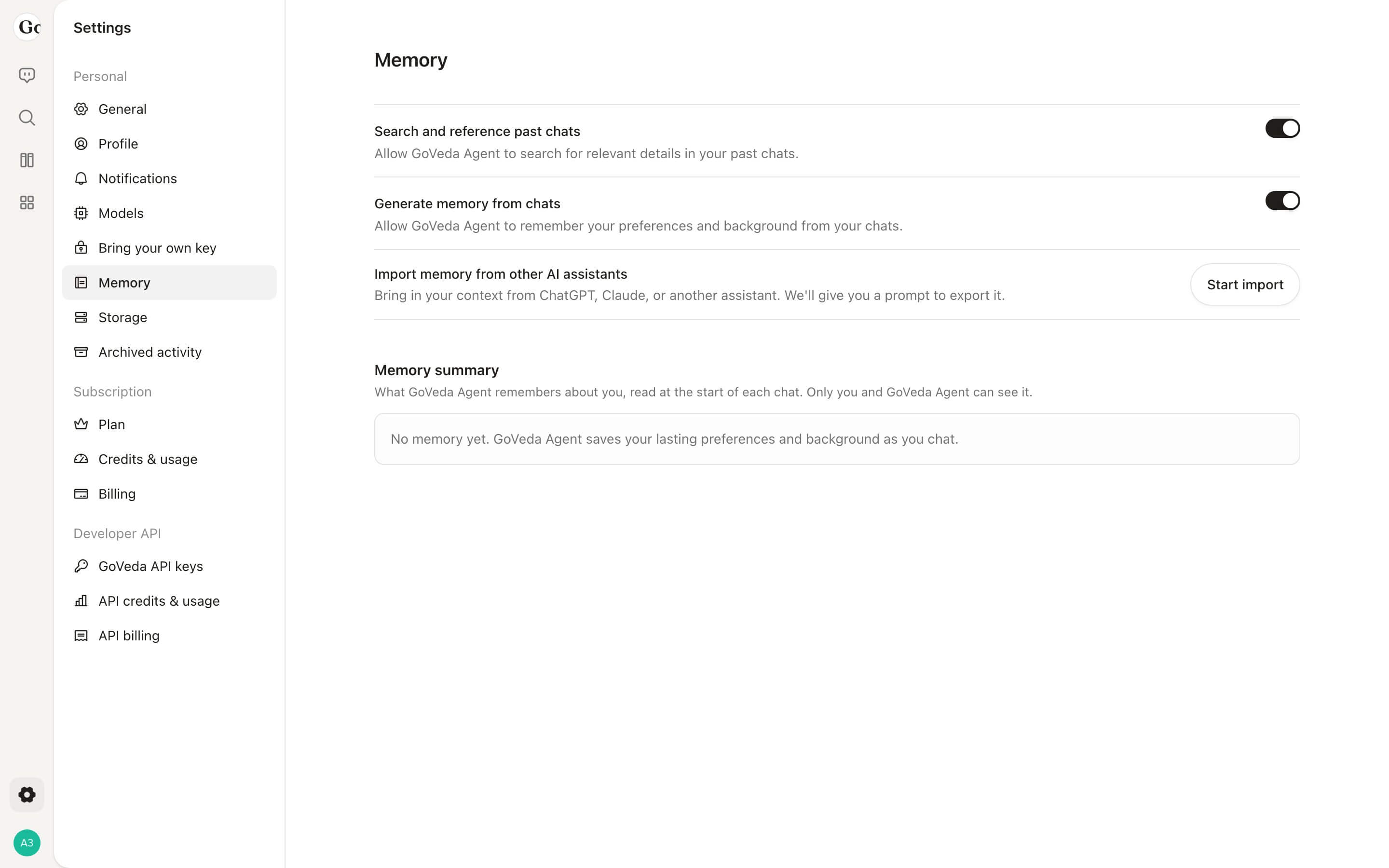
Reference past chats
Search and reference past chats lets GoVeda Agent look for relevant details in your earlier chats, and lets you reference past chats with @. It’s separate from Generate memory from chats, so you can turn each on or off on its own.
Use it when you want GoVeda Agent to look back through earlier work. For context a matter must always use, put it in project files and instructions.
A confidential project doesn’t read or write personal memory, and its chats can only recall chats in the same project.
Import memory from another assistant
Bring lasting preferences and background from another AI assistant. Memory must be on to import.
Start the import
In Settings › Memory, find Import memory from other AI assistants and select Start import.
Export your context
In Import memory to GoVeda Agent, copy the export prompt and paste it into a chat with the other assistant.
Review and add the text
Review what the other assistant returns. Choose Paste text, or Upload file for a .md file, then select Add to memory.
Check the summary
After a short while, check your updated Memory summary.
One import can contain up to 65,536 characters.
There is no account-wide custom-instructions field. Put standing client requirements in a project’s Instructions, and repeatable methods in a personal skill.