Settings
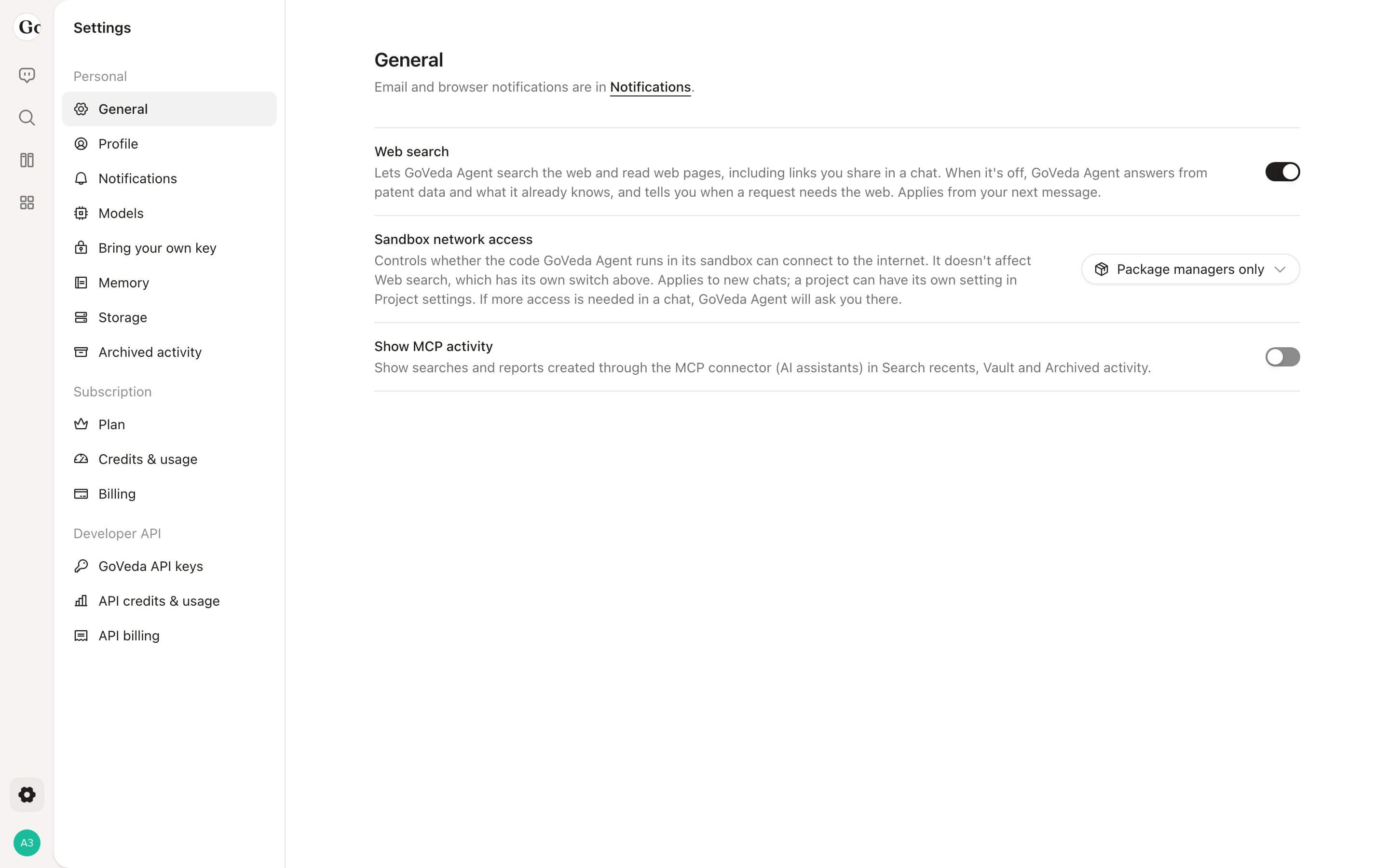
Open Settings with the gear icon at the bottom of the left rail. Personal settings apply across your account. Some say when they take effect: Web search applies from your next message, and Sandbox network access applies to new chats. Put requirements for one client matter in Project settings instead.
Find the right setting
Settings has three groups.
| Group | Page | What you can do |
|---|---|---|
| Personal | General | Turn Web search on or off, set Sandbox network access and choose whether to Show MCP activity. |
| Profile | Change your avatar and Display name, view your Email, send a password reset email, and under Sign-in methods add a password or connect the Google account that uses your email. | |
| Notifications | Choose which emails and browser notifications you get. See Notifications. | |
| Models | Show or hide language models and choose your default. See Models. | |
| Bring your own key | Connect your own Anthropic or OpenAI API key. See Bring Your Own Key (BYOK). | |
| Memory | Control memory and past-chat references; review, import or clear memory. See Memory. | |
| Storage | See how much storage your chat attachments, project files, Deliverables and Skills use, and free space by deleting chats or projects. | |
| Archived activity | Find archived items, restore them with Unarchive, or delete them. See Archived activity. | |
| Subscription | Plan, Credits & usage, Billing | Check your plan and balance, usage records, bills and invoices. See Credits & Usage and Plans & Billing. |
| Developer API | GoVeda API keys, API credits & usage, API billing | Manage API keys, API credits and API purchases. See API. |
Notifications
Settings › Notifications lists the emails and browser notifications GoVeda sends you.
- Task and report results emails you when a report you requested finishes or fails.
- Product updates controls occasional emails about GoVeda features, reports and related research.
- Security and account and Service notices are always sent. They cover signing in, your password, changes to account settings and important changes to a service you use.
- Browser Notifications lets this browser tell you when a chat finishes, fails or needs your answer while GoVeda is open in a tab. Your browser asks for permission first.
Change the interface language
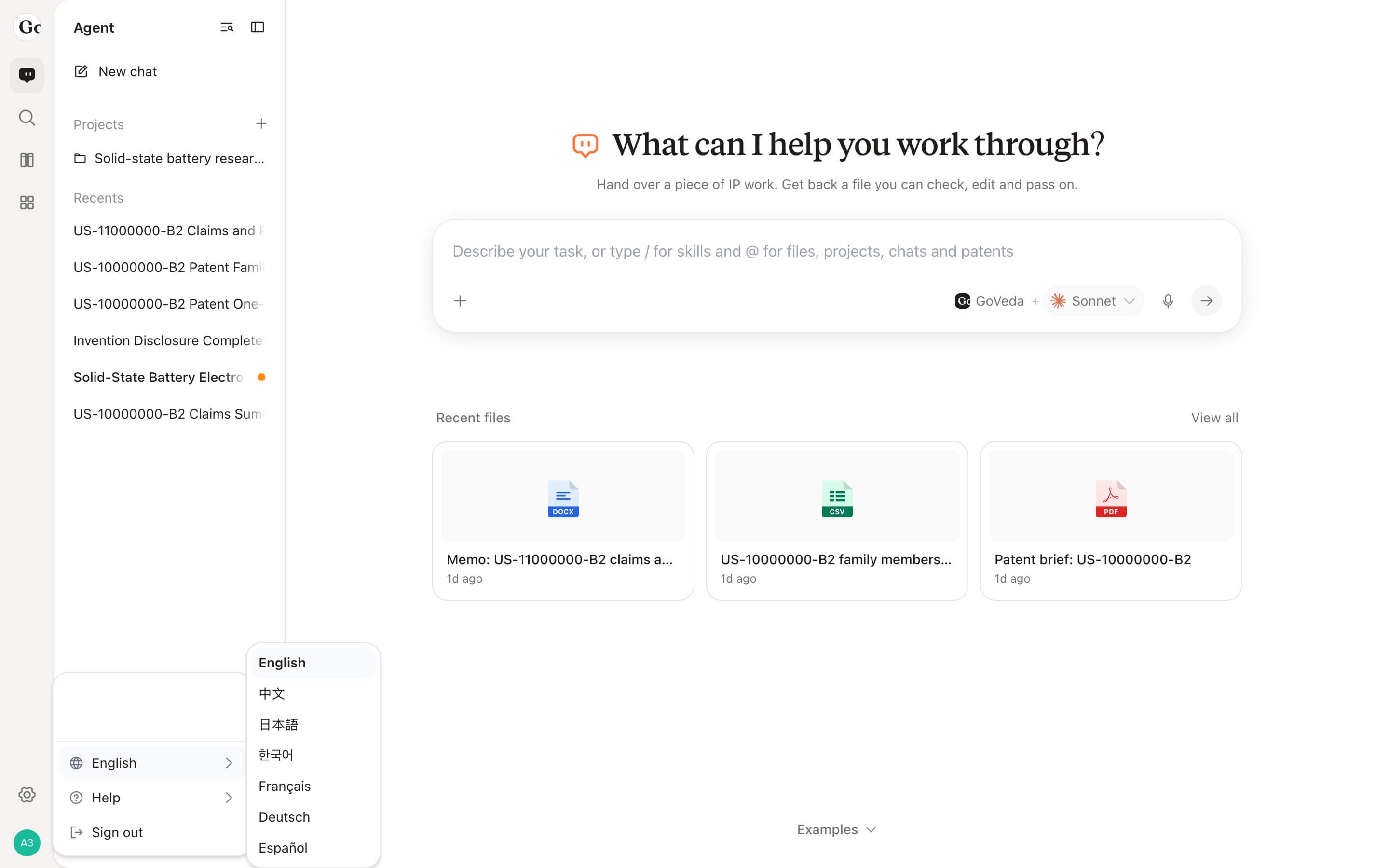
- Open the avatar menu at the bottom of the left rail.
- Select the item with the globe icon. It shows your current language, such as English.
- Choose your language.
The interface is available in English, Simplified Chinese, Japanese, Korean, French, German and Spanish. The interface language doesn’t set the language of answers and files, so state that in your request.
Keyboard shortcuts
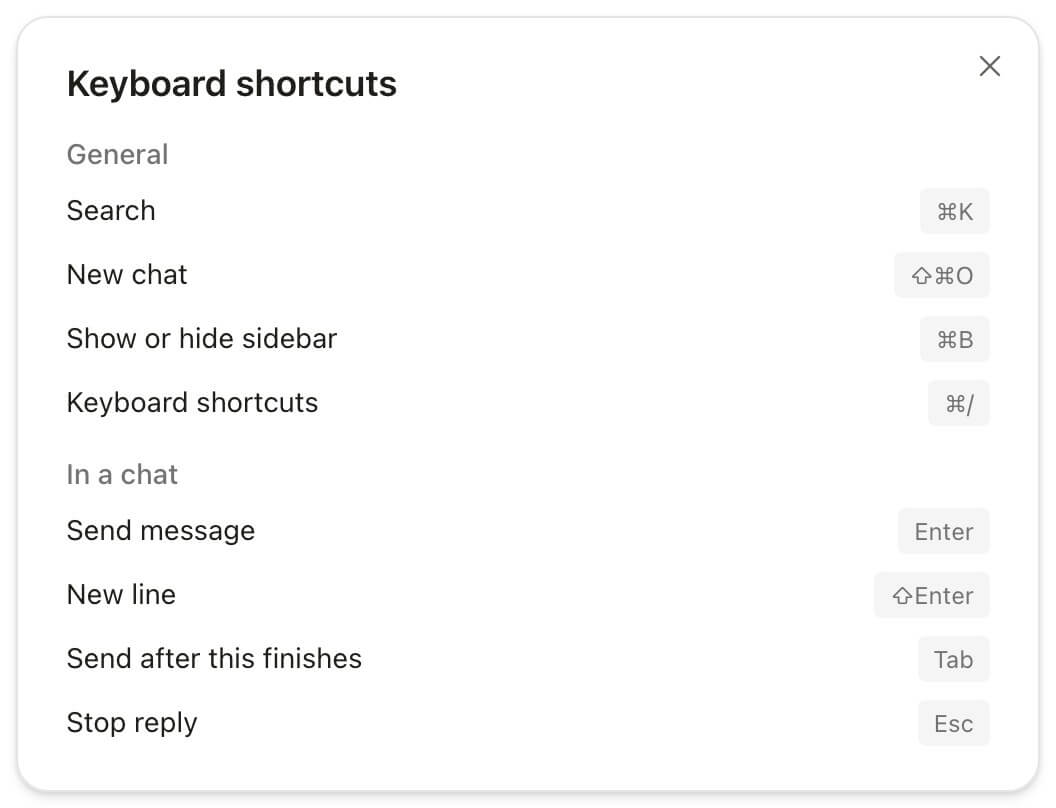
Open the avatar menu › Help › Keyboard shortcuts, or press ⌘/. On Windows, use Ctrl in place of ⌘.
| Shortcut | Action |
|---|---|
| ⌘K | Open global search |
| ⇧⌘O | Start a new chat |
| ⌘B | Show or hide the sidebar |
| Enter | Send a message |
| Shift+Enter | Add a new line |
| Tab | Queue a message until the current task finishes |
| Esc | Stop the current task |
Archived activity
Archiving hides a chat from the sidebar. Files from archived chats stay in Vault. Use Settings › Archived activity to find archived items, Unarchive to show one in the sidebar again, or Delete to remove it permanently.
Deleting a chat also removes its uploaded and generated files from Vault. Copies saved to a project stay in the project. Delete all removes every archived item, including items outside the current filters. Deleted items can’t be restored.