Understanding Results
After a semantic search completes, GoVeda displays a paginated list of the most relevant patents. This page explains what each result shows and how to work with the results page.
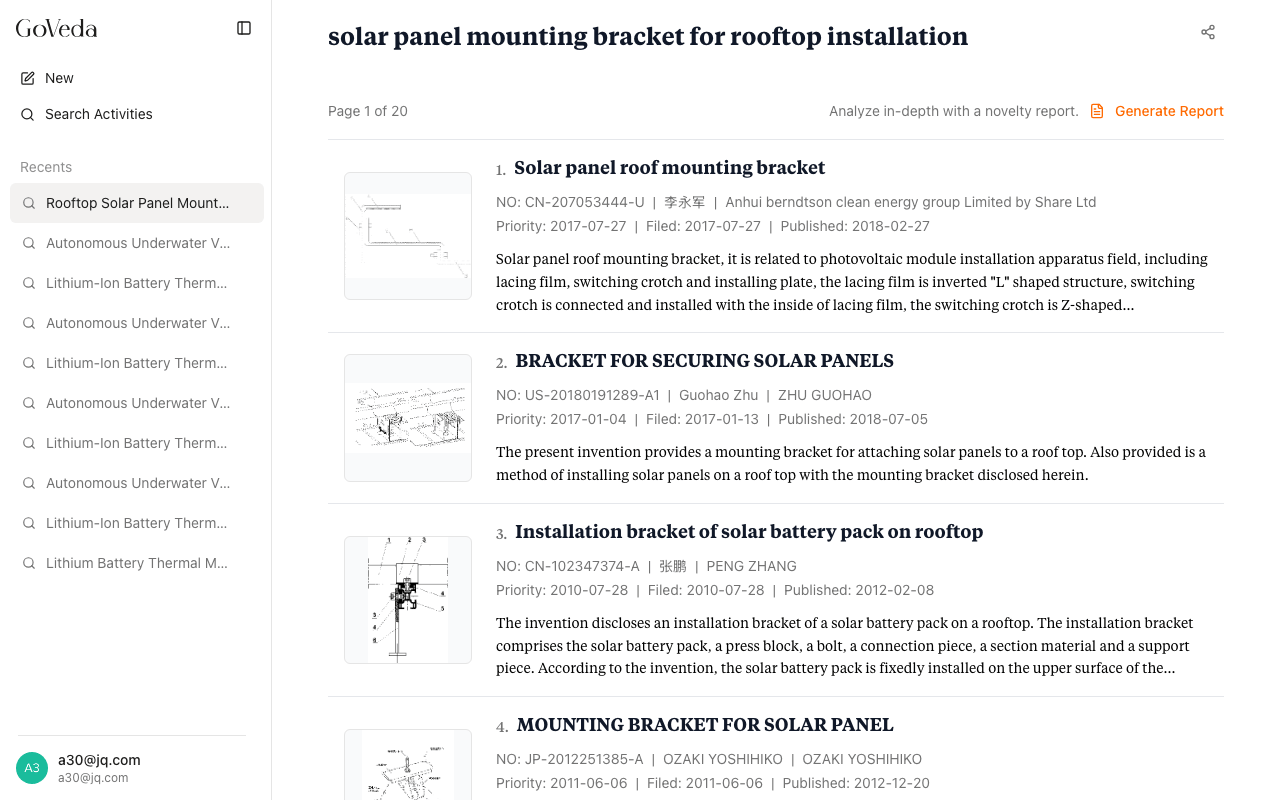
Results page layout
The results page has three main sections:
- Search header — Shows your original query and a share button (for logged-in users)
- Filters — Shows the filters on this search, with Edit to change them, or “No filters”.
- Results list — Patent cards ranked by relevance, with pagination below
A summary line above the list shows which page you are on and the total number of pages.
What each result card shows
Every result card displays the following information:
| Field | Description |
|---|---|
| Rank | Position in the results list (1, 2, 3, …) |
| Figure | A drawing from the patent, or No figure when there isn’t one. Results show text only by default; on a computer, choose Text and drawings above the results to show figures |
| Title | Patent title as published |
| UCID | Unique identifier in country-number-kind format (e.g., US-7654321-B2) |
| Inventor | First listed inventor on the patent |
| Assignee | Organization that owns the patent |
| Priority date | Earliest priority date, which determines novelty cutoffs |
| Filed | Application filing date |
| Published | Publication date |
| Language | Primary language of the patent document |
| Legal status | Current legal status, such as Pending, In force, Patented, Abandoned, Lapsed, Expired, Revoked, or Unknown |
| Abstract | First few sentences of the abstract (truncated to three lines) |
If a patent has no title, the card shows a short excerpt from its abstract instead (or its UCID if there’s no abstract either), so every result card has something readable to go on.
If a patent has no abstract, the card shows its first claim when available. Otherwise it shows No abstract available.
Active filters
If you applied filters before searching (or with Edit on the results page), the active filter values appear in a Filters card above the results list — labeled lines like Authority: US, EP, Current owner: Qualcomm Inc., Legal Status: Pending, In force, and Classification: (H02J 50/00 OR H02J 50/10).
To change the filter state, select Edit on the Filters card to re-open the Search Filters dialog, where you can edit, add, or remove filters and search again.
Classification editing uses a browse-aware picker — you can search the CPC/IPC hierarchy by keyword and walk up to ancestor codes if a specific code is too narrow.
See Advanced Filters for the full filter list and combining logic.
How results are ordered
Results are ranked by how closely each patent matches the meaning of your query; the first result is the closest match. No numerical relevance score is shown on the card; the rank position reflects it.
Navigating results
Opening a patent. Select a result card to open the Patent Viewer for that document. The viewer shows the full text, claims, drawings, and legal status.
Going back. Use your browser’s back button to return to the results list — your position on the page is preserved. When you navigated to the patent from within GoVeda, a back button in the patent page header takes you back as well.
Next and previous within a patent. When viewing a patent opened from search results, navigation arrows appear to move to the next or previous patent in the list without returning to the results page.
Pagination
Results are shown 10 per page. If your search returns more than 10 patents, a pagination control appears at the bottom of the list. Select a page number or the Previous/Next arrows to move between pages.
Your current position (e.g., “Page 2 of 8”) appears at the top of the list.
Going further in GoVeda Agent
At the top of the results list, Ask GoVeda Agent opens a new chat with your query and filters already in the message box. Add what you want done, such as a novelty report or a comparison of the top results, and send it. Nothing is sent until you do. GoVeda Agent runs the search again from that text. See GoVeda Agent.
If no results appear
GoVeda may return zero results for queries that are very narrow or use terminology not present in the database. Try broadening the description, using different technical terms, or splitting a multi-concept query into separate searches.