Projects
A project keeps the chats, standing instructions, files and memory for one client matter or research topic together. Use a project when several conversations need the same background. For a single unrelated answer, start a chat instead.
Create a project
- Open Agent and select the + by Projects to open New project.
- Enter a Project name. Choose Confidential if you want to keep recall within this project and exclude personal memory. Select Create project.
- Open the ⋯ menu next to the project name and select Project settings. In Instructions, write standing guidance: client background, jurisdictions, terminology, report language and audience.
Instructions can contain up to 16,000 characters. Changes apply from the next message. Start related chats in the project so they share this guidance.
For example, use these instructions for a client matter:
For this project, use English for all reports and focus on US and EP rights. The client is developing a joint torque sensor for collaborative robots. Keep confirmed technical facts separate from assumptions, link the patent evidence, and end each brief with unresolved questions. Deliver each report as a PDF.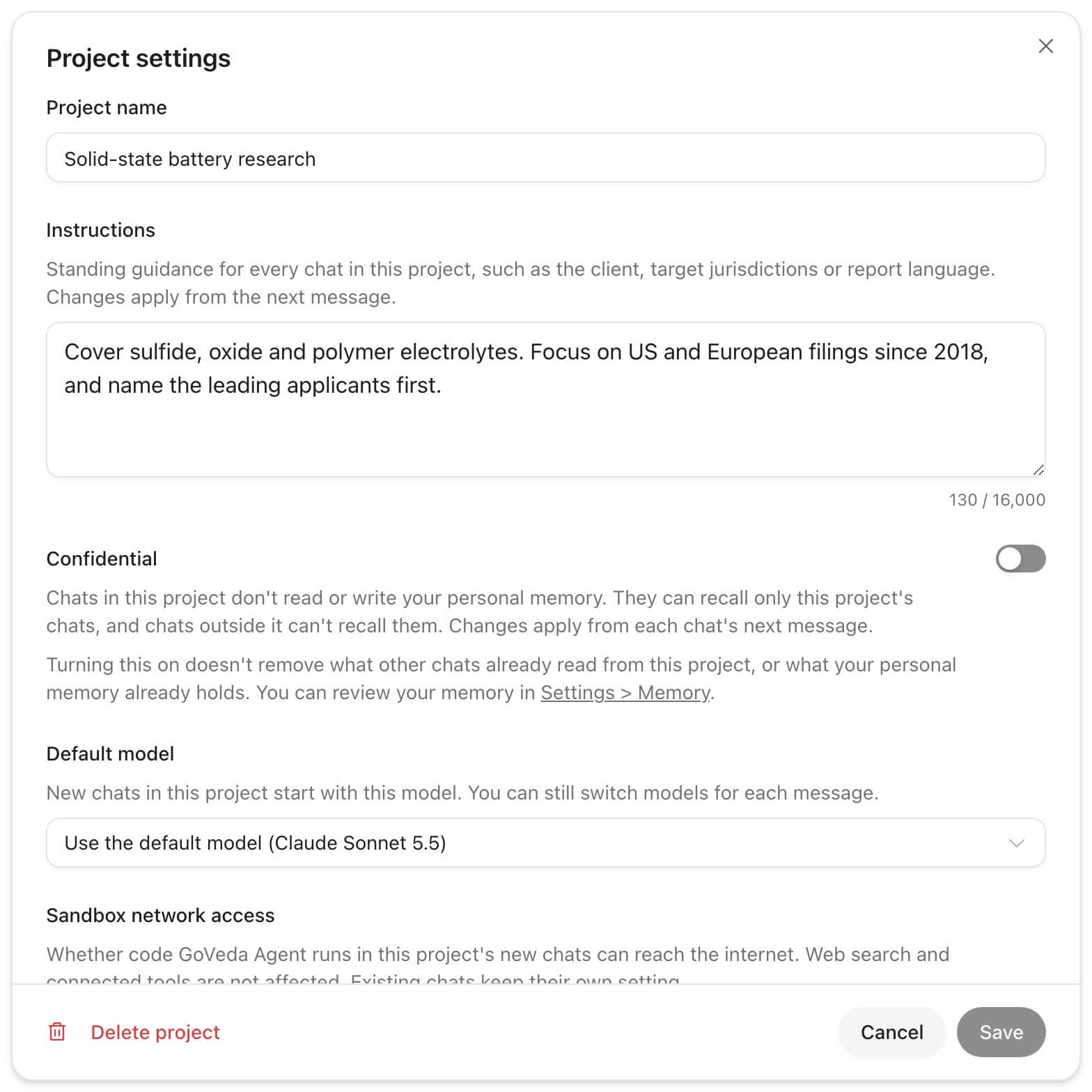
Share files across project chats
Use project files for materials that several chats need, such as a disclosure, office action or prior art. Use a chat attachment when the file is relevant only to that conversation.
- Upload to the project. Open the project’s Vault, choose Uploads and select Upload files. A project holds up to 100 files, up to 50 MB each.
- Save chat files to the project. Save relevant attachments and deliverables from project chats into the project. Every chat in the project can read those copies.
Within a project, GoVeda Agent can also open files from the project’s other chats when you refer to them. For example, you can ask it to combine two reports from earlier chats. To do this, you need Search and reference past chats turned on in Settings › Memory.
See Vault for managing attachments and deliverables.
Set defaults for project chats
Open ⋯ › Project settings to change these options.
| Setting | What it controls |
|---|---|
| Default model | The starting model for new project chats. You can still switch models for each message. With Use the default model, the project follows your personal default. See Models. |
| Sandbox network access | Whether the private workspace of new project chats can reach the internet. Web search is not affected. Existing chats keep their own setting. |
| Personal skills | With specific skills checked, project chats can use only those personal skills, including checked skills turned off in Capabilities. With none checked, they use your enabled personal skills. Changes apply from each chat’s next message. See Your Own Skills. |
| Confidential | Project chats do not read or write personal memory. They can recall only this project’s chats, and chats outside the project cannot recall them. Changes apply from each chat’s next message. |
Turning on Confidential does not remove content already read by other chats or already saved in personal memory. Review existing memory when you change this setting. Project memory stays separate from personal memory.
Review project memory
Project memory keeps case context, such as the client, key patents and conclusions. Only chats in this project read it.
- Open the project’s Memory tab.
- Once the project has memory, select Manage to read it. Use Ask GoVeda Agent to change it to request a correction or removal.
- To remove all memory for this project, select Clear project memory.
Clearing project memory cannot be undone. It does not affect personal memory, other projects or the project’s chats.
If memory is off in Settings › Memory, projects neither read nor save project memory. See Memory for the controls.
Move chats and order projects
Use Move to project or Remove from project in the chat menu. On desktop, you can also drag a chat into a project. Stop running work first, and unarchive archived chats before moving them.
When you move a chat out of a confidential project, other chats can recall it. Its earlier replies may include content from that project.
Drag projects in the sidebar to set their order. On a phone, or using a keyboard, use the project menu’s Move up and Move down.
Pinned projects stay under Pinned and cannot be moved. Select Unpin to return a project to its place. Chats inside a project keep their own order.
Remove a file or delete a project
Removing a project file prevents future messages from reading that file through the project. It does not erase earlier answers or copies already used. Upload a new file when its contents change.
Use ⋯ › Delete project only when you no longer need the matter. This permanently deletes the project and all its chats, files and memory. Stop any running work first. To keep a chat, remove it from the project before deleting.
Projects organize your work. They do not provide public or team sharing links. To send a deliverable, download the file and send it to the recipient.