Bring Your Own Key (BYOK)
With bring your own key (BYOK), GoVeda Agent uses an API key from your own Anthropic or OpenAI account. With a key enabled, the AI model’s own work in your chats is billed to your account with that provider instead of your GoVeda credits. Patent search and reading, web search, the workspace and the other tools GoVeda runs for the model still use your credits. What your key pays for shows the split.
These are keys you create with a model provider. They are different from GoVeda API keys (sk_goveda_...), which give your own code access to the GoVeda REST API.
Before you start
- You need access to GoVeda Agent on your plan.
- Create an API key with one of the supported providers. The key must belong to an account with billing set up and access to the models you plan to use.
- GoVeda recommends a key used only for GoVeda, in a workspace or project with a monthly spending limit set at the provider. That keeps GoVeda’s usage separate in your provider’s usage reports and caps what it can spend.
- Keys connect to the provider’s own API. To use models through your organization’s cloud account, such as Azure, Amazon Bedrock or Google Vertex AI, or your own endpoint, contact us .
Supported providers
| Provider | Your key pays for | Create a key | Check usage and charges |
|---|---|---|---|
| Anthropic | Claude models | Anthropic Console | Usage |
| OpenAI | GPT models | OpenAI Platform | Usage dashboard |
You can add one key per provider.
Use the API credits included with a Claude plan
Claude Max and Team plans include monthly Claude API credits. Your key in GoVeda can draw on them once your plan is linked to a Claude Console organization. See Anthropic’s API credits for Max and Team plans for amounts and eligibility.
- On claude.ai, open Settings > Billing (Max) or Organization settings > Billing (Team), and link a Console organization under API credits.
- In that Console organization, create an API key, ideally in a workspace used only for GoVeda.
- Add the key under Anthropic in GoVeda.
Signing in with your Claude account does not work here; GoVeda needs an API key. The included credits are spent before any credits you bought, expire at the end of each billing cycle and are shared by every key in the organization. When they run out and the organization has no other balance, your chats pause with a usage-limit message until the next monthly credit arrives or you add funds in the Console.
Add a key
- Open Settings › Bring your own key.
- Select Add key next to the provider.
- Paste the key into API key.
- Select Validate and save. GoVeda sends a short test request with the key and saves it only if the provider accepts it.
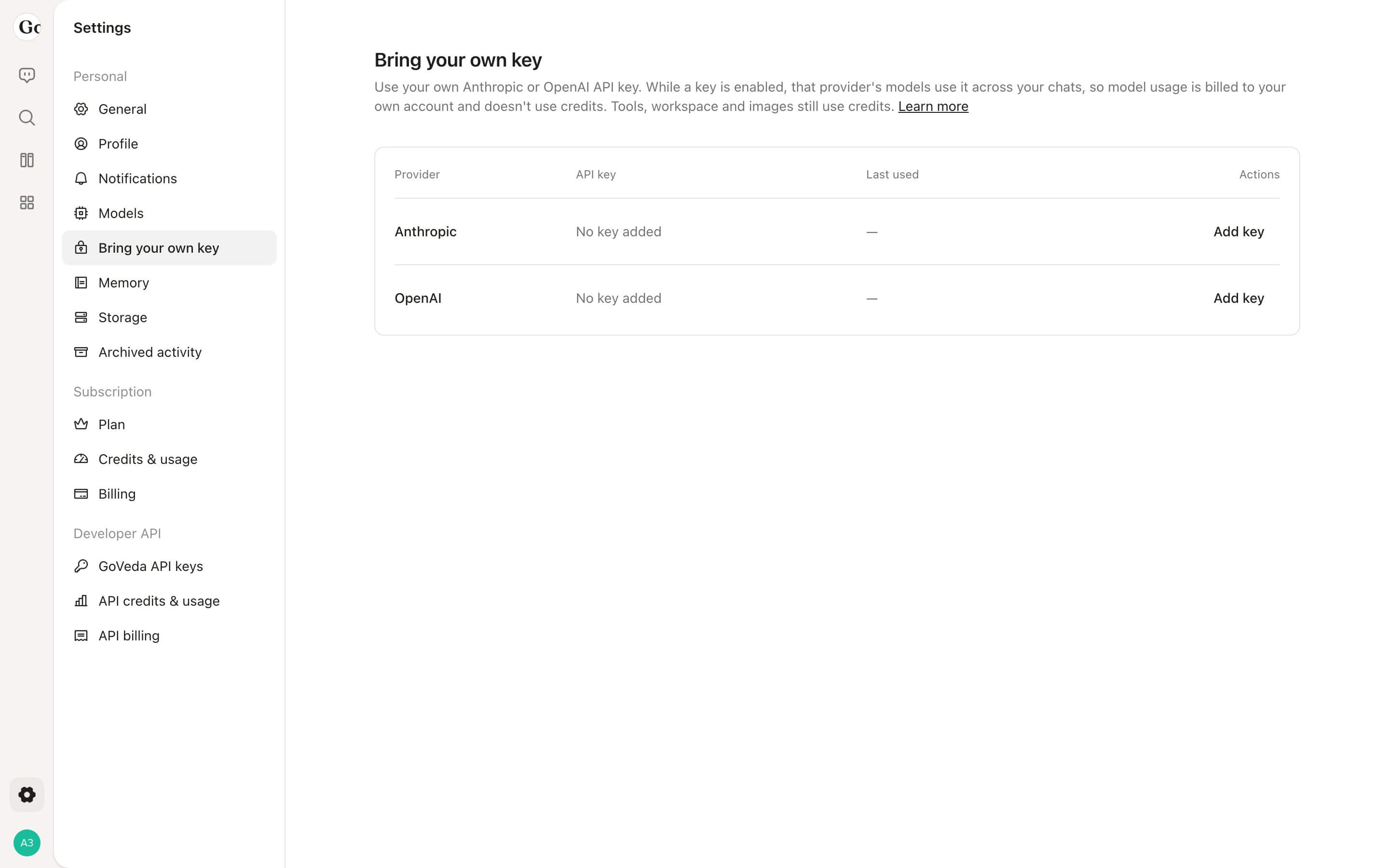
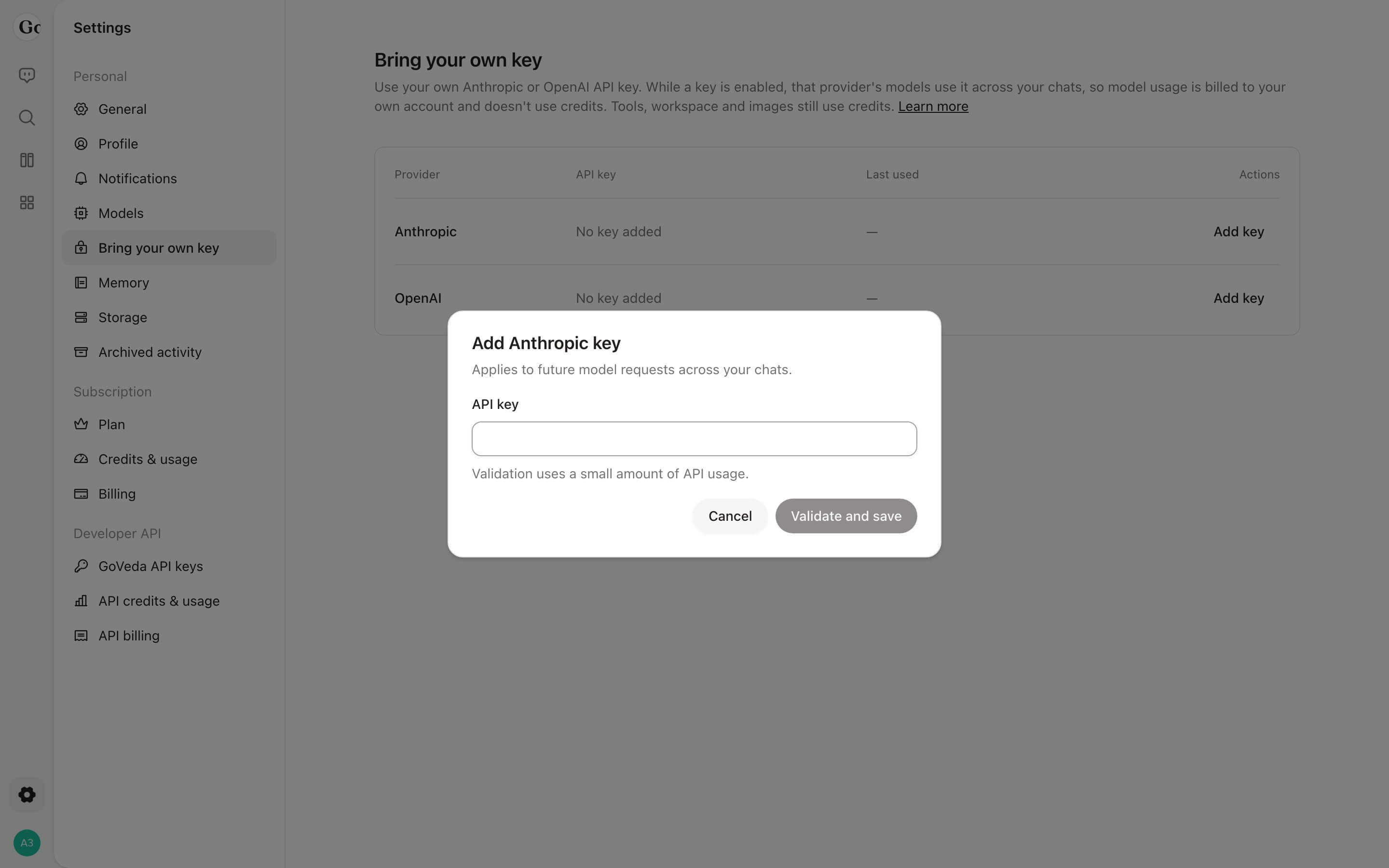 The test request goes to the provider’s smallest model and costs your provider account < $0.01. A key limited to certain models also needs access to that model.
Once saved, the row shows the key’s last characters and when it was last used. From the next model request on, every request to that provider’s models in your chats uses it. You keep choosing models in the chat as before; there is no separate payment choice per chat.
What your key pays for
With a key enabled, a chat draws on two balances. If the model is thinking or writing, your provider pays. If GoVeda is fetching, running or creating something for the model, credits pay.
Your provider account, billed by the provider as usage of your key:
- The model reading your messages, files and tool results, thinking, and writing replies, plans and reports, in your chats
- Summarizing earlier parts of a long chat so it can continue
- Validating a key when you add or change it (< $0.01)
Your GoVeda credits, at the usual rates:
- Patent search and reading, such as searching patent records and reading their full text and legal status
- Web search and reading web pages
- Running code and working with files in the Private Workspace
- Creating images (never your provider key)
- Models from a provider you have no key for: both the model and its tools use credits
For example, you add a key for a provider and ask one of its models to find prior art for an invention. It runs four patent searches, reads ten patents and two web pages, and writes a summary. The provider bills your key for the model reading the results and writing the summary. GoVeda deducts credits only for the searches and the reading.
GoVeda adds no fee for using your own key. Most IP research uses patent search and reading, so keep a credit balance. With a key enabled, you can still chat with that provider’s models when your balance is zero, but tools that use credits need a balance. For what else affects consumption, see Credits & Usage.
See the split in Credits & usage
Open Settings › Credits & usage.
- Records where your key paid for the model are marked with the provider’s name, such as (Anthropic API).
- The Credits column shows only what came from your credits, that is, the tools.
- When your key covered the model, the amount the record would have cost without your key is shown struck through next to it.
GoVeda does not show what your provider charged. Check that in your provider account; the supported providers table links to each usage page.
Change, disable or delete a key
- Change key (next to the provider) validates the new key first. Your saved key is replaced only after validation succeeds; if it fails, the old key stays in use.
- Disable (in the … menu) stops using the key without removing it. Later model requests for that provider use your credits. While requests already sent are finishing, the status shows Disabling. Select Enable to use the key again.
- Delete (in the … menu) removes the key from GoVeda. To use your own key again, add it again.
Changes take effect from the next model request, including in chats and tasks that are already running. Requests already sent finish and are billed the way they started.
Disabling or deleting a key in GoVeda does not revoke it at the provider. If you no longer want the key to work anywhere, revoke it in your provider account too.
When a request fails
A key that passed validation can still fail later, for example if its balance runs out or it has no access to a model you select. GoVeda never switches to your credits when your key fails. The chat pauses, keeps its progress, and shows what to fix.
| Message | What it means | What to do |
|---|---|---|
| Your API key is unavailable. Check it in Settings. | The provider rejected the key (invalid, revoked, or no access). | Check or change the key in Settings › Bring your own key, then select Retry. |
| Your API key has reached its usage limit. | Your provider account is out of balance, or reached a spending or rate limit. | Add funds or raise the limit with your provider, then select Retry. |
| This conversation has more content than the model can handle at once. | The request is too long for the model. Not a key problem. | Edit your last message so it reads less, or start a new chat. |
| The model didn’t accept this request. | The provider refused this particular request. Not a key problem. | Edit your last message or switch model. |
If GoVeda can’t confirm a request finished, the chat asks you to select Retry, so you aren’t billed twice.
Brief provider rate limits are retried automatically.
Safeguard for long tasks
Because your credits do not limit model requests paid by your key, GoVeda stops a single task if its model usage becomes unusually large. You see a stop notice in the chat; send another message to continue.
Security and privacy
How your key is protected
- Nobody can read your key after you save it. Not you, not your team and not GoVeda staff. There is no way to view it again; Settings shows only its last few characters and when it was last used.
- Encrypted before it leaves your browser, and while stored. Your browser encrypts the key before sending it, and GoVeda keeps it encrypted at rest.
- The AI and its tools never have your key. GoVeda Agent runs the AI model, its tools, code and your workspace in services that hold no keys and cannot decrypt them. A file or web page that tries to trick the AI has no key to reveal.
- One separate, network-isolated service handles keys. Only this key service can decrypt keys, and it runs on its own isolated network. It uses your key only at the moment a model request is sent, and sends the request only to your provider’s official API.
- Monitored. Access to keys is logged and monitored.
- Only you use it. Your key works only for your own chats. Team members each add their own key, even when it is the same company key.
- You can stop it anytime. Disable or delete your key in Settings, and no new requests use it. To be safe, also set a monthly spending limit with your provider.
Data retention
- At your provider. Your provider keeps what is sent with your key according to your own account settings with them, for example zero data retention if your account has it. GoVeda’s own agreements with providers do not cover these requests. Where a provider supports it, GoVeda asks it not to store responses.
- In GoVeda. Your chats, files and usage history are kept the same way whether or not you use your own key. Your key is kept only until you delete it. After that, GoVeda keeps only records such as which provider paid for each request, never the key itself.
Frequently asked questions
Does adding a key resume a paused chat?
No. After fixing the key, select Retry in the chat.
Can one chat use both my key and credits?
Yes, and most chats do: the model is paid by your key and the tools by credits. If you change your key settings while a task runs, each model request is paid by whichever source applied when it was sent. Credits & usage shows the split.
Which models can I use?
Any model from that provider offered in GoVeda Agent, as long as your provider account has access to it.