How to Read Patents in Your Own Language
Finding a relevant patent is only half the job. The other half is reading it. Patents are filed in dozens of languages, and the one that matters most to your invention is as likely to be in Chinese, Japanese, or German as in English. With GoVeda, the language a patent was filed in does not decide whether you can work with it. So once you have a non-English document in front of you, how do you read it and act on it in the language you think in?
If you are still at the discovery stage, see Semantic Patent Search first. This post picks up after a result is in front of you.
There are three mechanisms, and they really are different under the hood. Worth keeping straight, because they behave differently and suit different workflows.
1. Read the patent body in your language on the web
When you open a patent in the GoVeda web app, the viewer puts a Language control in the header, next to the view toggles. It is a set of tabs that act on the patent body: the abstract, the claims, and the description.
- The (original) tab shows the patent’s source language. Click it to read the text exactly as it was filed.
- A tab for your interface language (say, German) shows the body in that language. If the patent is not natively available in your interface language, GoVeda machine-translates the body on the fly the first time you open it.
- A More dropdown lists any other languages the patent natively ships in, plus options to translate into the other supported interface languages.
GoVeda supports seven interface languages: English, Chinese, Japanese, Korean, French, German, and Spanish. So you can read a Japanese patent in French, or a German one in Korean, all from the same viewer.
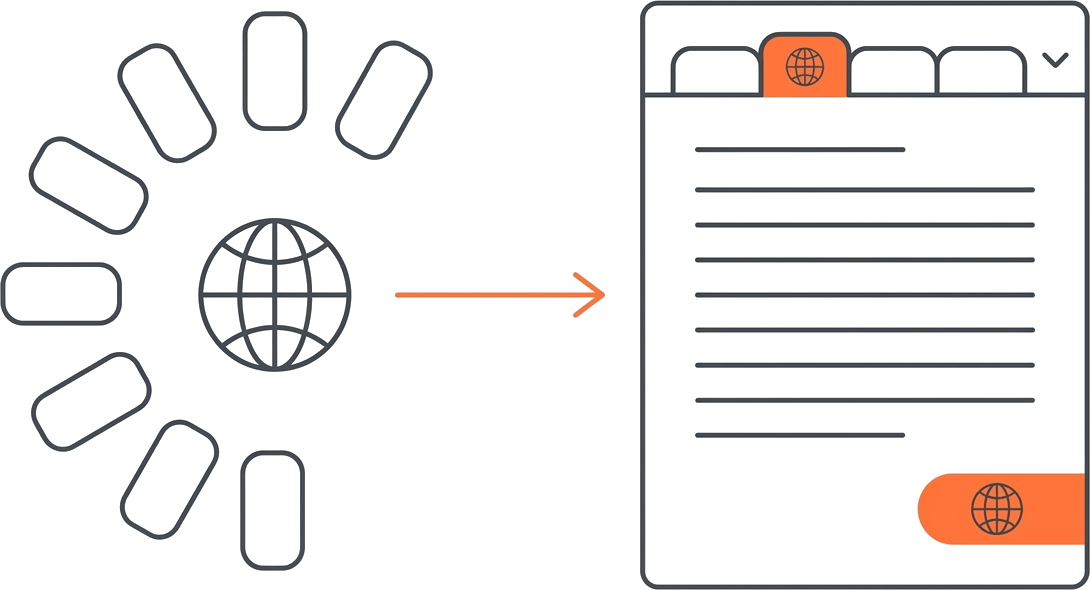
You always know what you are reading. A Machine-translated badge marks any section GoVeda translated for you, so machine output is never passed off as the original. While a translation runs, the target tab shows a spinner; if a section cannot be translated, it falls back to the source language with a control to try again. To return to the filed text, click the (original) tab.
One caveat worth internalizing: this translation covers the patent body only. The Summary tab is a separate, AI-generated analysis that is produced in English, and it is not affected by the Language tabs. If you switch your interface to Spanish and read the body in Spanish, the AI Summary still comes back in English. Translate the body; read the Summary in English.
Use this when you have a document open and want to read it carefully, claim by claim, in your own language. See Patent Details for the full tour of the viewer.
2. Fetch stored translations over MCP
If you work through an AI assistant instead of the web app, the GoVeda Patent MCP server exposes a tool called get_patent_translations. It is easy to assume this is the same on-the-fly translation the web viewer does. It is not, and the difference matters.
get_patent_translations returns the language variants of a patent’s text that are already stored in the corpus. Many patents ship with more than one language baked in. A Chinese patent, for example, commonly carries both its Chinese text and an English version. The tool hands back those stored variants for the fields you ask for (title, abstract, claims, description).
The key distinction is that this is not machine translation generated at request time. It is the existing, stored text. If you request a language the patent does not store, the tool returns the best available variant and flags it with is_fallback=true. Check available_languages in the response to see exactly what the corpus holds for that document.
You do not need to memorize the tool name. With the MCP server connected to an assistant like Claude or ChatGPT, you just ask in plain language, for example, “give me the English abstract and claims for this Chinese patent,” and the assistant calls the tool and works the result into the conversation.
The rule of thumb. The web viewer does on-demand AI translation of the body into your interface language. The MCP tool returns whatever language variants the corpus already stored, with a clearly flagged fallback when your requested language is not among them. Reach for the web viewer when you want a fresh translation of any patent into your language, and for the MCP tool when you want the document’s own stored variants inside an automated or agent-driven flow. The full parameters live in the MCP tool reference.
3. Get reports in your language
The third mechanism is not about reading a single document at all. It is about the analysis GoVeda generates for you.
When you run a Novelty, Freedom-to-Operate, or Landscape report, the finished report comes back in your selected app language. The same seven languages apply: English, Chinese, Japanese, Korean, French, German, and Spanish. Set your app or browser language, generate the report, and the executive summary, the per-patent analysis, and the rest of the narrative are written in that language. This is live behavior, not a preview.
The sample reports are the quickest way to see it firsthand. Each public sample is available in all seven languages and follows your browser or app language automatically, with no login required. See Sample Reports to browse them.
This is where the decision actually happens. Reading the prior art is one thing. Following GoVeda’s reasoning about novelty, overlap, and key differences in your own language is what lets you act on it without a translation step in between.
How the three fit together
Each one answers a different question, so here they are side by side.
| Mechanism | What it does | Where | How it translates |
|---|---|---|---|
| Web Language tabs | Read the patent body (abstract, claims, description) | GoVeda web app | On-demand AI machine translation into your interface language |
get_patent_translations | Fetch a patent’s text variants | MCP / AI assistant | Returns stored corpus variants, with a flagged fallback |
| Reports in your language | Read full novelty / FTO / landscape analysis | Web app | Generated directly in your selected app language |
One thing to be precise about. None of this changes how search results are presented. Titles and abstracts in a result list stay in the patent’s original language. The cross-language part is on the discovery side (semantic search, see Semantic Patent Search) and on the consumption side (translating any patent you open, and getting reports in your language). The result list itself is not localized.
Frequently Asked Questions
Can I read a patent’s claims in my own language?
Yes. In the GoVeda web app, the Language tabs cover the full patent body, including the claims, and machine-translate them into your interface language when the patent is not natively available in it. Translated sections carry a Machine-translated badge so you always know what you are reading. The AI Summary tab, however, is generated in English and is not affected by the Language tabs.
What is the difference between the web translation and the MCP get_patent_translations tool?
They are two different things. The web viewer performs on-demand AI machine translation of the patent body into your interface language. The MCP get_patent_translations tool returns language variants that are already stored in the corpus (for example, a Chinese patent that ships both Chinese and English text). It is not generating a fresh translation. If your requested language is not stored, it returns the best available variant flagged with is_fallback=true.
Which languages does GoVeda support?
GoVeda supports seven interface languages: English, Chinese, Japanese, Korean, French, German, and Spanish. These cover the web viewer’s on-demand body translation and the language reports are generated in.
Are reports really written in my language, or just translated afterward?
Reports come back in your selected app language as live behavior. Set your app or browser language, and the Novelty, FTO, or Landscape report is produced in that language. You can confirm the result for yourself with the public sample reports, which are available in all seven languages with no login required.
Disclaimer: This article is for general informational purposes only and does not constitute legal advice. Patent law varies by jurisdiction and changes over time. For decisions about your specific situation, consult a qualified patent attorney or agent. GoVeda makes no warranty as to the accuracy or completeness of the information presented.