Your First Report
This tutorial walks you through generating a Novelty Analysis Report. By the end, you’ll have a structured patentability analysis you can read, share, or use as a starting point for prosecution strategy.
What is a Novelty Analysis Report?
A Novelty Analysis Report is an AI-generated assessment of whether an invention is likely novel in light of existing patents. GoVeda searches its database of 220M+ patents, identifies the most relevant prior art, and produces a structured report that includes:
- An executive summary with a patentability verdict (high or low likelihood)
- Key threats to patentability from specific prior art references
- Recommendations for differentiating or narrowing the claims
- A ranked list of relevant prior art patents, each with a per-patent analysis
- Patent citations in a standard format
Reports are intended to help you identify risks early and prepare for examination. They are AI-generated, so the disclaimer at the bottom of every full report applies: review by a qualified patent attorney is recommended before making final filing decisions.
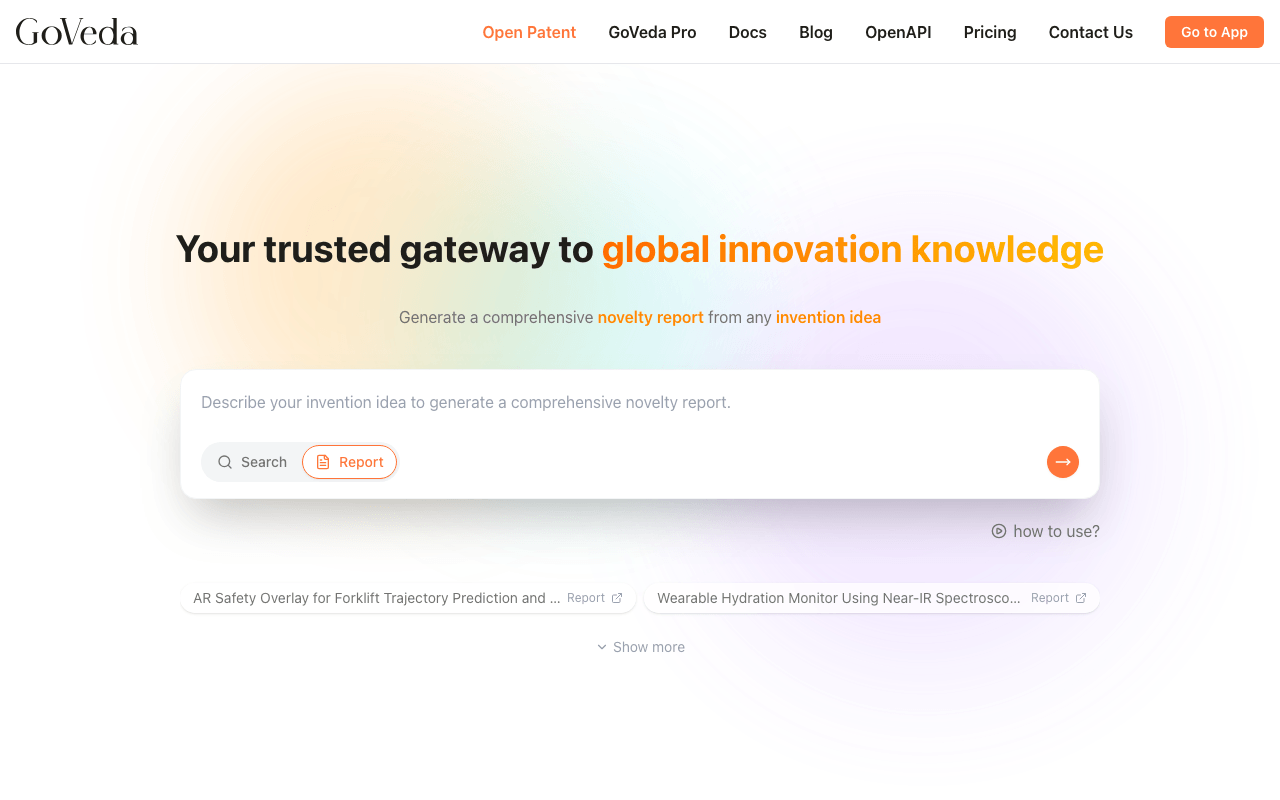
Switch to Report mode
Go to goveda.com . The input on the home page defaults to Search mode. Click Report at the bottom-left of the input to switch to Report mode.
Pick a report type
Report mode supports three types — each answers a different question:
- Novelty (this tutorial) — is my invention new? Searches prior art and writes a patentability assessment. Good first report to try.
- FTO (Beta) — will making/selling my product infringe an active patent? See FTO Report.
- Patent Landscape (Beta) — what is everyone doing in this technology area? See Patent Landscape Report.
The report-type selector is in the input toolbar. Pick Novelty for this walkthrough.
The Popular Questions below the input filter to match your selected type, so you can grab a starting prompt with one click.
Describe your invention
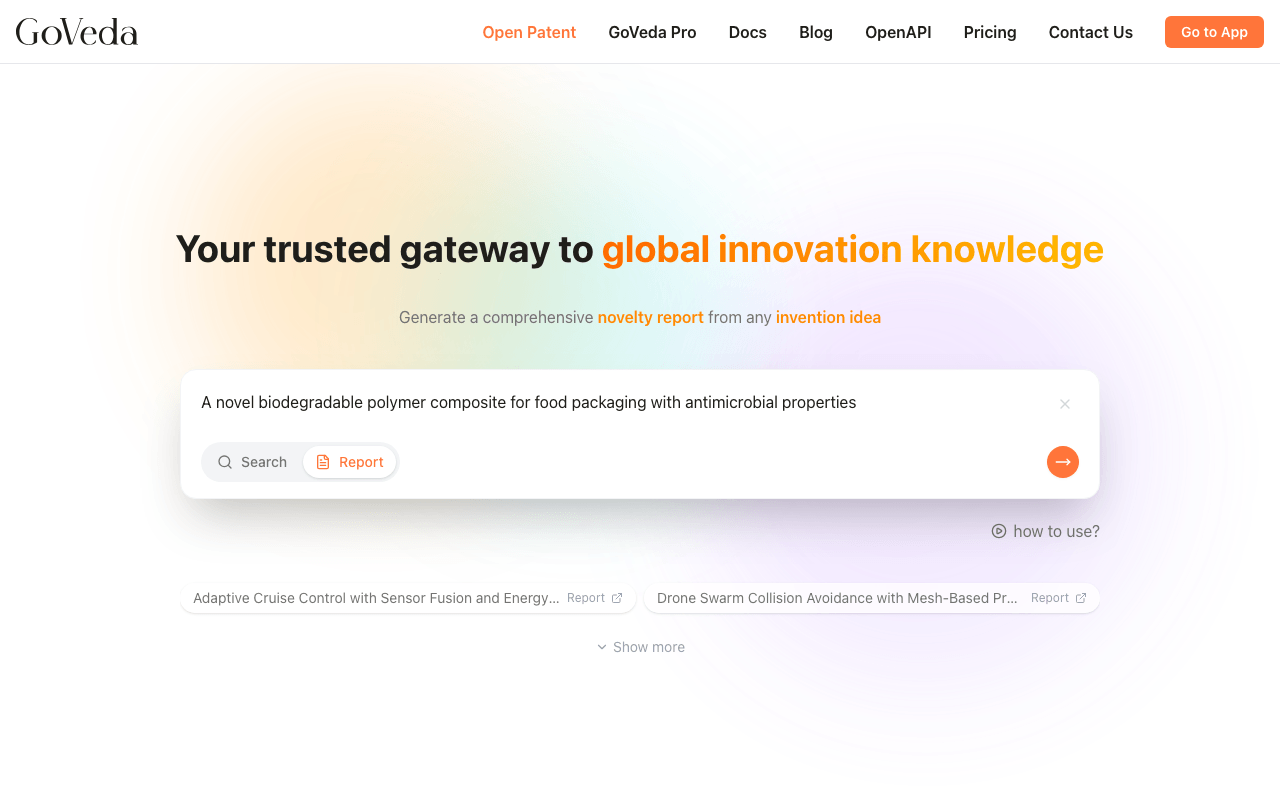
Type a description of your invention into the input. Write as much detail as you have. More context helps GoVeda surface better prior art and write a more accurate analysis.
A good description includes:
- What the invention does (the function or result)
- How it works (the mechanism, method, or structure)
- What makes it different from existing solutions (the key features)
For example:
A bicycle lock that uses a time-limited cryptographic token to grant access, allowing the owner to authorize temporary unlock permissions via a smartphone app. The lock contains a Bluetooth receiver and a microcontroller that validates the token. The token expires after a set time period and cannot be reused.
You don’t need to write in formal patent claim language. Plain language is fine. GoVeda’s AI identifies the technical domain, extracts the core innovation, and classifies the claims internally as part of generating the report.
Both Free and Pro users can enter up to 10,000 characters for a report description.
If your description is too short or too vague for GoVeda to analyze, you’ll see a clear message explaining what’s missing instead of a generic error — the same is true for short or unclear queries in the header search bar, whatever language you write in.
Submit and wait
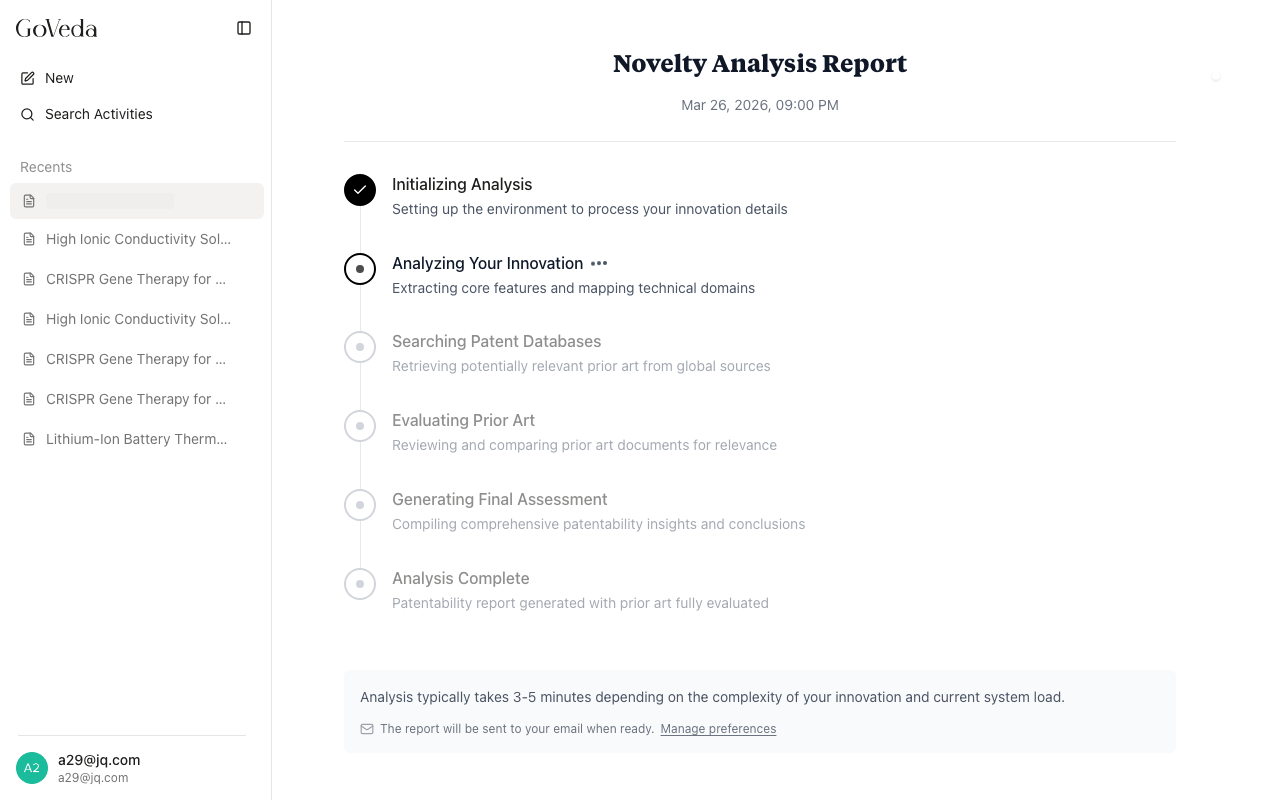
Press Enter or click the orange arrow button. GoVeda creates the report and takes you to the report page. Report generation typically takes 3 to 5 minutes, as GoVeda searches the full patent database and performs claim-level comparison against the top results.
While the report is generating, you’ll see a progress indicator that names each stage as it starts, so you can tell searching apart from analyzing rather than watching an undifferentiated spinner. You can leave the page and come back. Reopening the session mid-generation puts you back on the same progress view rather than a blank page. GoVeda keeps a record of all your reports in the history sidebar.
If you’re not logged in, you can enter an email address to receive a preview version of the report when it’s ready, or sign in first to have the full report sent to your account email.
Read the report
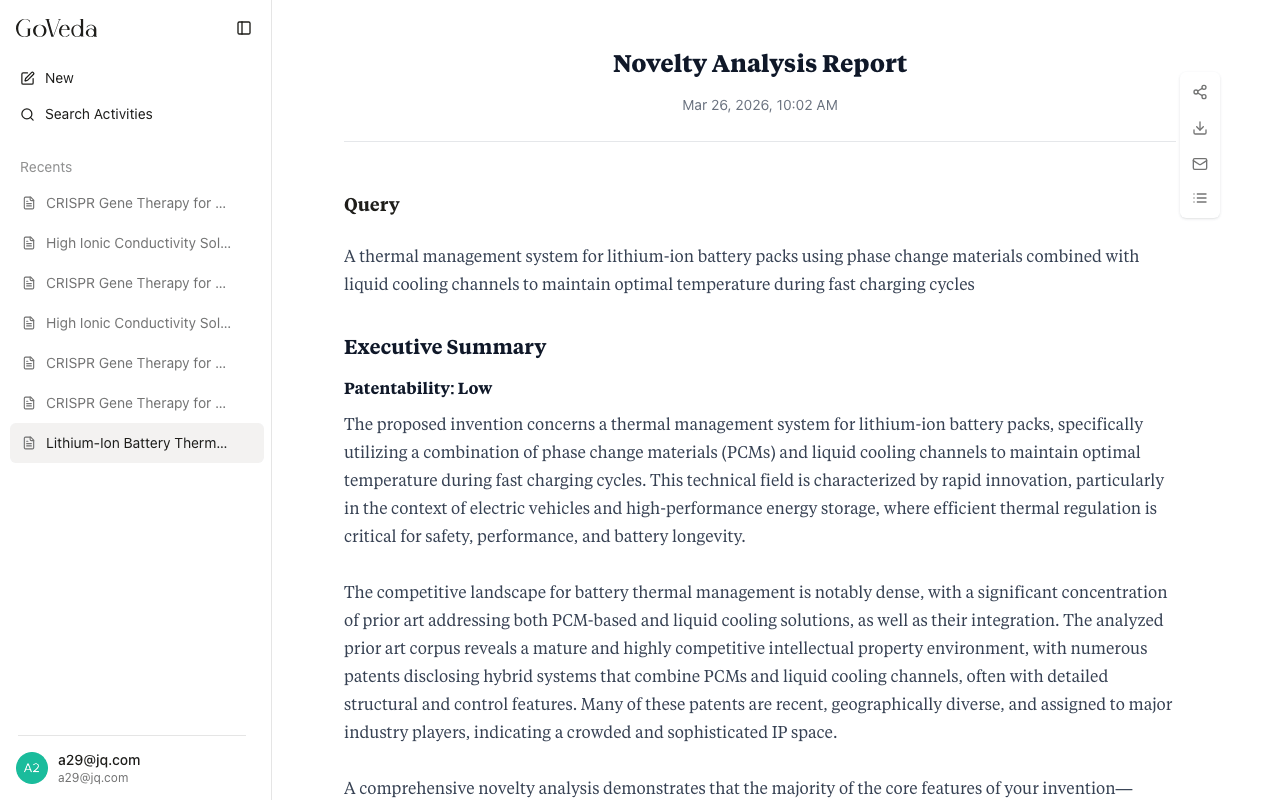
Once the report is complete, the page displays the full analysis. Start from the top and work your way down:
- Query — your original invention description, so you can confirm the AI analyzed the right input.
- Executive Summary — the patentability verdict (High or Low likelihood) with a written explanation of the key findings.
- Key Threats — specific ways existing prior art may challenge novelty or non-obviousness, each referencing patents in the analysis below.
- Recommendations — suggestions for differentiating your claims or adjusting your approach to strengthen the application.
- Query Analysis — how GoVeda interpreted your description: technical domain, core innovation, relevant patent classifications, and key terms.
- Prior Art Analysis — the ranked list of prior art patents. Each patent has a detailed breakdown showing technical overlaps, key differences, and a novelty feature comparison. Click any patent card to expand its full analysis.
For a detailed walkthrough of each section, see Reading a Report.
Free vs. Pro: what you’ll see
Free users see a partially redacted report with one prior art result. Pro users get the full, unredacted report with all prior art analyses and citations. You can try Pro free for 14 days, no credit card required.
Free (OpenPatent) users receive a partially redacted report:
- The executive summary, verdict, key threats, and recommendations are visible
- The first prior art result is shown in full
- The remaining prior art results are blurred with a prompt to unlock the full report
- Patent citations are hidden
Pro users see the complete, unredacted report with all prior art results, per-patent analyses, and citations.
To unlock a redacted report, click the “Unlock Full Report” button at the bottom of the page. This uses credits from your Pro plan. If you’re on the Free plan, you’ll be prompted to start a trial or subscribe.
Sharing and exporting
From any completed report, you can:
- Share a link — generate a shareable URL so others can view the report without an account
- Send by email — if you are logged in, the full report is sent to your account email. If you are not logged in, you can enter any email address to receive a preview version.
- Export — download the report (Pro feature; see Reports for details)
Learn more
For a deeper look at how reports work, what the sections mean, and how to interpret the prior art analysis, see the Reports section.