Patent Landscape Report
A patent landscape answers a different question than the other report types in GoVeda. Instead of “is my idea novel?” or “can I sell this without infringing?”, a landscape asks: what is everyone else doing in this space, and where are the gaps?
It’s the report you run when you’re sizing up a market, scouting M&A targets, picking a research direction, or building a competitive intelligence brief.
Beta — Landscape reports are in active development. Chapter structure, visualizations, and supported jurisdictions will keep changing. Send feedback to info@goveda.com.
When to run one
Common situations:
- Sizing a technology area before allocating R&D budget
- Profiling a competitor’s portfolio (or their next likely move)
- Identifying acquisition targets active in a niche
- Finding white space (technical directions no major player has staked out)
- Building an internal “state of the art” brief on an unfamiliar field
Landscape vs. Novelty vs. FTO
GoVeda offers three report modes, and people regularly mix them up. Quick reference:
| Novelty | FTO | Landscape | |
|---|---|---|---|
| Question | Is my idea new? | Will making/selling it infringe? | What’s everyone doing in this space? |
| Looks at | All historical prior art | Currently enforceable patents | All filings in scope |
| Time scope | Forever (everything published) | Today’s active rights | A defined window |
| Geography | Global | Per-jurisdiction you select | Per scope |
| Risk if wrong | Application rejected | Lawsuit, injunction, damages | Wrong strategic call |
| Best for | ”Should I file?" | "Should I ship?" | "Where should we play?” |
How to run a landscape report
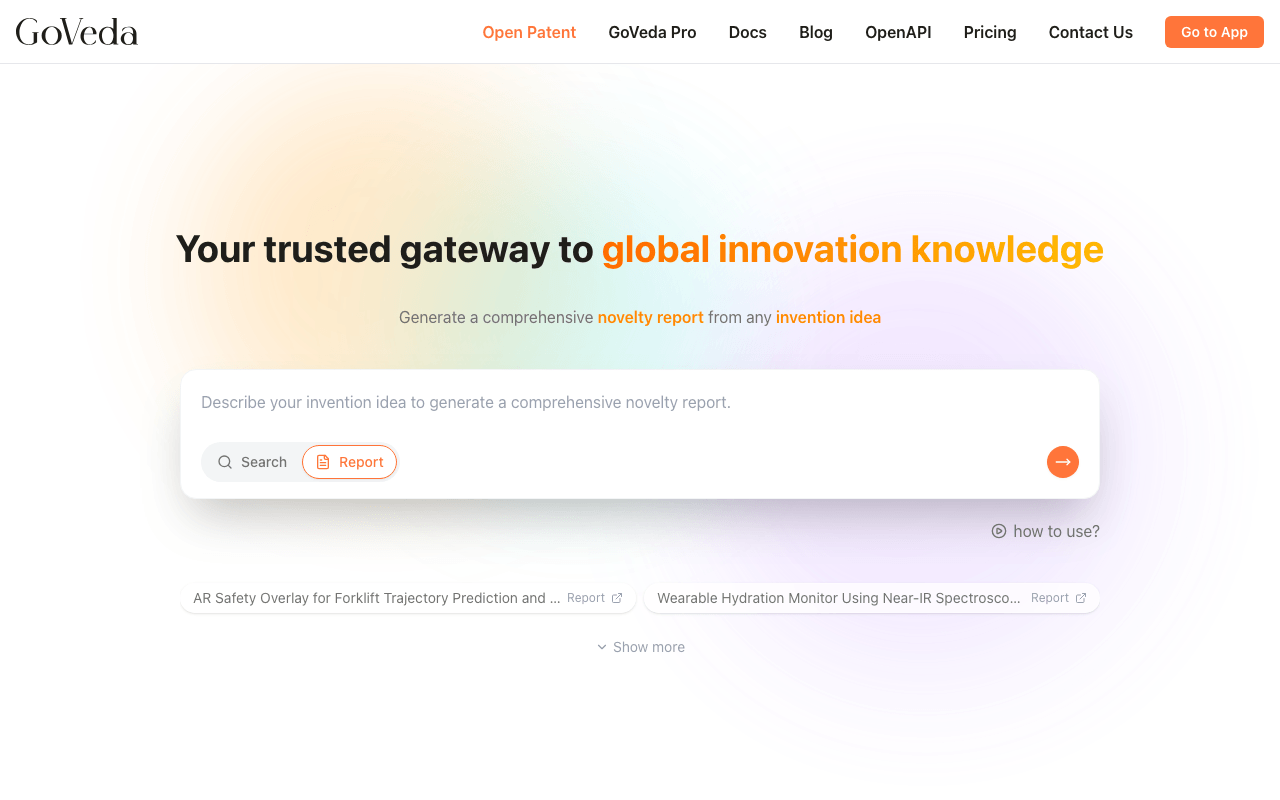
Switch to Report mode
On the GoVeda home page, switch the input to Report mode (mode selector at the bottom of the search bar).
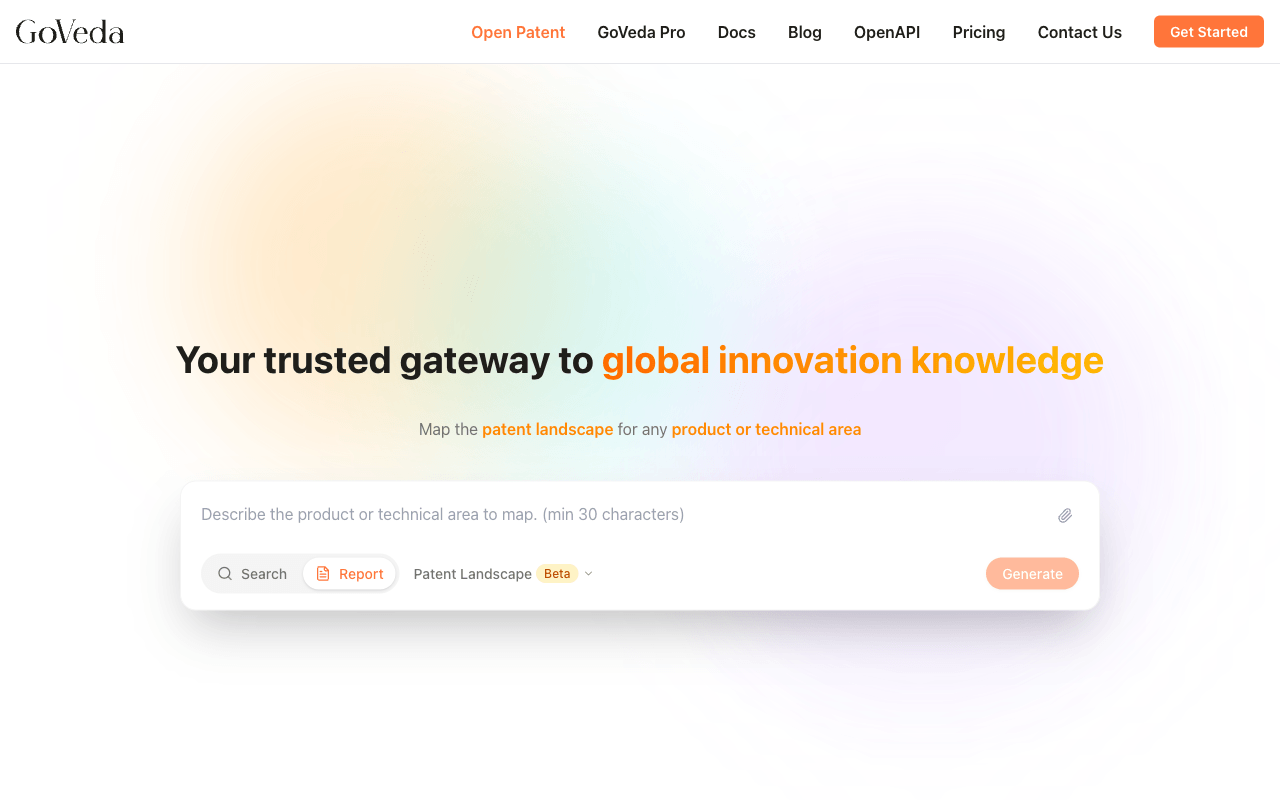
Pick Patent Landscape
Open the report-type selector and choose Patent Landscape (marked with a Beta badge).
Describe the technology area
Describe the space you want mapped. Be specific about the technology, the timeframe if it matters, and any jurisdictions you want emphasized.
You can attach supporting PDF or DOCX documents (up to 5 files, 50 MB total) for additional context. A document can be submitted without a separate text description.
GoVeda reviews your description before generation starts. If it can identify the industry or technology sector from what you wrote, it asks you to confirm that guess rather than asking from scratch. If the description is too vague to map, the agent chat asks you to add detail or rephrase — you can keep refining until it’s ready to proceed.
Before you commit, GoVeda writes out what it’s about to do in plain text: the scope it settled on, the subdomains it plans to split the space into, and how confident it is in that reading. Only then do the Generate Patent Landscape, Add More Details and Cancel actions appear. Read that summary. It’s the cheapest place to catch a scope that drifted from what you meant, since correcting it afterwards means running the report again.
Submit
Hit submit. Landscape generation is heavy: typically 10–20 minutes, sometimes longer for broad scopes. The report page shows live phase progress (Split → Analyze → Synthesize) and chapters stream in as they complete. You can leave the page and come back; the report is saved either way, and you can opt to be emailed when it’s ready.
What’s in a landscape report
A landscape report is structured as a multi-chapter document. The canonical chapter list (titles as rendered):
- Executive Summary. What’s in scope, what stands out, where to look first.
- The Convergence Space. Where adjacent technology areas overlap and the joint space worth watching.
- Subdomain chapters. One chapter per technical subdomain we identify from your scope. The number depends on your input.
- Cross-Domain Analysis. How the subdomains relate to each other, and recurring patents that span subdomains.
- Patentability Assessment. High-level read on how crowded vs. novel the space looks for new filings.
- Key Blocking References. The patents most likely to block downstream work in this area.
- Whitespace Analysis. Technical directions no major player has heavily staked out.
- Freedom-to-Operate Considerations. FTO signals lifted from the corpus, lighter-weight than a full FTO report.
- Filing Strategy and Claim Guidance. Jurisdictional and timing patterns to inform your own filings.
- Commercial Landscape. Top applicants, their filing focus, and shifts over time.
- Appendix A: Prior Art Catalogue. The full reference list.
Reading the report
Chapters stream in as they finish, so you can start reading the early ones before the later ones are ready. The Executive Summary is written last so it can reflect the full report.
- Table of contents. A list icon button is fixed at the top-right of the page. Click it to expand a dropdown of all chapters and jump between them.
- Action buttons. At the top of the page: download the report as a PDF, send it to your email, or share a public link.
Which numbers are counted, and which are written
Two tables are aggregated directly from the retrieved patent set rather than written by the model:
- Top Filers. In the Commercial Landscape chapter. Patents counted per applicant, ranked, with the remainder summed into an
Othersrow. - Jurisdictional Distribution. Patents counted per patent authority.
Everything else in the report is model-written prose grounded in the same set. The practical difference: a count in one of those two tables will agree with the patent list beside it, so it’s the number to trust when a chapter’s narrative and a table seem to disagree.
The “applicant data unavailable” row
The Top Filers table carries an explicit row for patents whose applicant our source data doesn’t record:
| Applicant | Patent Count | Example Patents |
|---|---|---|
| Others | 150 patents across 150 applicants | — |
| (applicant data unavailable) | 68 patents (28%) | — |
This is normal, not an error. Missing applicant data is common, and on some technology scopes it covers more than half the set. The row exists so the table accounts for every patent in scope: named filers, Others, and unavailable always sum to the total.
If you’re citing “the top filer holds N% of this space”, read that share against the total rather than the named rows alone.
Multilingual input
Like other GoVeda reports, you can enter your topic in any language. The report is generated in your app language if it’s supported (English, Chinese, Japanese, Korean, French, German, or Spanish), otherwise English. The output language follows your app locale at the time you submit.
Limits and caveats
- Beta scope. Some landscape chapters are still being tuned. Expect minor variations in chapter structure as we keep iterating.
- AI-generated. Like all GoVeda reports, the analysis is AI-produced. Treat the conclusions as a starting point for further validation, not a final answer.
- Per-chapter confidence flags. When the underlying data behind a chapter is judged low-confidence, an inline flag appears in that chapter. Treat specific numbers from a flagged chapter with extra scrutiny.
- Applicant names aren’t normalized. Names are counted exactly as our source data stores them, in the original language. A company that files under both a local and a transliterated name gets a row for each, so its true total may be split.
- Coverage. Landscape reports cover the same patent corpus as semantic search, 220M+ global patents.
Patent landscape reports are produced by AI for informational purposes. They do not constitute legal or strategic advice. Validate findings against your own knowledge of the field before making material decisions.