Patent Details
The patent viewer organizes a patent document into tabs across the top: Details, Summary, PDF, Family, Legal, and Citations. A Drawings toggle in the header opens a side panel with patent figures.
Details
The Details tab is the default view. It shows the full patent document in structured form.
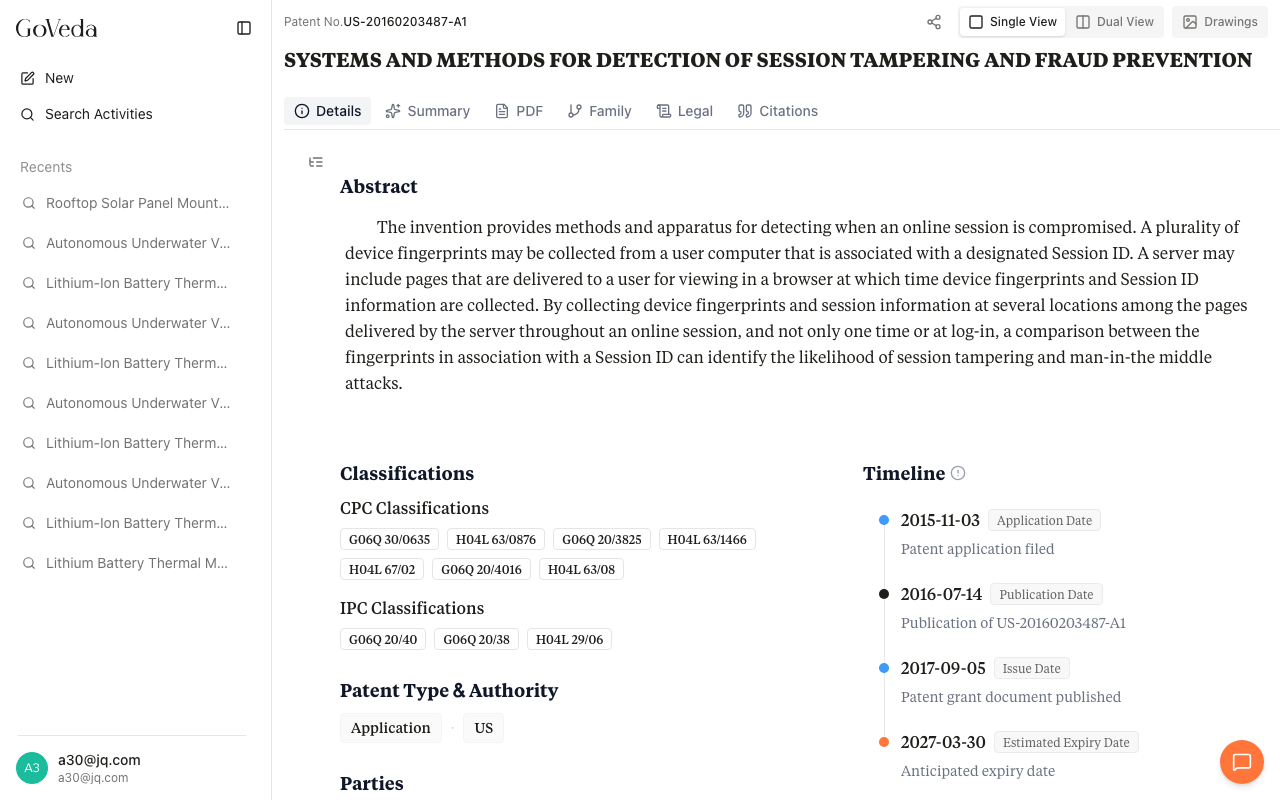
Abstract
The abstract appears at the top. For patents with structured content, the abstract is rendered as individual paragraphs. For older patents, it may appear as a single block of text.
When you open a citation from the AI Summary, any abstract paragraph that the summary cites is highlighted in blue with a numbered badge.
Overview
Below the abstract, the Overview section is laid out in two columns on wide screens.
Left column contains Classifications (CPC and IPC codes with hover descriptions), Patent Type and Authority, and Parties (Current Assignee, Original Assignee, and Inventors).
Right column contains the Timeline showing key dates: Application Date, First Publication Date, Issue Date, Publication Date, Estimated Expiry Date, and more. Blue dots mark filing events, orange dots mark expiry events.
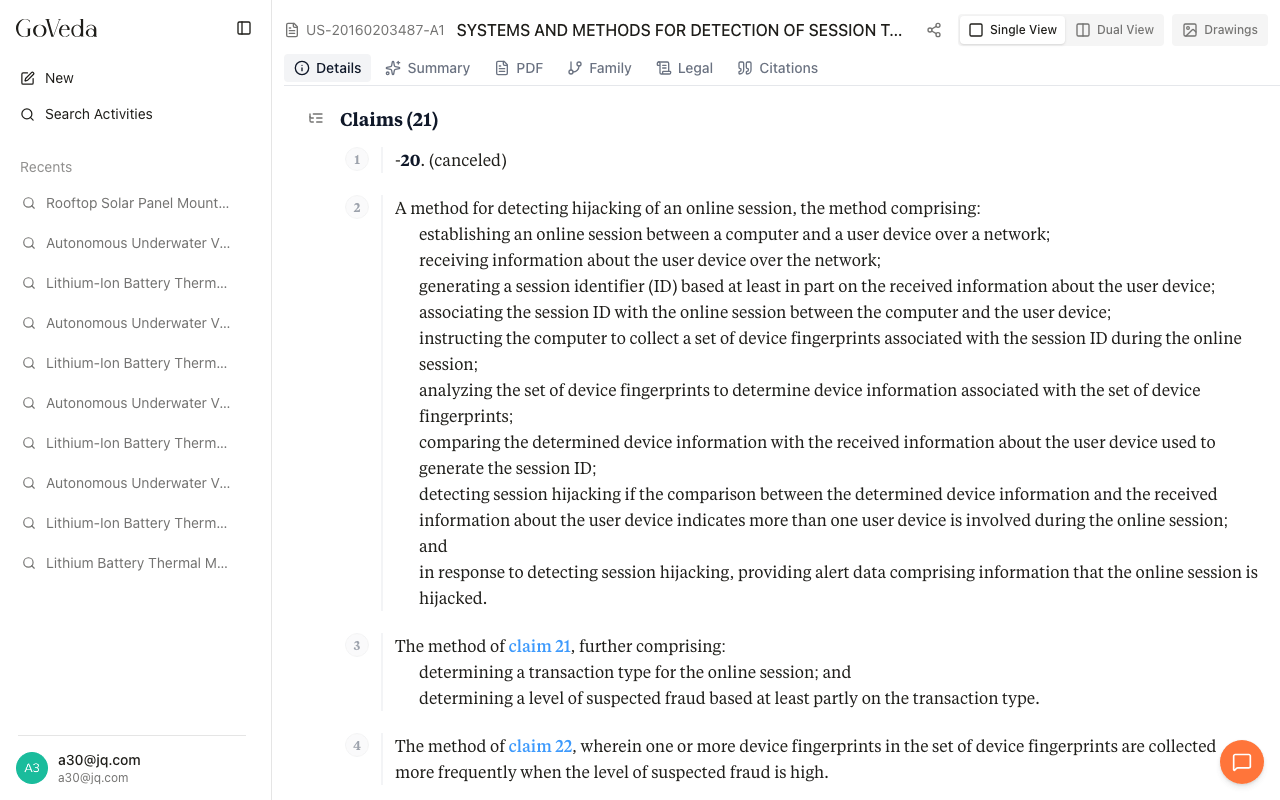
Claims
The Claims section lists every claim in the patent, numbered sequentially. Each claim has a number badge and a left border to separate it from neighboring claims. The total claim count appears in the section heading.
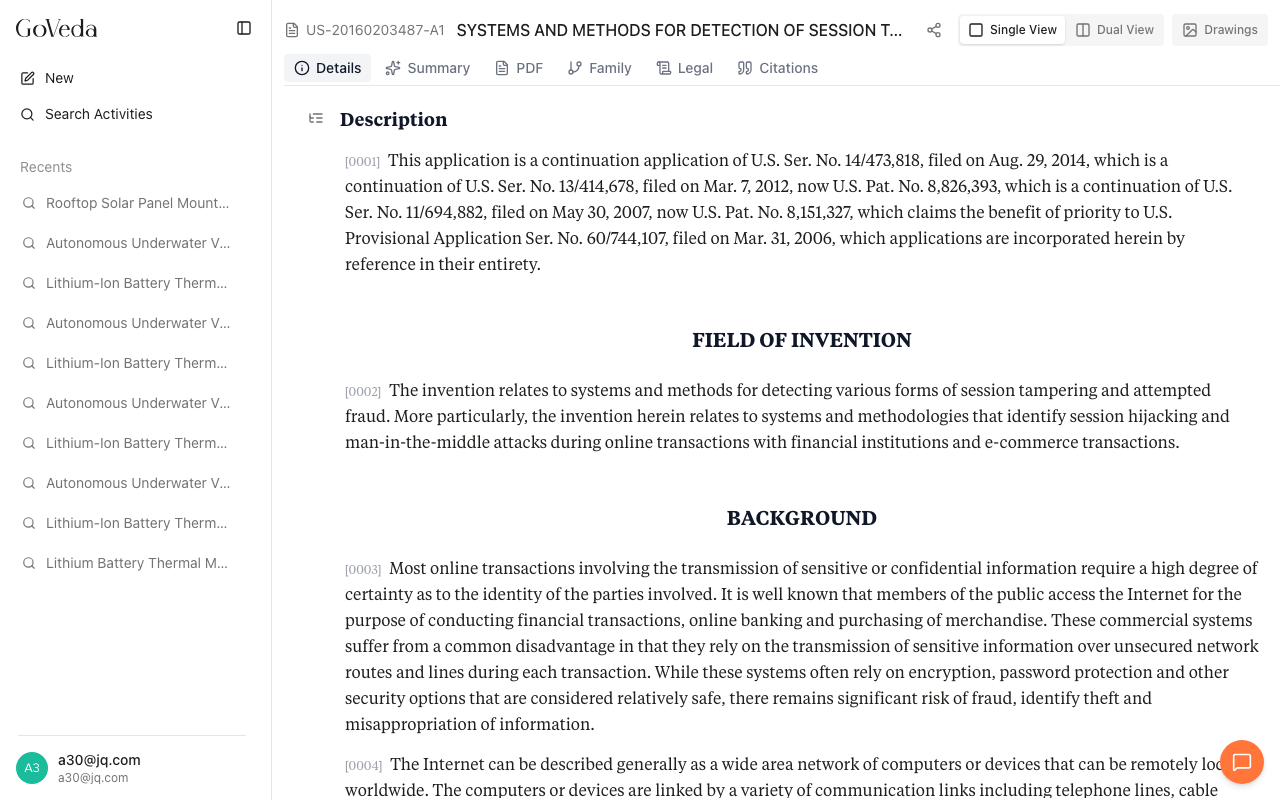
Description
The Description section contains the full specification text. For structured patents, this includes named subsections such as Field of the Invention, Background, Summary of the Invention, and Detailed Description, all rendered as flowing paragraphs.
Section navigation
On desktop, a small table-of-contents icon appears to the left of the content area. Click it to open a panel with links to Abstract, Overview, Claims, and Description. The active section updates as you scroll.
Language and translation
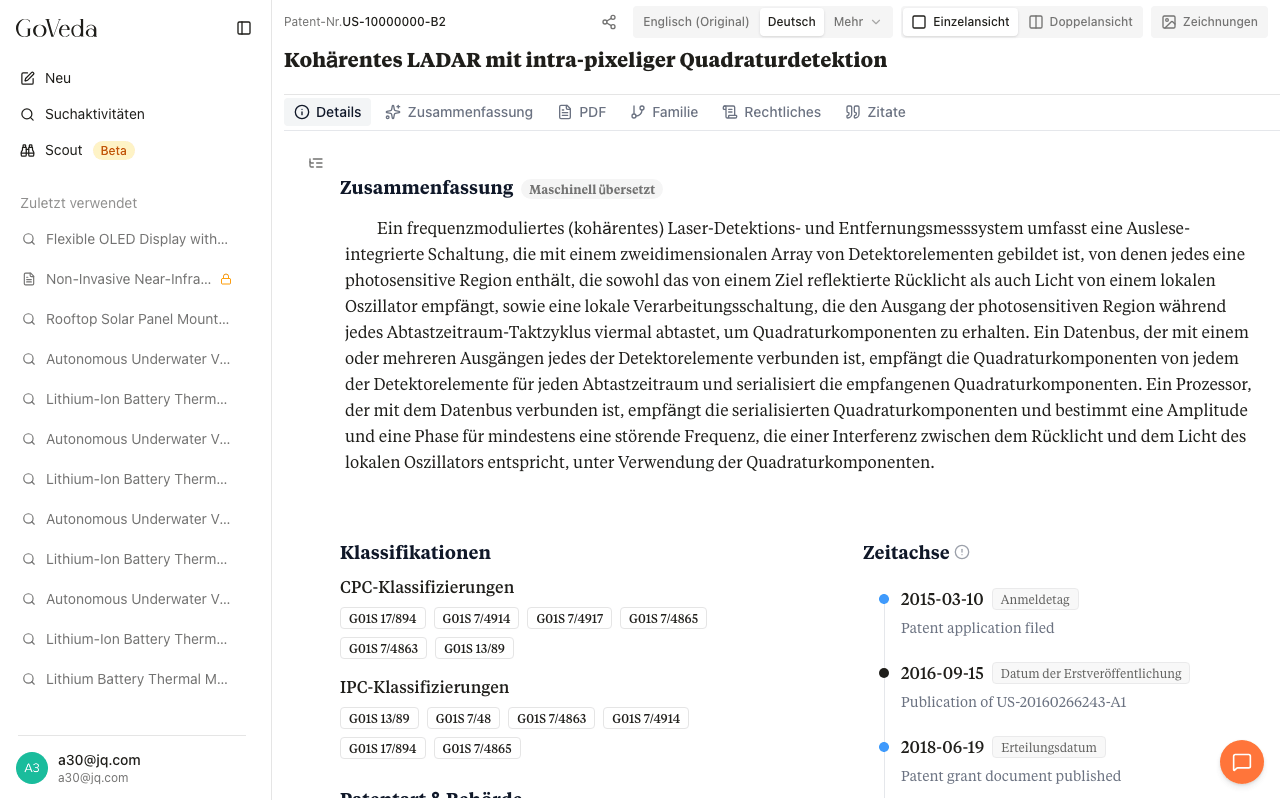
A Language control sits in the header next to the view toggles, as a set of tabs for the patent body (abstract, claims, and description):
- {Language} (original) — the patent’s source language. Click it to read the original text.
- Your interface language (for example, German) — click to read the body in that language. If the patent isn’t natively available in it, GoVeda machine-translates the body on the fly.
- More — a dropdown listing any other languages the patent natively ships in, plus Translate to {language} options for the other supported interface languages.
Supported languages are English, Chinese, Japanese, Korean, French, German, and Spanish.
When your interface language isn’t English and the patent isn’t natively available in it, GoVeda auto-translates the body the first time you open the patent. While a translation runs, the target tab shows a spinner. If it can’t be translated, the tab shows an amber icon — click the tab to try again. To return to the source text, click the (original) tab.
Translated sections are marked so you know what you’re reading: a Machine-translated badge on a GoVeda-translated section, a faint Translation hint on text from a legacy translation engine, and Shown in {language} when a section falls back to its source language (with a refresh control to regenerate it). If only part of a section could be translated, an icon notes that some segments stay in the source language.
Translation covers the patent body only. The Summary tab is generated in English and isn’t affected by the Language tabs — see AI Summaries.
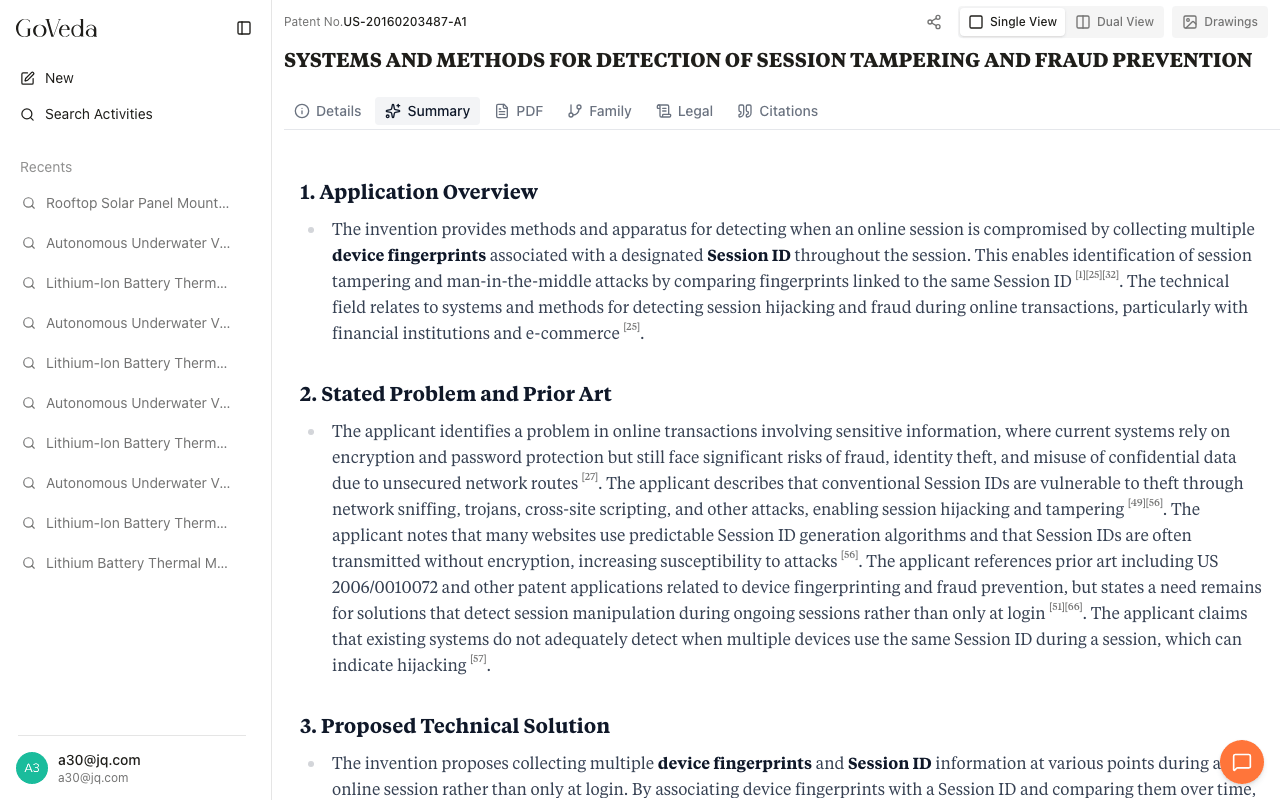
Summary
The Summary tab shows an AI-generated analysis of the patent. It includes an application overview, stated problem and prior art context, proposed technical solution, and key technical details. Citations in the summary link back to specific paragraphs, claims, or description passages in the Details tab.
The PDF tab renders the original patent document from the patent office. You can scroll through the PDF in-browser or download it using the download button in the toolbar.
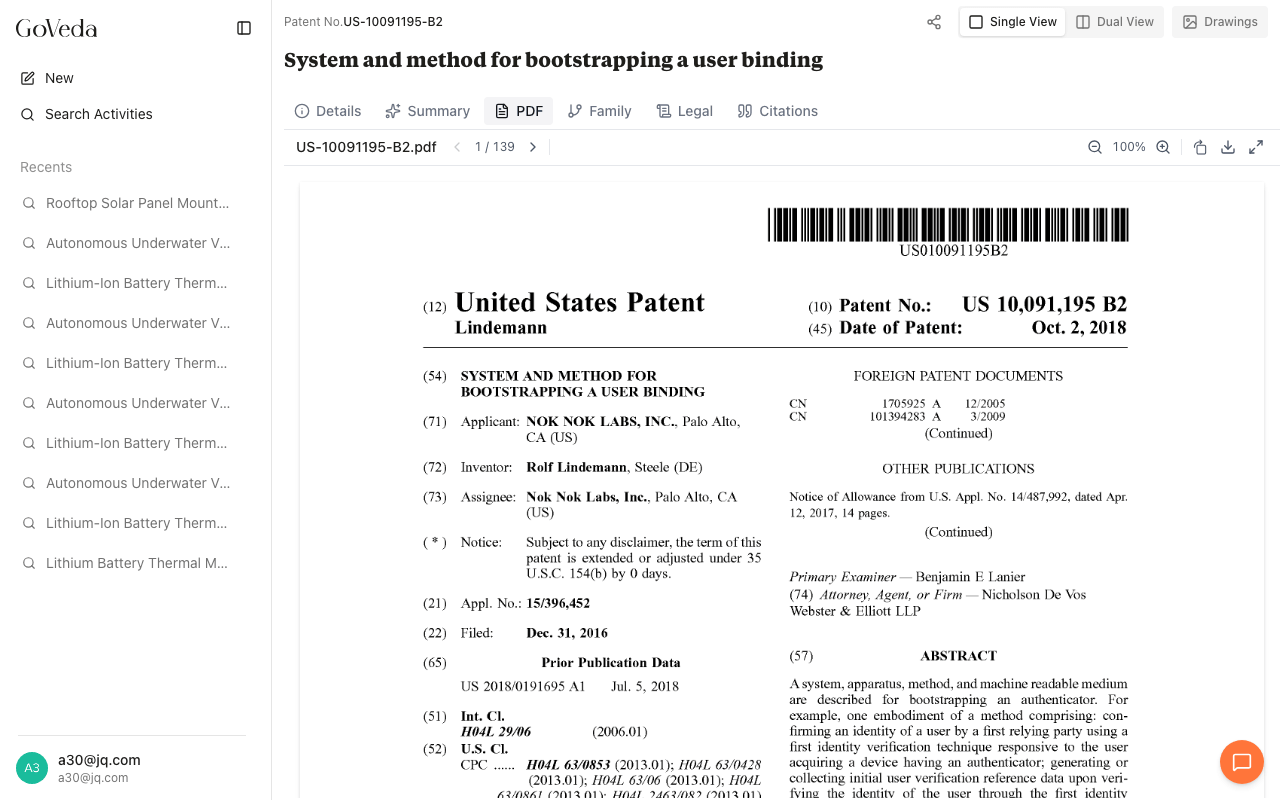
PDF availability depends on the patent office. Some older or non-US patents may not have a PDF available.
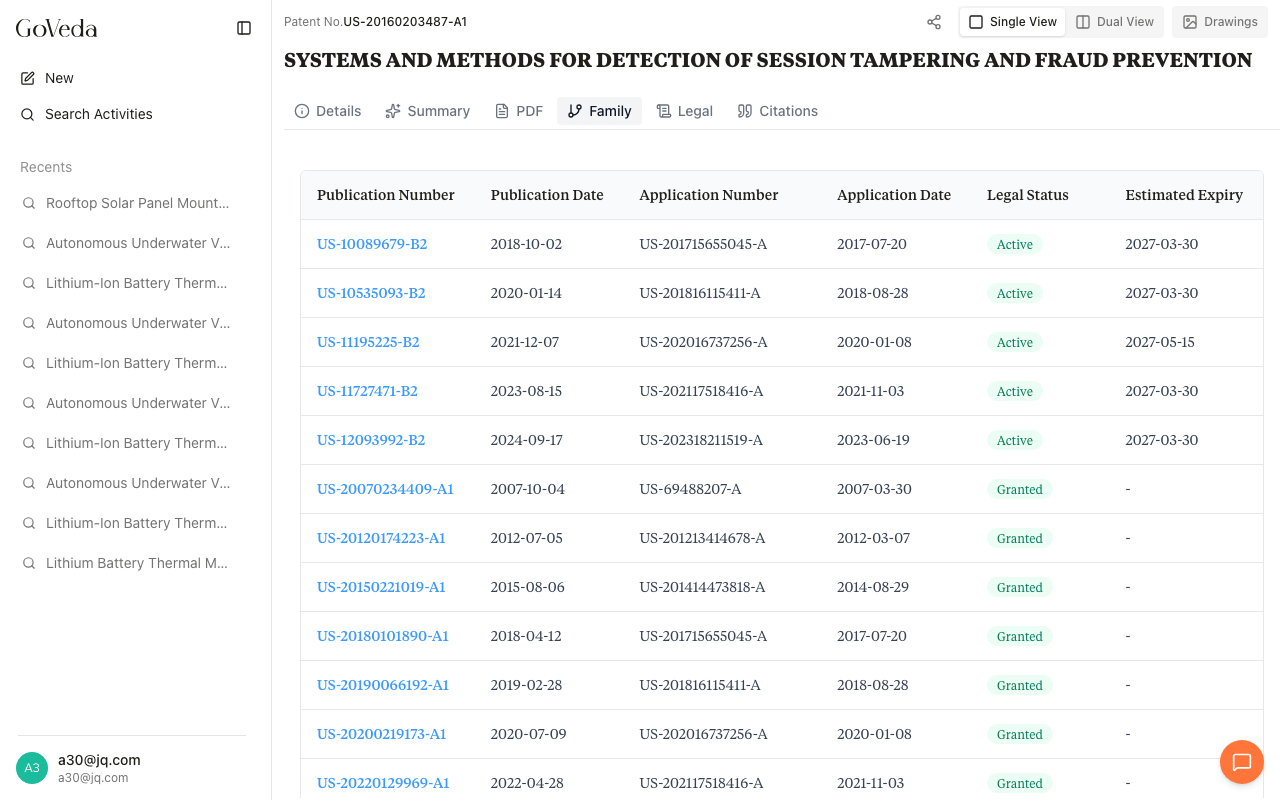
Family
The Family tab lists all members of the patent’s extended family (applications and grants across different jurisdictions that share a common priority). Each row shows the publication number, publication date, application number, application date, legal status, and estimated expiry.
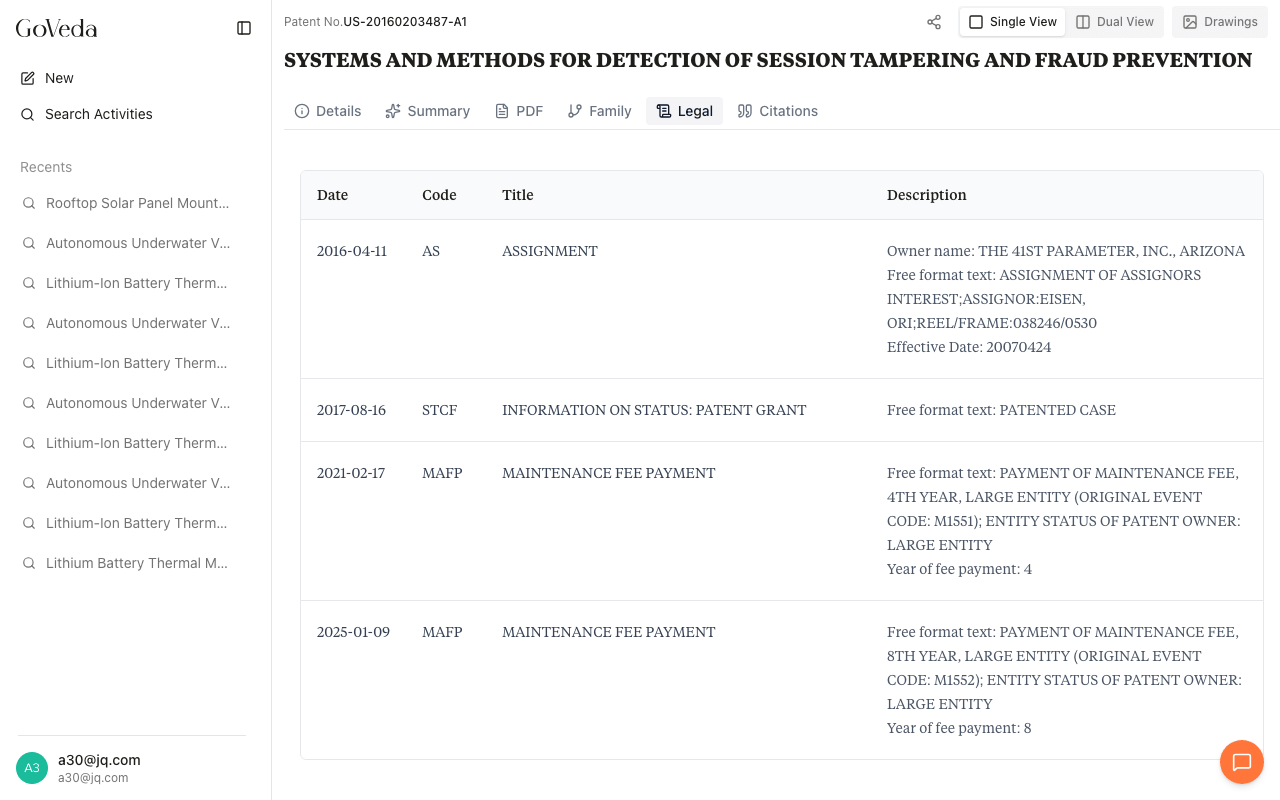
Legal
The Legal tab shows the patent’s legal event history sourced from INPADOC. Each event includes a date, an event code, a title, and a description. Common event types include assignment recordings, maintenance fee payments, grant issuance, and lapse notices.
Citations
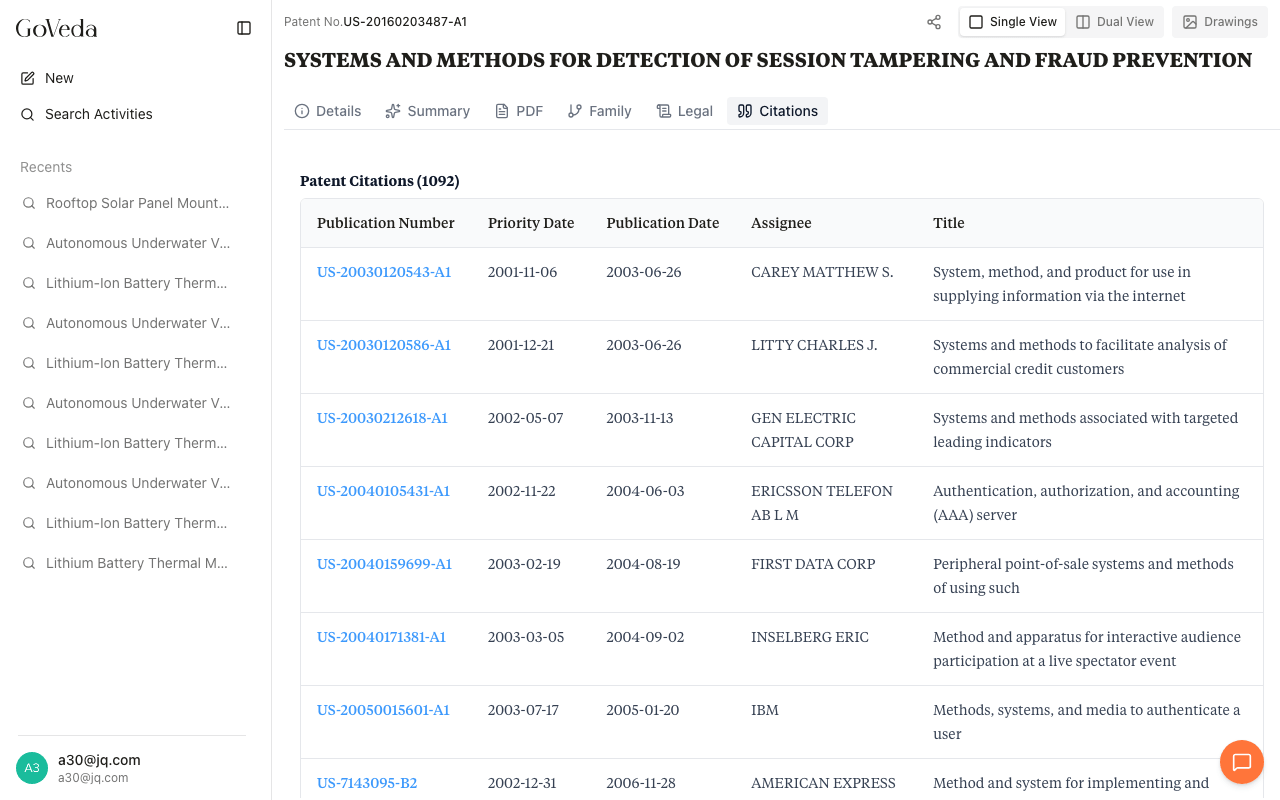
The Citations tab groups the patent’s references into Patent Citations, Non-Patent Citations (papers, office actions, and other literature), and Cited By (later patents that reference this one), each with a total count. Patent citations show metadata like dates, assignee, and title, and open in the viewer when you click them. Longer lists load a page at a time.
Drawings
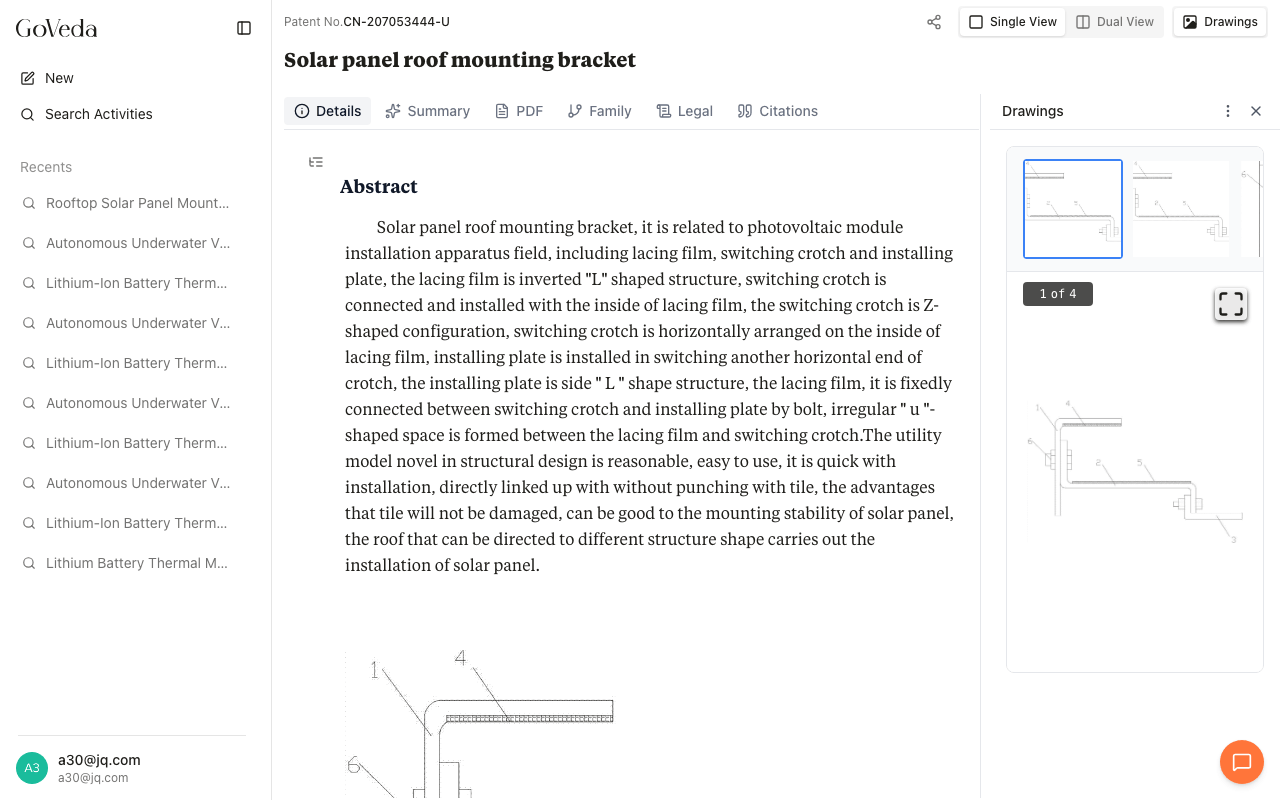
Click the Drawings toggle in the top-right header to open a side panel showing the patent’s figures. Each drawing has zoom controls and a toolbar for navigating between figures. On mobile, Drawings appears as a separate tab.
Patent not found
If a patent number can’t be matched, the viewer shows an error along with up to three “did you mean” suggestions. Click a suggestion to open that patent.