Profile
Open goveda.com/settings/profile to update your display name and avatar, manage email preferences, and choose whether MCP activity appears in History. If you signed up with an email address and password, you can also request a password reset here.
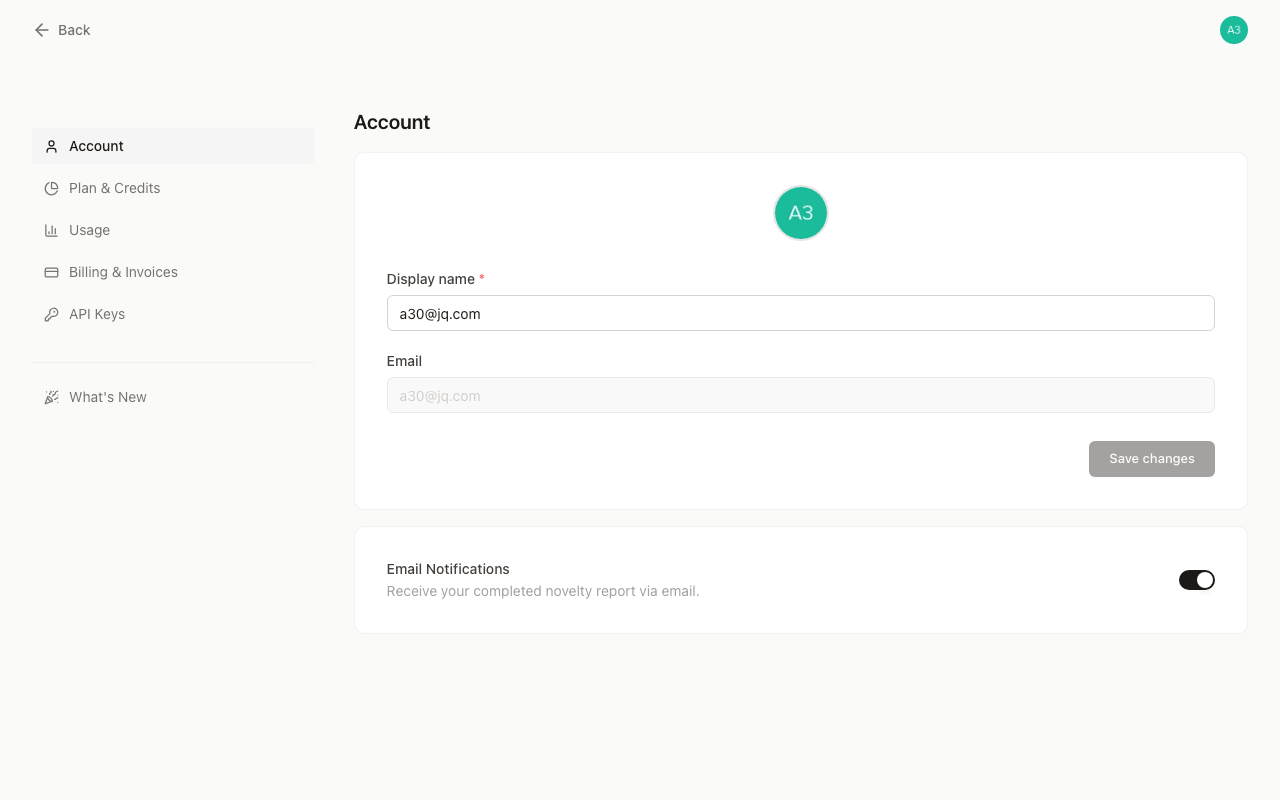
Display name and avatar
Your display name appears in the navbar and on any shared content. To change it:
Upload a new avatar
Click on the avatar circle at the top of the profile card. A file picker opens; select a JPG, PNG, or WebP image from your device.
Edit your display name
Edit the Display name field. The field accepts up to 100 characters and cannot be left blank.
Save your changes
Click Save changes.
Both the avatar and name are saved in a single request when you click Save changes. The button is disabled until you have actually changed something, so you will not accidentally overwrite your current values.
Your email address is displayed read-only and cannot be changed directly in GoVeda. If you need to update your email, contact us at info@goveda.com.
Password reset
If you signed up with an email address and password, click Send reset email to receive a password reset link at your registered address.
After sending, a 60-second cooldown prevents repeated requests. The button shows the countdown (“Sent · resend in 42s”) and re-enables automatically when the timer expires.
If you signed in with Google or another social provider, this option does not appear because your password is managed by that provider.
Email notifications
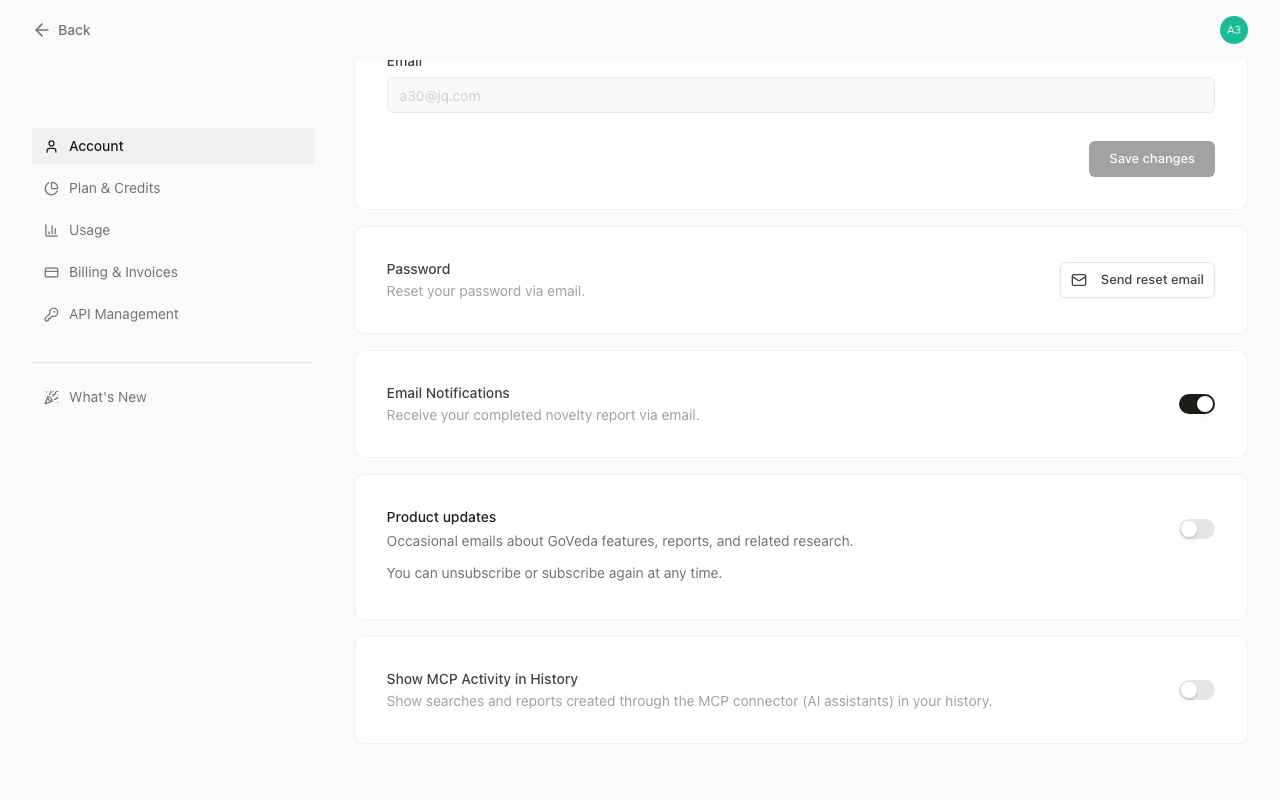
The Email Notifications toggle controls whether GoVeda emails you when a novelty report finishes generating. Reports can take a few minutes depending on complexity, so turning this on lets you step away without polling the page.
The toggle saves immediately — there is no separate save button for this setting.
Product updates
The Product updates toggle controls occasional emails about GoVeda features, reports, and related research. You can subscribe or unsubscribe at any time. If GoVeda cannot verify the current preference, the card keeps the last confirmed state and provides a retry action.
MCP activity in History
Turn on Show MCP Activity in History to include searches and reports created through the GoVeda MCP connector in your web-app history. Turning it off hides those entries from the history list; it does not delete them or affect access from the MCP client.
Each preference saves independently as soon as you change it.