Patent Search Across MCP Clients: Which Client, How to Connect
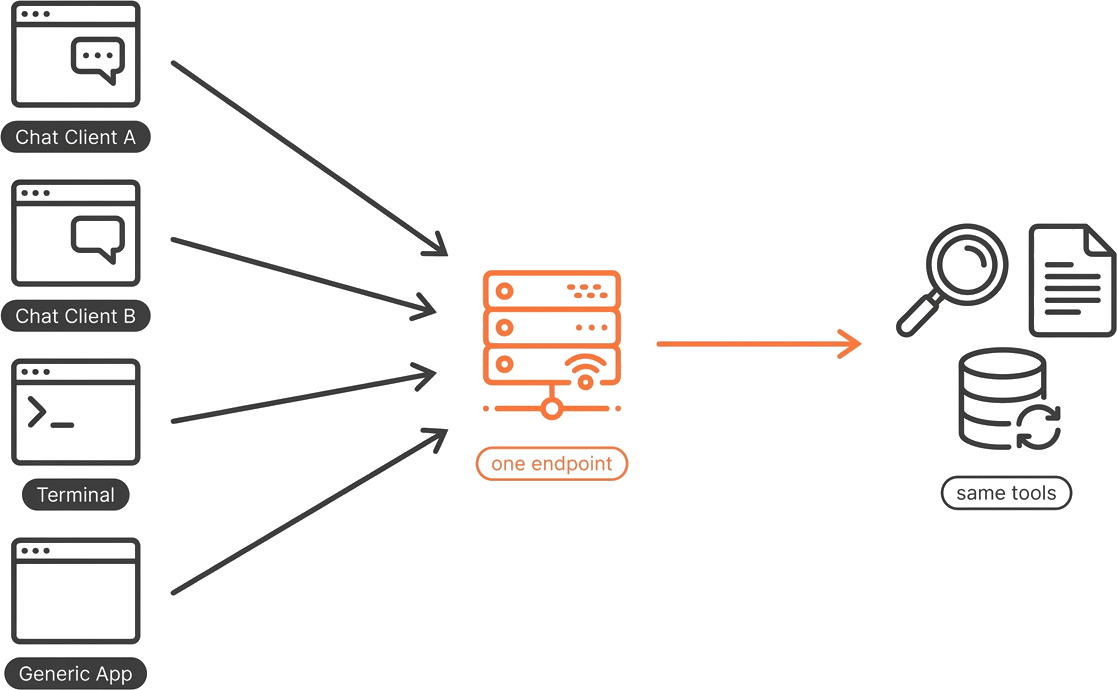
If you already work inside an AI assistant, you can give it patent search. The GoVeda Patent MCP server speaks the Model Context Protocol over a single HTTP endpoint, so any MCP-compatible client, be it Claude, ChatGPT, Claude Code, or one you built yourself, can call the same patent tools. The tools are identical everywhere. What changes from one client to the next is only how you connect.
This guide is the cross-client map: which clients work, how each one connects, and how to choose. For the two point-and-click walkthroughs, see Using GoVeda Patent Inside Claude and Using GoVeda Patent Inside ChatGPT.
Why run patent search inside your AI client
It comes down to context switching. Every time you leave your assistant to run a search, paste a result, read it, and come back, you lose the thread of whatever you were working on. Run patent search through the same assistant that already has your question in context, and the research lands where the work is. The tools cover semantic search across GoVeda’s 220M+ patent corpus, full patent content retrieval by section, prior art search, patentability reports, and classification or assignee lookup. You get to them by asking, no window-switching involved.
Which client should you use?
Every client reaches the same tools over the same endpoint, so pick by where you already work and how you prefer to connect.
| Client | How you connect | Best for |
|---|---|---|
| Claude Desktop / claude.ai | Point-and-click custom connector | Chat-first research, no setup files |
| ChatGPT | Connect from the plugin directory | ChatGPT users who want it in-app |
| Claude Code | One terminal command | Developers working in the CLI / IDE |
| ClickUp | Add as a custom MCP connector inside ClickUp | Teams who want patent search alongside their ClickUp tasks |
| Other MCP clients | JSON config entry | Any editor or agent that speaks MCP over HTTP |
The point-and-click options (Claude Desktop, claude.ai, ChatGPT, ClickUp) are fastest if you mainly want to chat. The command-line and config options suit developers who already manage MCP servers in their tooling. Whichever you pick, you land on the same tools.
First time? You get a free trial. New accounts get a 14-day free trial with 10,000 credits — it activates automatically the moment your assistant makes a request that needs credits, with no separate step. Credits are shared with the GoVeda web app, so anything you spend in your assistant draws from the same balance.
What you need before connecting
Two things: a GoVeda account (a free trial is available the first time you connect) and the MCP endpoint https://mcp.goveda.com/mcp. The server uses Streamable HTTP transport, and authentication is OAuth, so your client opens a browser for you to sign in once. There are no keys to paste.
Connect a point-and-click client
In Claude Desktop or claude.ai, add a custom connector named GoVeda Patent pointing at https://mcp.goveda.com/mcp, and a browser opens to complete sign-in. In ChatGPT, open the plugin directory , find GoVeda Patent, and click Connect. In ClickUp, add GoVeda Patent as a custom MCP connector pointing at the same endpoint. All three are point-and-click; the first two are walked through step by step, with screenshots, in Using GoVeda Patent Inside Claude and Using GoVeda Patent Inside ChatGPT.
Connect from Claude Code
Claude Code has a built-in command for adding remote MCP servers. Run this in your terminal:
claude mcp add goveda-patent --transport http https://mcp.goveda.com/mcpClaude Code handles OAuth automatically. The first time you use a GoVeda tool, a browser window opens for you to sign in with your GoVeda account. That is the only sign-in you need.
Connect from other MCP clients
Most MCP clients read their server list from a JSON config file. The structure is the same across clients; only the file location changes. Add an entry pointing at the GoVeda endpoint:
{
  "goveda-patent": {
    "type": "http",
    "url": "https://mcp.goveda.com/mcp"
  }
}
Some clients name the transport streamable-http rather than http; both refer to the same Streamable HTTP transport the server uses. Save the file, reload the client, and the first tool call triggers the OAuth browser flow.
Where does this config live? It varies by client, and the exact menu path or file name differs from one to the next. Check your client’s MCP settings or documentation for where it stores server definitions. The endpoint, transport, and structure above stay the same regardless of where you paste them.
What you can do once connected
Once connected, your client discovers the patent tools automatically and routes to the right one based on what you ask. You describe what you want in plain language instead of calling tools by name. Semantic search runs from any description of an invention. Full patent content comes back by section: abstract, claims, description, dates, parties, classifications, legal status, and family. Beyond that you have prior art search, novelty and patentability reports, classification and assignee lookup, and usage checks against your credit balance.
A typical exchange looks like this:
You: Search for patents on sulfide-glass solid-state battery electrolytes, then show me the claims of the top result.
Assistant: (runs the semantic search, returns ranked matches, then retrieves the claims of the top hit)
For the full workflow, including chaining search into prior art and reports, see Build an AI Patent Research Agent and the Patent MCP Server documentation.
Know which calls are expensive. Prior art searches and full reports cost far more credits than a content lookup. Be explicit in your prompt about which one you want, and keep an eye on your balance.
Troubleshooting
A few issues come up when connecting a new client:
| Symptom | Fix |
|---|---|
| OAuth sign-in loop | Clear your browser cookies for mcp.goveda.com, then connect again. |
| Tool not found | Confirm your client points at https://mcp.goveda.com/mcp and uses HTTP (Streamable HTTP) transport. |
| Insufficient credits | Check your balance on Plan & Credits — or ask the assistant to run get_usage, which works in Claude, Cursor, and API-key clients but not ChatGPT. New accounts get the 14-day free trial automatically on first use; add more once it’s used up. |
Frequently Asked Questions
Which clients are supported?
Any MCP client that can connect to a remote server over HTTP. That includes Claude Desktop and claude.ai, the ChatGPT app, Claude Code, ClickUp, other MCP-compatible editors and agents, and custom clients built on the protocol. The connection details are identical across all of them: one endpoint, Streamable HTTP transport, OAuth sign-in.
How is this different from the Claude.ai or ChatGPT setup guides?
Those guides each walk one client through its point-and-click connector with screenshots. This guide is the bird’s-eye view: it maps all the clients, shows the command-line and config routes the click-through guides do not cover, and explains that the tools are the same wherever you connect. If you only want the click path for one client, follow Using GoVeda Patent Inside Claude or Using GoVeda Patent Inside ChatGPT.
Does this work offline, and how current is the data?
No. Every tool call queries GoVeda’s live patent service, so you need a network connection. Because the data is served live rather than from a local snapshot, you are always querying the current corpus.
What does it cost?
You spend GoVeda credits, the same balance as the web app. Searches scale with how many results you request, content retrieval is 1 credit per patent, and status and usage checks are free. New accounts get a 14-day free trial with 10,000 credits.
Disclaimer: This article is for general informational purposes only and does not constitute legal advice. Patent law varies by jurisdiction and changes over time. For decisions about your specific situation, consult a qualified patent attorney or agent. GoVeda makes no warranty as to the accuracy or completeness of the information presented.