Credits & Usage
Each GoVeda Agent task is charged for the work it does, with no fixed charge per message. It is paid in credits from your subscription, the same balance as the web app and the hosted MCP server; at the Pro list price, 1 credit costs US$0.01. For plans, Add-ons and refreshes, see Plans & Billing. API credits are a separate balance, and neither can pay for the other.
What a task costs
| Task | For example | Usually |
|---|---|---|
| A quick question | What does the first claim of this patent cover? | 1–5 credits |
| Search and read patents | Find recent filings on solid-state battery electrolytes and summarize the top five. | 10–90 credits |
| Work with your own files | Compare the claims in my draft with this earlier publication. | 5–80 credits |
| One task over many documents | Summarize each of these 40 documents in a table. | 15–130 credits per document |
| An IP skill | A novelty, FTO, landscape or commercialization assessment | Hundreds to a few thousand credits; Standard uses more than Quick |
These are examples, not quotes. For an IP skill, its details in Capabilities and the depth question at the start of a task show what it usually costs and how long it usually takes. New skills show an estimate until there is enough usage. Your actual amount depends on the scope, your materials, the model and how many rounds of revision you do. Credits & usage shows what each task used.
How long a task takes
A quick question is answered while you wait. An IP skill usually takes tens of minutes, depending on the skill and its depth, and review rounds add time. IP Skills lists how long each one usually takes. You can leave the page while it runs: work continues in the background.
What uses credits
A task’s cost is the sum of what it uses:
- Language model: the text the model reads and writes. Larger models and longer chats cost more.
- Patent search and reading: searches, patent reads and statistics.
- Web research: each web search and each web page it reads.
- Workspace time: the time GoVeda Agent spends running code and working on files in its Private Workspace.
- Image generation: each image it creates or edits.
Memory has no separate charge.
Why the same kind of task can cost more
The same request can cost different amounts. What makes it cost more, and what you can do about it:
- How much it reads. More documents, longer documents and more search rounds cost more. Name the documents, jurisdictions and dates you care about so GoVeda Agent reads less.
- How long the chat is. Longer chats cost more per message. Start a new chat when you move to a different question.
- Which model you choose. Larger models cost more per step. A smaller model is enough for quick questions and lookups. See Models.
- Depth. Standard examines more evidence than Quick.
- Revisions. Editing, regenerating and retrying add new usage.
- What else it uses. Web research, workspace time and generated images add to the cost.
Start with a focused scope, then widen it if the evidence warrants it.
Set a budget
Every message has a budget that limits how many credits, how much time, or both, a task may use. If you set nothing, a message can use up to 1,000 credits. When you choose a depth for an IP skill, the budget comes with that depth; to replace it, select Set your own budget in the question card.
Open the budget
In the message box, select + › Set a budget.
Enter your limits
Under Budget for your next task, enter Credits, Hours or both. Credits can be a whole number from 50 to 1,000,000, and hours from 0.1 to 24. To run without a limit, choose No limit.
Save it
Select Set budget. The budget shows in the message box, such as Budget: 500 credits, and applies to the message you send next. Use Change budget or Remove budget to edit it.
You can also state a budget in your message, for example “spend at most 3,000 credits”. A budget you set in the message box takes precedence.
While the task runs, its progress shows the credits used against the budget. When it reaches a limit, it wraps up with a summary of what is done and what is left, and tells you, for example This task stopped at its budget. Send a message to continue. A task can go over its limit to finish a step or deliver its work. The summary names the files you can download.
Check your balance and usage
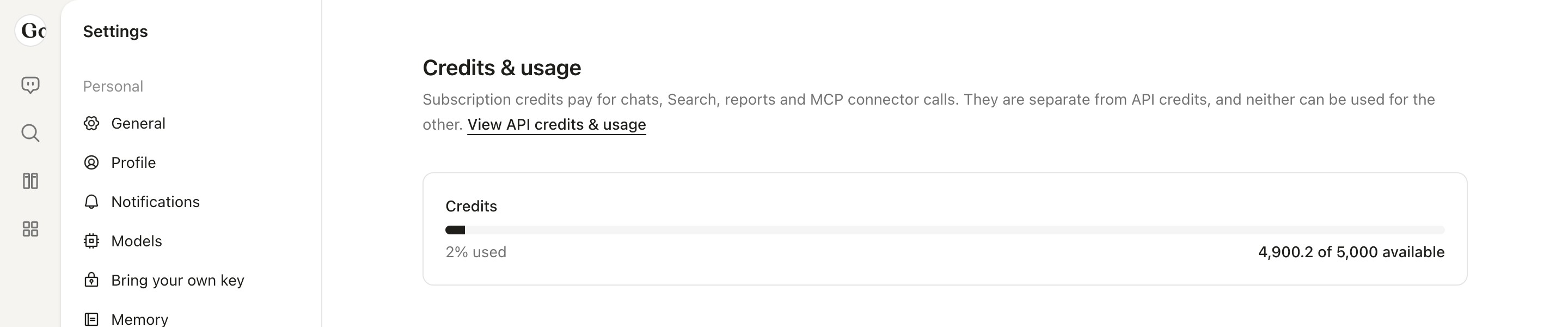
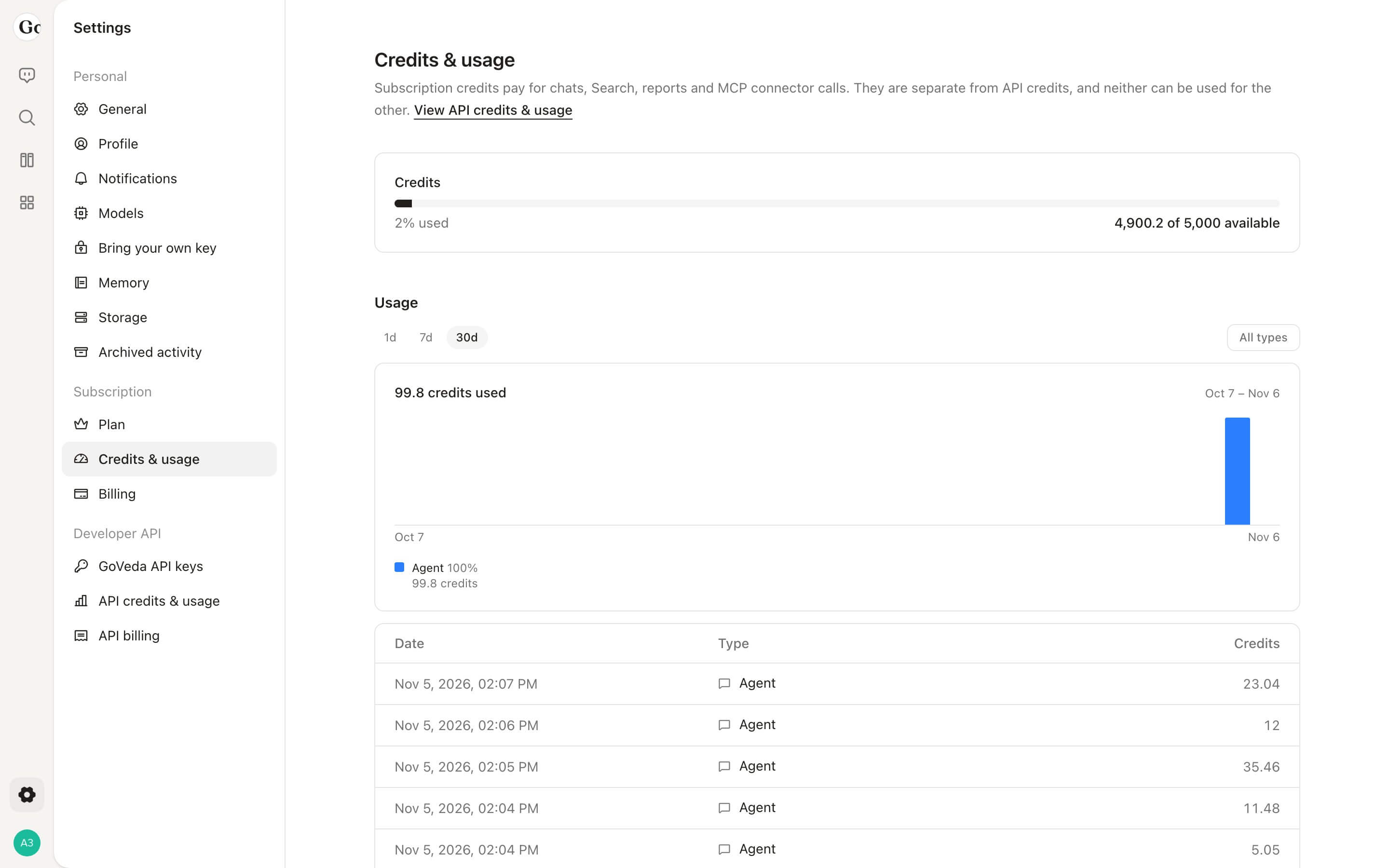
- Open Settings › Credits & usage to see your balance and where your credits come from.
- Choose Agent to see GoVeda Agent work only, or All types for everything. MCP, Search and Report show those types.
- Review the chart and records. On a phone, tap a chart bar to see that day’s breakdown. The list, total and chart show a snapshot from when you opened the page; reopen it to include newer work.
When your credits run out
If a task uses up your balance, GoVeda Agent wraps up the step it is on, tells you what is done and what is left, and pauses with its progress saved. Add credits, then select Continue to pick up from that point. A new question you send while your balance is too low waits, and starts once you add credits.
A step that was already running can take your balance slightly below zero. Credits you add cover that amount first; your next monthly refresh clears it without taking it from the new balance.
Stopping, failures and refunds
- Stopping a task: you are charged for the work done up to that point, and nothing after.
- Budgets and safety limits: a task that reaches your budget or a built-in safety limit stops with a summary. Send a message to continue from the summary.
- Platform failures: a failed task is charged for what it used, and failures that GoVeda identifies as its own enter a refund process. In Credits & usage, open Billing details beside a charge to see consumption, refunded or cleared credits, the net charge and the refund status. On a computer, hover over the information button; on a touchscreen, tap it.
For a charge you can’t explain, email support@goveda.com.
Using your own model key
With your own Anthropic or OpenAI API key, the language model’s work is billed by your provider instead of your credits. Patent search and reading, web search and page reading, workspace time and image generation still use credits. See Bring Your Own Key (BYOK).