Vault
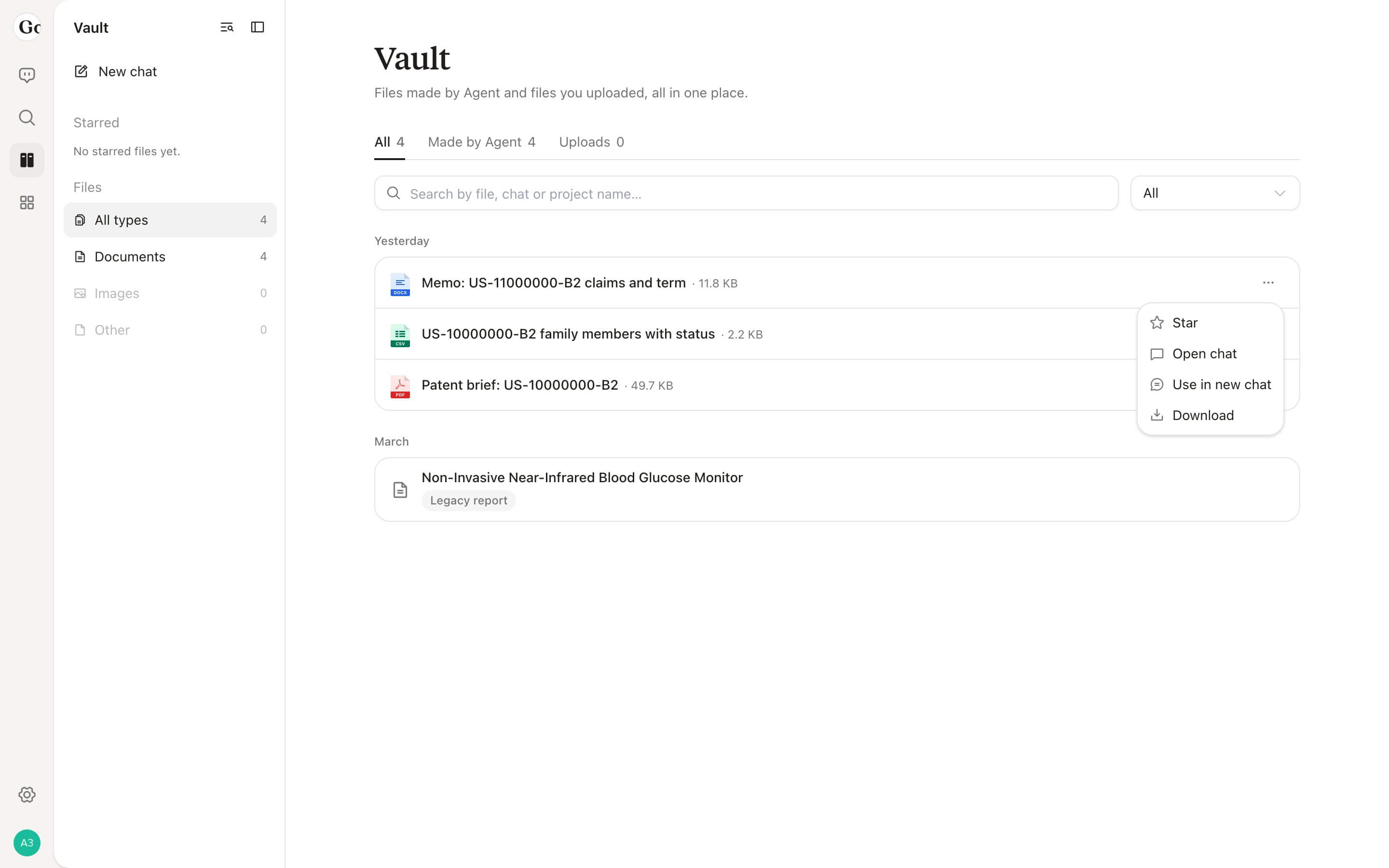
Vault is your private file store in GoVeda Agent. It keeps every file from your chats in one place, the deliverables GoVeda Agent made and the files you uploaded, so you can find, preview, download and reuse them later.
What Vault keeps
| Section | What’s in it |
|---|---|
| Made by Agent | Deliverables GoVeda Agent made: PDF, Word, PowerPoint and Excel files, CSV tables, charts and images. Reports you made earlier on the GoVeda website are here too, labelled Legacy report. |
| Uploads | Files you upload to chats and projects. |
| Starred | Files you starred from a file card’s ⋯ menu. |
Once a chat has a file or a search, a Files icon appears at the top right of the chat. It opens that chat’s deliverables, uploads, searches and patents. To get a file, name the format in your request.
Vault doesn’t make a new chat read all your files. Reference the files a chat needs, or put shared materials in a project.
How your files are protected
- Only you can open them. Your files are stored on encrypted infrastructure and tied to your account; other accounts can’t open them. There are no share links: to share a file, download it and send it yourself.
- Checked on upload. Files that can’t be read safely are rejected before GoVeda Agent uses them. See Upload limits and formats.
- Worked on in a private workspace. When GoVeda Agent analyzes or converts your files, it does so in a workspace for that chat alone. Unless you allow All websites in Sandbox network access, the workspace can’t send your files to other sites. See Private Workspace.
- Confidential projects. In a confidential project, chats can use only that project’s files and context. See Projects.
For GoVeda’s commitments on model training, audits, retention and where data is processed, see Security.
When you delete a chat
Deleting a chat, including an archived chat, removes its uploads and the files made in it from Vault. Copies saved to a project stay in the project.
You can’t delete a single file from Vault. Files from archived chats stay in Vault, labelled Chat archived. See Settings for archived items.
Find and reuse a file
- Search Vault. Open Vault, choose All, Made by Agent or Uploads, and search by file, chat or project name. Filter by project and by type: Documents, Images or Other. If a file doesn’t appear, select Load more.
- Preview or download. PDFs, images, text, tables and the documents GoVeda Agent makes open in a preview; download anything else.
- Use it in a chat. In a file’s menu, select Use in new chat, or Open chat to return to the chat it came from. In a chat, drag a file from the Files panel into the message box to reference it with
@instead of uploading it again. - Share it with a project. In a project chat, open a file card’s ⋯ menu and select Save to project ”…”. Every chat in the project can then read it. A project holds up to 100 files.