Chats
In a chat, you describe a task, follow the work and refine the answer. For context you want to keep across several chats, such as a client matter, use a project.
If this is your first task, see Get Started. For prompt ideas, see Tasks to try.
Write, attach and reference
- Write a request. Type your request. When no task is running, press Enter to send, or Shift+Enter for a new line. A message can be up to 32,000 characters, and a counter appears near the limit. Long pasted text, around 10,000 characters or more, becomes a Pasted text attachment.
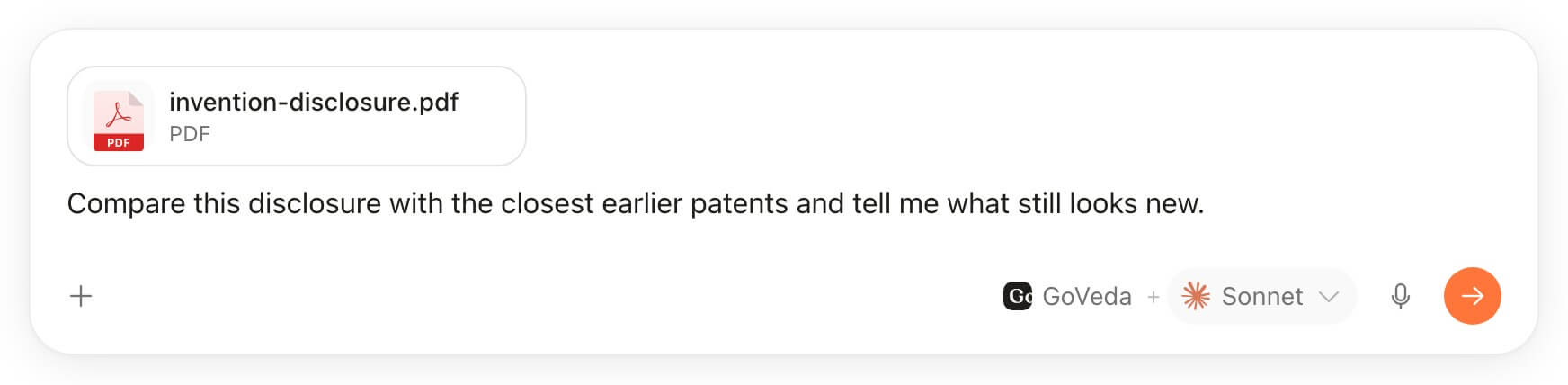
- Attach files. Drag files into the message box, paste them or select + › Add files. Wait for the file check to finish, then explain what GoVeda Agent should do with them.
- Choose a skill. Type
/or select + › Use a skill to choose a GoVeda skill, a Community skill you’ve turned on, or one of your own. See Capabilities. - Add references. Type
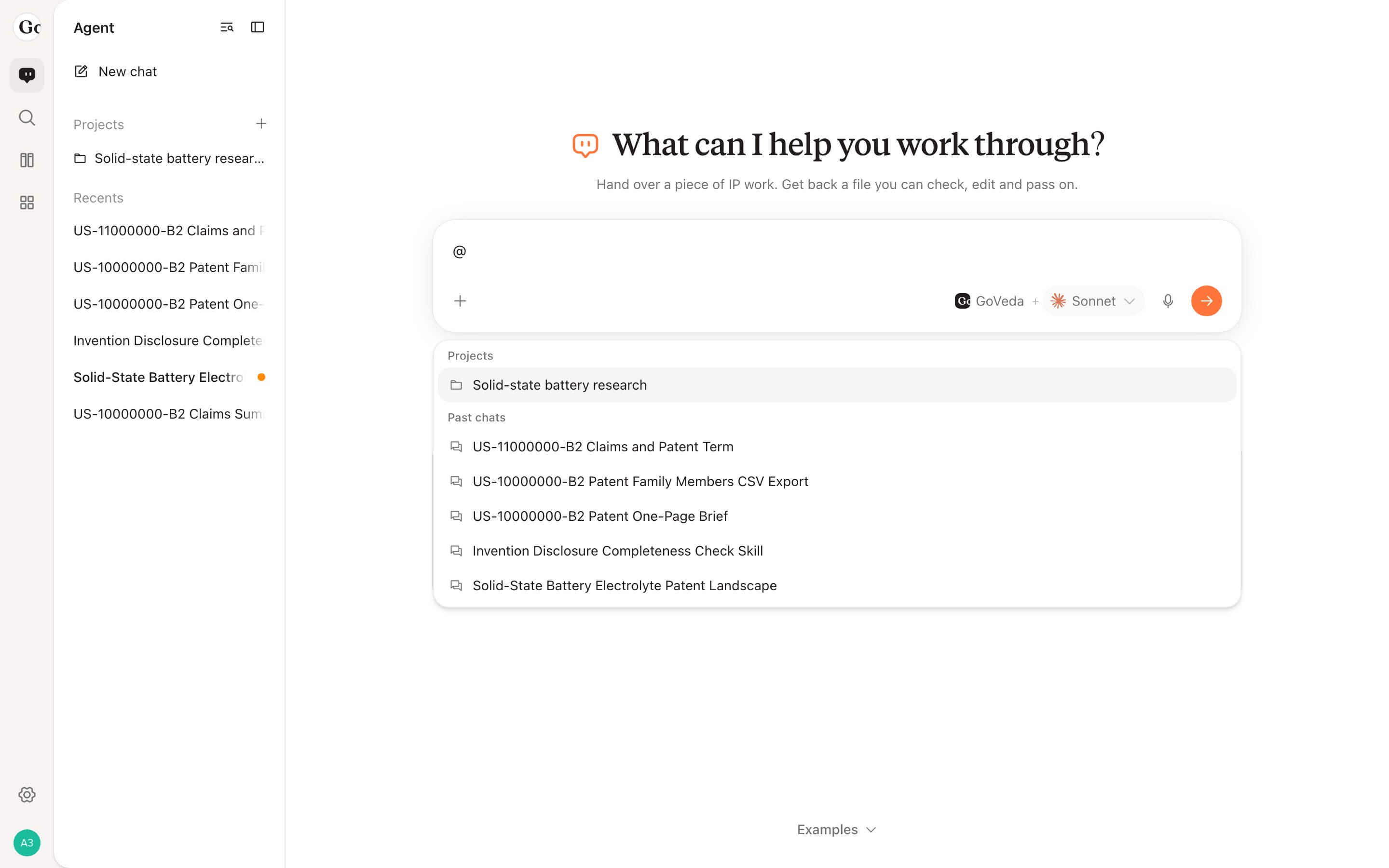
@or select + › Reference a chat, file, project or patent. Before you type a search term, the menu shows Projects and Past chats, plus Files once you have uploaded some. Keep typing to find the item you need, then select it.
To limit the credits or time a task may use, select + › Set a budget before you send. See Set a budget.
When you reference a patent, select the patent result rather than a past chat with a similar name. Turning off Search and reference past chats removes past chats from the menu. In a confidential project, only that project’s context is available. See Projects and Memory.
You can also drag a file name or an image preview from the Files panel into the message box. This inserts an @ reference instead of uploading another copy.
Upload limits and formats
Each message can include up to 20 files, up to 50 MB each and 200 MB in total. You can attach PDFs, Office and OpenDocument files, spreadsheets and CSV, images, text, code and ZIP archives. Encrypted, damaged or nested-archive files are rejected. Uploading a file doesn’t mean GoVeda Agent has read every page, so ask for the specific analysis you need.
Dictate a request
If Dictate is available:
- Select Dictate and allow microphone access in your browser.
- Speak your request, then select Done.
- Check and edit the text before sending, especially patent numbers, dates and claim wording.
Choose a model
Open the model picker beside the message box to choose the language model for your next message. GoVeda IP models work alongside it on every patent task. See Models.
Follow the work
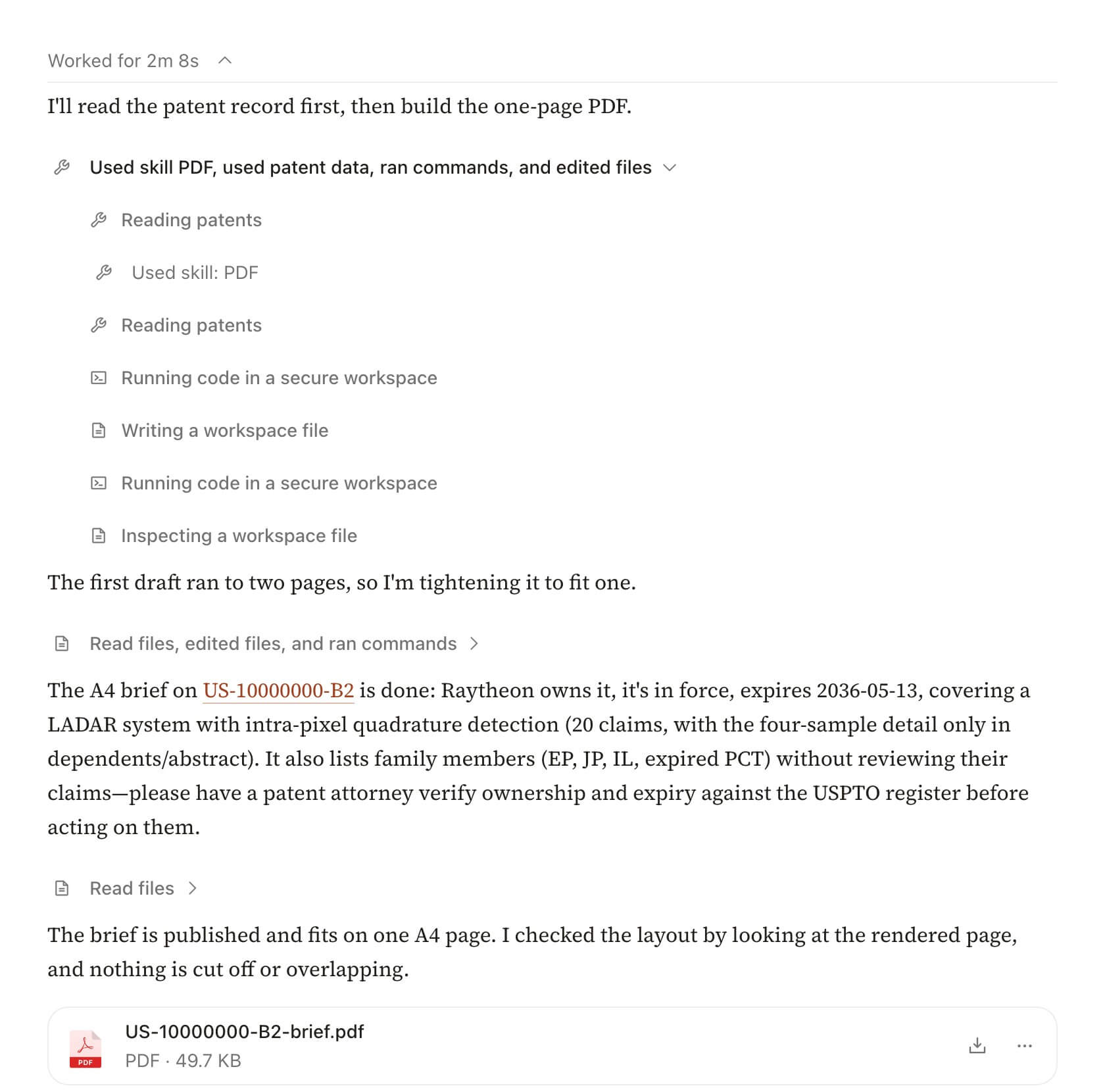
Open the progress heading to see the work in the order it happened. It reads Working for … during a task and Worked for … when the task finishes, and can show how long a task like it usually takes. Open a row to see each patent search, web read, file step or calculation. When the answer arrives, the steps fold away; select the heading to open them again.
When GoVeda Agent uses a skill, progress shows Loading skill: …, Used skill: … or Couldn’t load skill: … with the skill’s name.
Answer questions
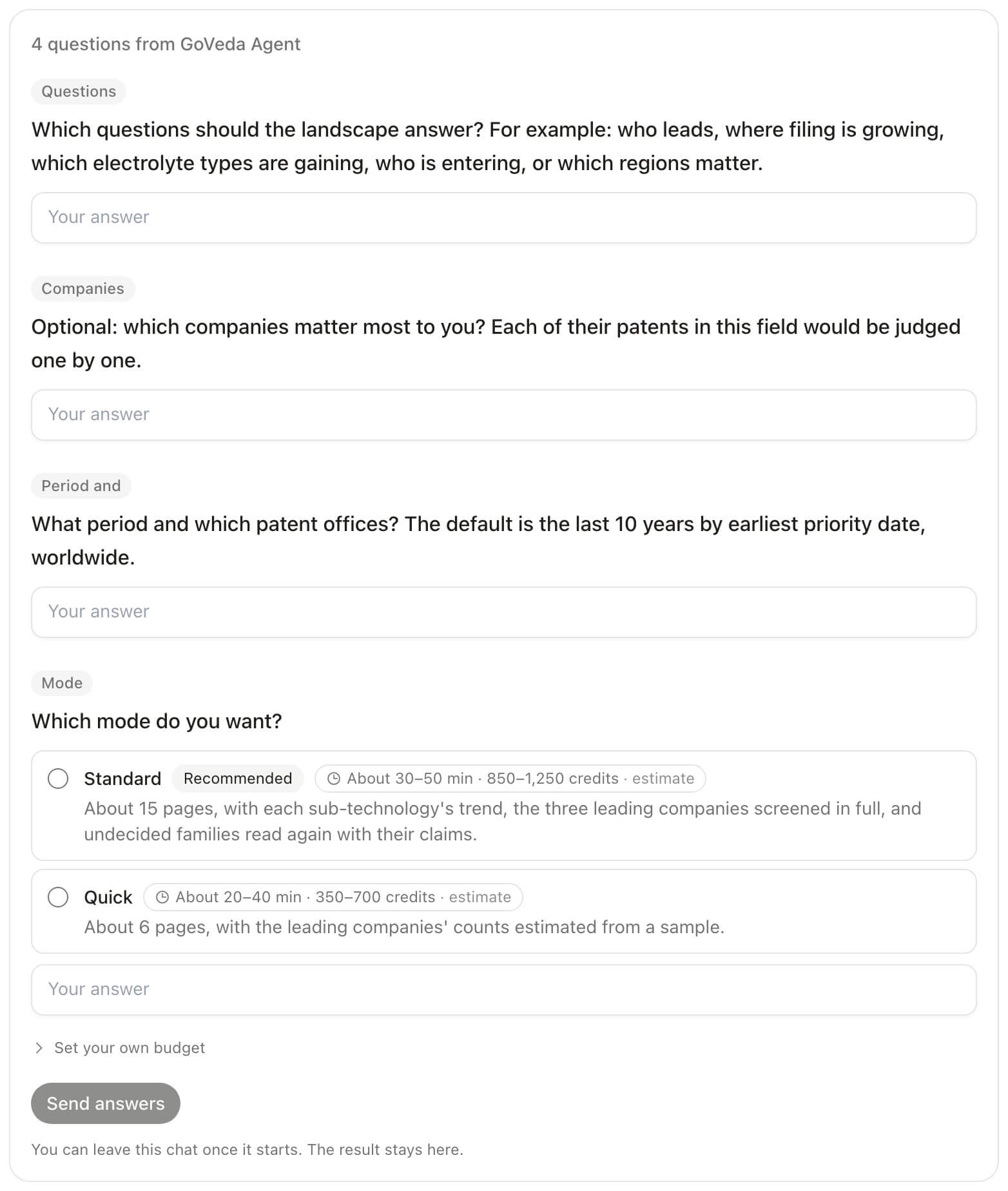
Before a large task, GoVeda Agent often runs a small search, proposes a plan and asks you to confirm the scope. Its questions appear in a card titled A question from GoVeda Agent, or N questions from GoVeda Agent when there are several.
- Choose the options you want for each question. Recommended options aren’t selected for you. Leave a question blank if you have no preference, but answer at least one: Send answers stays off until a question has a choice or text.
- Add details in the text box under a question if needed.
- Select Send answers.
When an IP skill asks which depth you want, each option shows its usual credits and comes with a matching budget. To use your own limit instead, select Set your own budget.
If you send a message from the message box while a question card is open, it goes with your answers as a note. An unanswered question holds up the task and any queued messages.
Steer, queue or stop a task
You can leave the page and come back later; closing the page doesn’t stop the work. Several chats can run tasks at the same time, and each chat runs one task at a time.
- Add a correction while work continues: type it and press Enter. It is sent as Add to the current task, and GoVeda Agent reads it after its current step.
- Queue a follow-up: select Send after this finishes, or press Tab. A queued message offers Remove message and Send now. Send now stops the current task, then sends the message.
- Stop the task: select Stop or press Esc. If a menu, dialog or preview is open, Esc closes it first. Stopping can take a moment. Credits already used aren’t returned when you stop.
For how long tasks take and what they use, see Credits & Usage.
Check sources and patent links
Open patent links and source markers to check important statements before you use them.
- Select a patent number in an answer to open it in the side panel. Select Open patent in new tab for the full patent page.
- Select a numbered source marker to open its source card. Review the title, link and any excerpt, then open the source itself.
- For a search GoVeda Agent ran in the chat, open its preview under Searches in the Files panel.
In a search preview, select a result to read the patent. Use Previous patent and Next patent to move between patents, and Back to Search Results to return to the list. At the foot of the list, Previous page and Next page page through the results. Select View all … results to open the full results page.
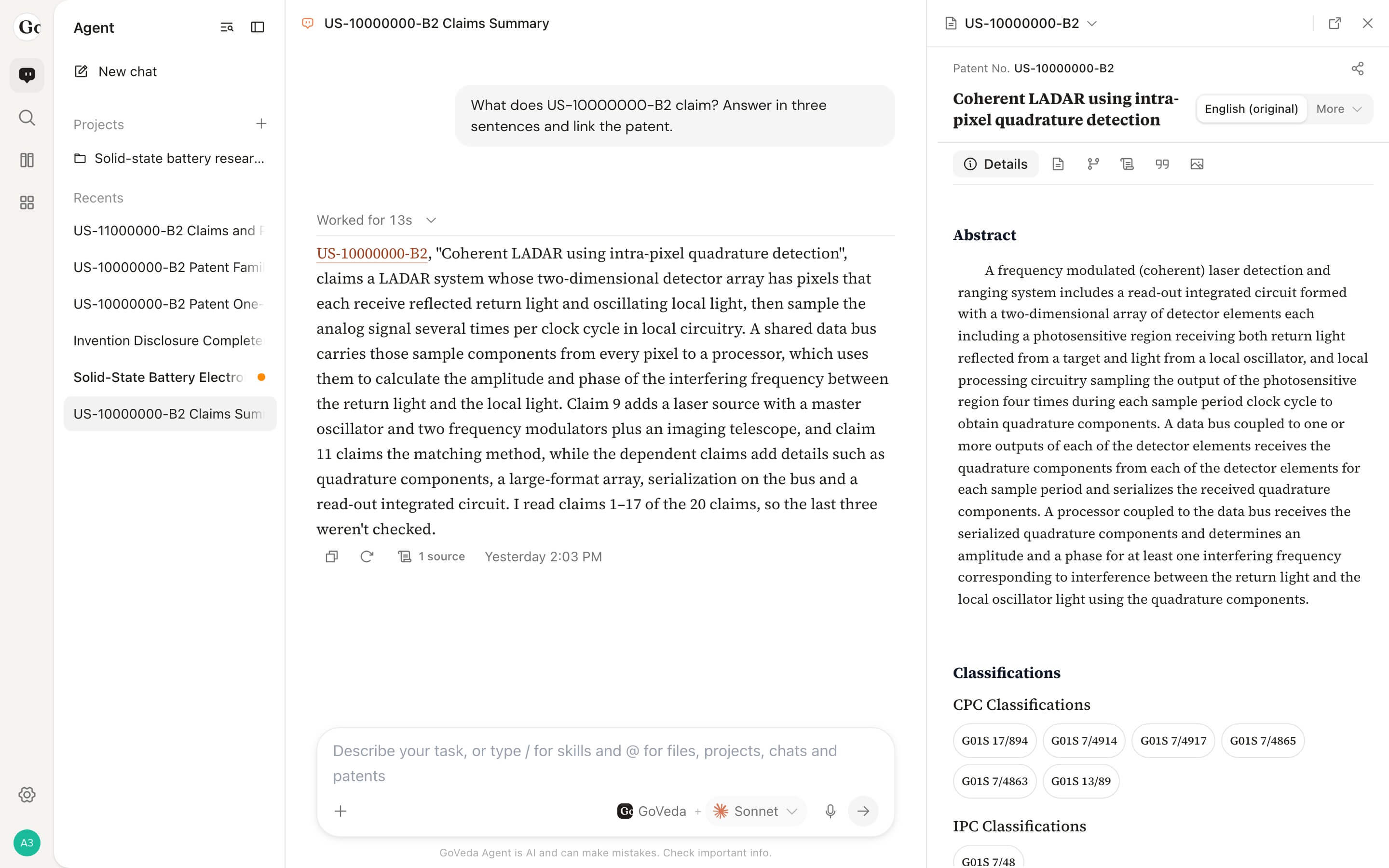
A No matching record, Invalid patent reference or clarification message needs your attention. Select Retry if verification is temporarily unavailable. A valid patent number doesn’t prove that the interpretation or legal status is right, and not every statement has a source marker.
Edit, regenerate or retry
Send a follow-up message to refine the result and keep the conversation. To change an earlier request or replace an answer, use the message actions:
- After the work finishes, select Edit on your message, change the text and select Save to continue from that point.
- Select Regenerate on an answer for another reply to the same request, then confirm Regenerate.
- If a task fails, select Retry when offered. If the model declined the request, edit it or choose another model; retrying the same request may not help.
Editing or regenerating can replace the later conversation. Files GoVeda Agent made, memory it saved and credits already used are not undone, and a retry or regeneration uses more credits.
Copy and organize
Use Copy message to copy a message. For a table, Copy table copies its Markdown, including links, and Expand table opens a wide or long table in a larger view.
Open a chat’s ⋯ menu in the sidebar to Pin or Unpin, Rename, Move to project, Archive or Delete it. Archiving hides the chat from the sidebar; its files stay in Vault. To bring it back, open Settings › Archived activity and select Unarchive. See Projects for moving chats.
If you archive a running chat, GoVeda Agent offers to stop it first. Stop a running chat before you delete it.
Deleting a chat is permanent. Its uploaded files and the files made in it are also removed from Vault. Copies saved to a project stay in that project.
To reuse a way of working, ask GoVeda Agent to turn it into a personal skill.