Scout
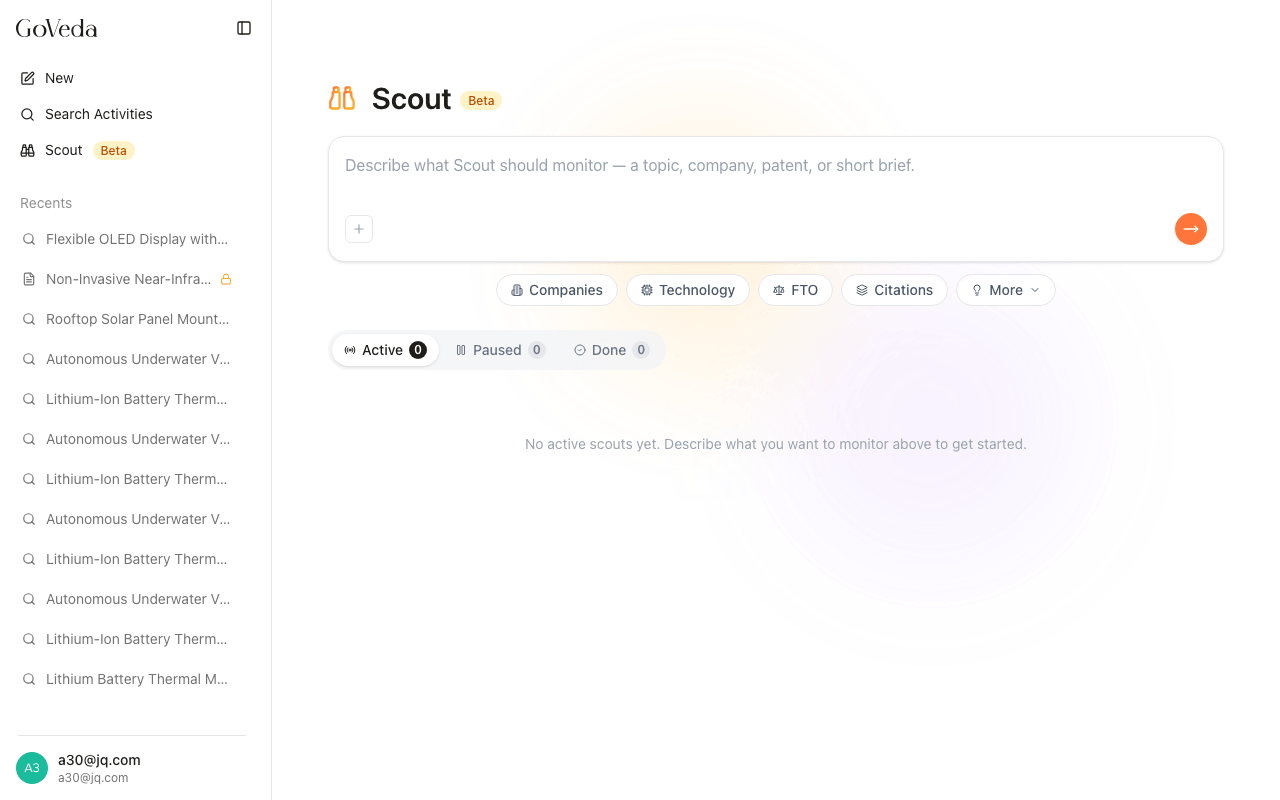
Scout watches the patent world for you. Tell it what to monitor (a competitor, a technology area, an FTO concern, citations to a specific patent), and it runs a search on a schedule and surfaces new findings as they appear.
Most patent intelligence work happens once: you run a search, read the results, move on. Scout flips that. You set the brief once, and it keeps working in the background.
Beta — Scout is in active development. Schedules, signal quality, and notification behavior will keep changing. Send feedback to info@goveda.com.
What you can monitor
Scout takes plain-English briefs. Four common shapes are surfaced as quick-start templates on the home screen:
| Quick start | What it watches |
|---|---|
| Companies | New filings from a named applicant in a specific area |
| Technology | New filings in a technology area, with applicant and approach highlights |
| FTO | New filings that could pose freedom-to-operate risk for a described product |
| Citations | New applications that cite a specific patent |
Beyond the quick starts, the More menu has additional templates: patent status monitor, research-institution radar, geographic filing tracker, startup IP watch, and patent expiry monitor.
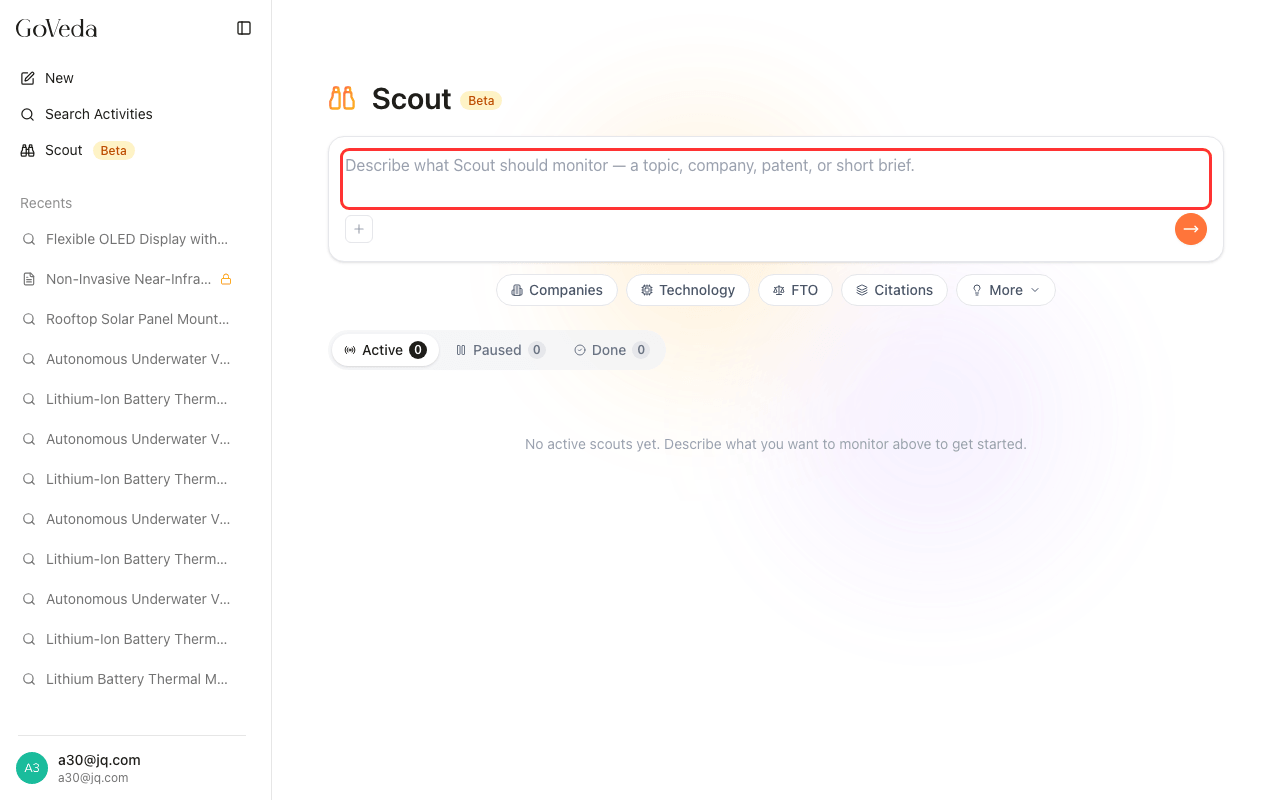
You can also write your own brief. Anything specific enough to scope a search will work.
Create a Scout
There are two ways to start.
From a written brief
Open Scout
Go to the Scout page from the sidebar.
Describe what you want to monitor
Type your brief in the input card. A quick-start template is a good starting point. Click one, then edit the bracketed placeholder.
Briefs need to be at least 10 characters. Specific is better. “Alert me when Tesla files patents on solid-state battery cooling” beats “battery patents”.
Pick a schedule
Choose how often Scout should run:
- Every 6 hours — refreshes four times a day
- Daily — once-per-day digest, with a time picker (defaults to 8:00 in your local timezone)
- Weekly — weekly summary
Start scouting
Hit Start scouting. The Scout appears in your My Scouts list with an active (pulsing green) status indicator.
From a patent
If you already have a patent in mind (your own filing, a competitor’s, a key piece of prior art), Scout can analyze it and suggest several monitoring angles at once.
Open the patent flow
On the Scout home page, click the + button next to the input and choose From patent.
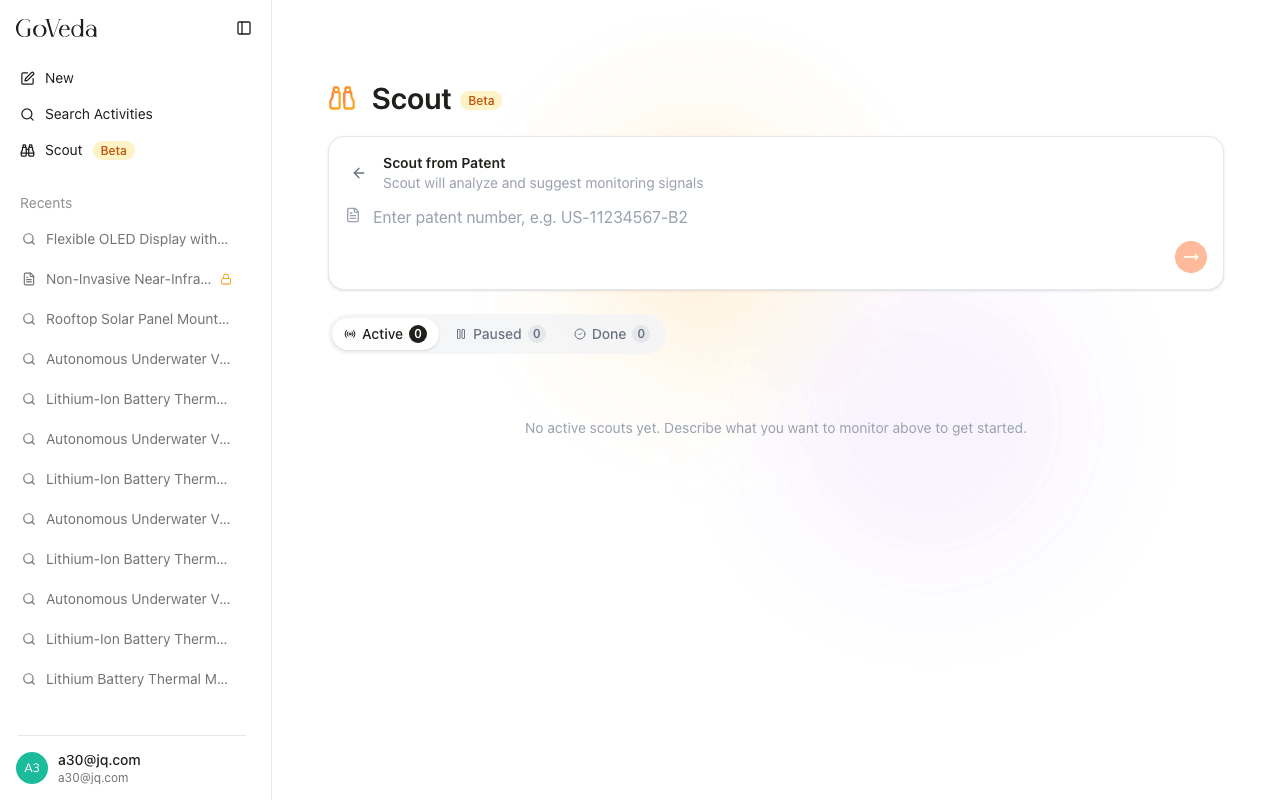
Enter a patent number
Type a patent number (e.g. US-11234567-B2). Scout looks up the title and assignee as a sanity check.
Review suggested signals
Scout analyzes the patent and proposes several monitoring signals: new filings from the same assignee, new citations to this patent, filings in the same technology area. Each signal is editable and can be removed.
Pick a schedule and activate
Choose a schedule. Scout creates one Scout per enabled signal, all on the same cadence.
What you’ll see
The My Scouts list groups Scouts by status:
- Active — running on schedule (pulsing green dot)
- Paused — temporarily off (yellow dot)
- Done — manually marked complete (gray dot)
Each card shows the brief (or a friendly display name if Scout suggested one), the latest finding preview (or Waiting for first report… before the first run), the schedule (e.g. Daily at 8am), and the next scan time (e.g. Next scan in 4 hours). When a card has new findings since you last opened it, the title goes bold with a brand-colored dot.
Click any Scout to open its Timeline, the full chronological history of every scan and what it surfaced.
Manage a Scout
Hover a card to reveal the ⋮ menu:
| Action | When to use |
|---|---|
| Change schedule | Adjust frequency or daily-digest time |
| Pause | Stop scanning temporarily. No scans run, history preserved. |
| Resume | Re-activate a paused or done Scout |
| Mark as done | The thing you were watching has happened (or stopped mattering). Scout stops scanning but stays in your list. |
| Delete | Permanently remove the Scout and its history |
Writing a good brief
The same query principles that apply to GoVeda search apply to Scout, with one extra: Scout reads your brief on every run, so vague briefs return vague findings every time.
A few patterns that work well:
- Name the actor. “Anthropic”, “Mayo Clinic”, “small-entity startups in quantum computing”. Gives Scout a concrete signal to filter on.
- Name the technology narrowly. “Solid-state lithium battery with ceramic separator” beats “battery technology”.
- Name what change you care about. “New filings”, “status changes to grant”, “citations from any new application”. Scout uses this to decide what counts as a finding.
- Name the jurisdiction if it matters. “Files in China and Japan”, “PCT entries into US national phase”.
If you write a brief that’s too broad, you’ll get a lot of low-relevance findings. If it’s too narrow, you’ll get nothing for weeks. Adjust based on what shows up in the first few scans.
Notifications and unread state
When a Scout produces new findings, the corresponding card on the Scout home page shows an unread dot, and the Scout entry in the left sidebar shows a notification indicator. Open the Scout to mark its findings as read.
Scout notifications are in-product only. There is no email or external delivery to you at this stage.
Troubleshooting
Scout was auto-paused. Some queries can’t be run reliably (too broad, no jurisdiction signal, or the upstream service rejected the brief). The card shows the reason and a hint for how to fix it. Edit the brief and resume.
No findings after several scans. Either nothing matching has been published, or the brief is too narrow. Try broadening the technology area or removing one of the constraints.
The schedule isn’t firing on time. Daily digests use your browser’s reported timezone at creation time. If you’ve moved timezones, change the schedule once to refresh.