Sharing Searches
You can share a completed search with anyone by generating a share link. The recipient can view the results without signing in to GoVeda.
Who can share
Sharing requires a GoVeda account. If you ran the search while logged out, the share button is not available. Sign in first, run the search, and then share from the results page.
Creating a share link
Run your search
Run a semantic search and wait for it to complete.
Click the share icon
Click the share icon in the top-right corner of the search header. GoVeda generates a share link and copies it to your clipboard automatically.
Send the link
Paste the link wherever you want to share it — email, Slack, a document, etc.
The share icon changes appearance once sharing is active, indicating the search is currently shared.
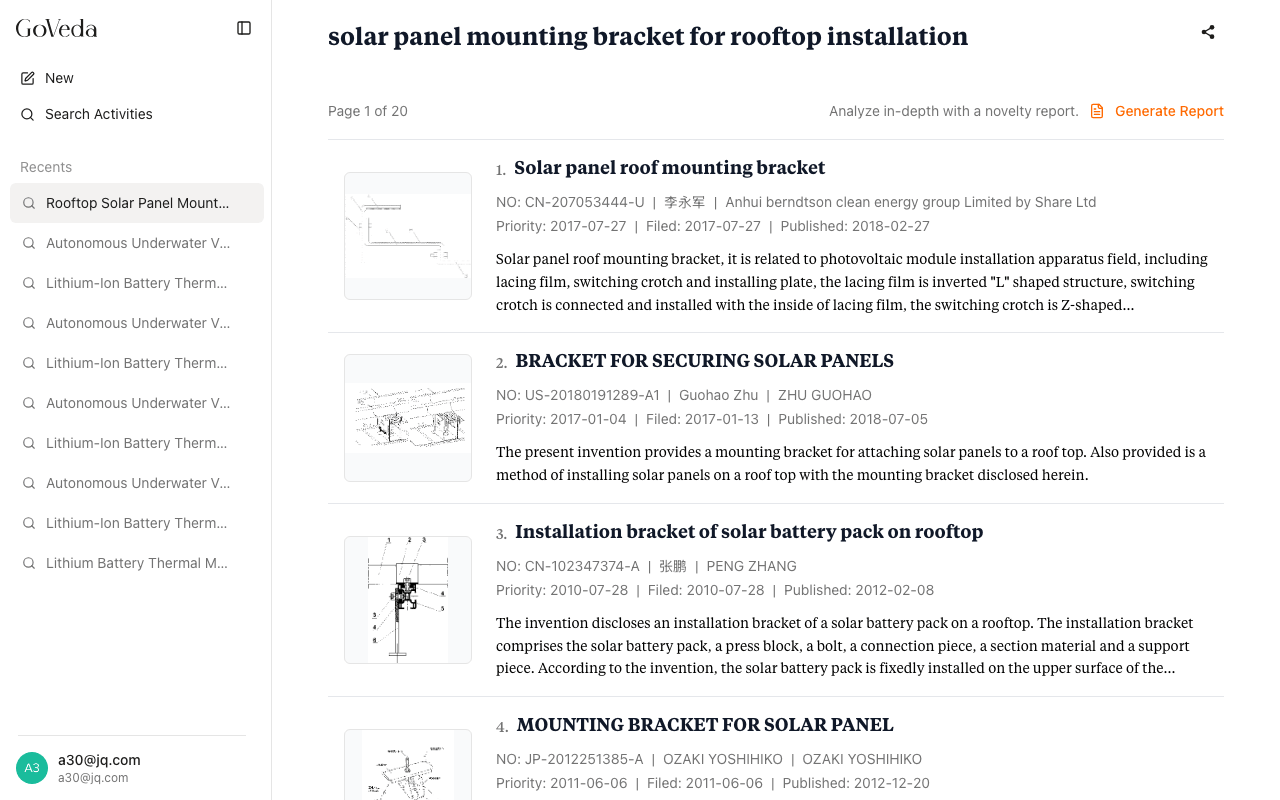
What the recipient sees
A recipient who opens a share link can:
- View the search query
- Browse all result cards (title, abstract, inventors, dates)
- Click through to individual patent pages
A recipient cannot:
- Share the search themselves (the share button is hidden in share mode)
- Access your account or other searches
- See searches that are still in progress (only completed searches are accessible via share links)
Copying the link again
If you have already shared a search and need the link again:
Open the share menu
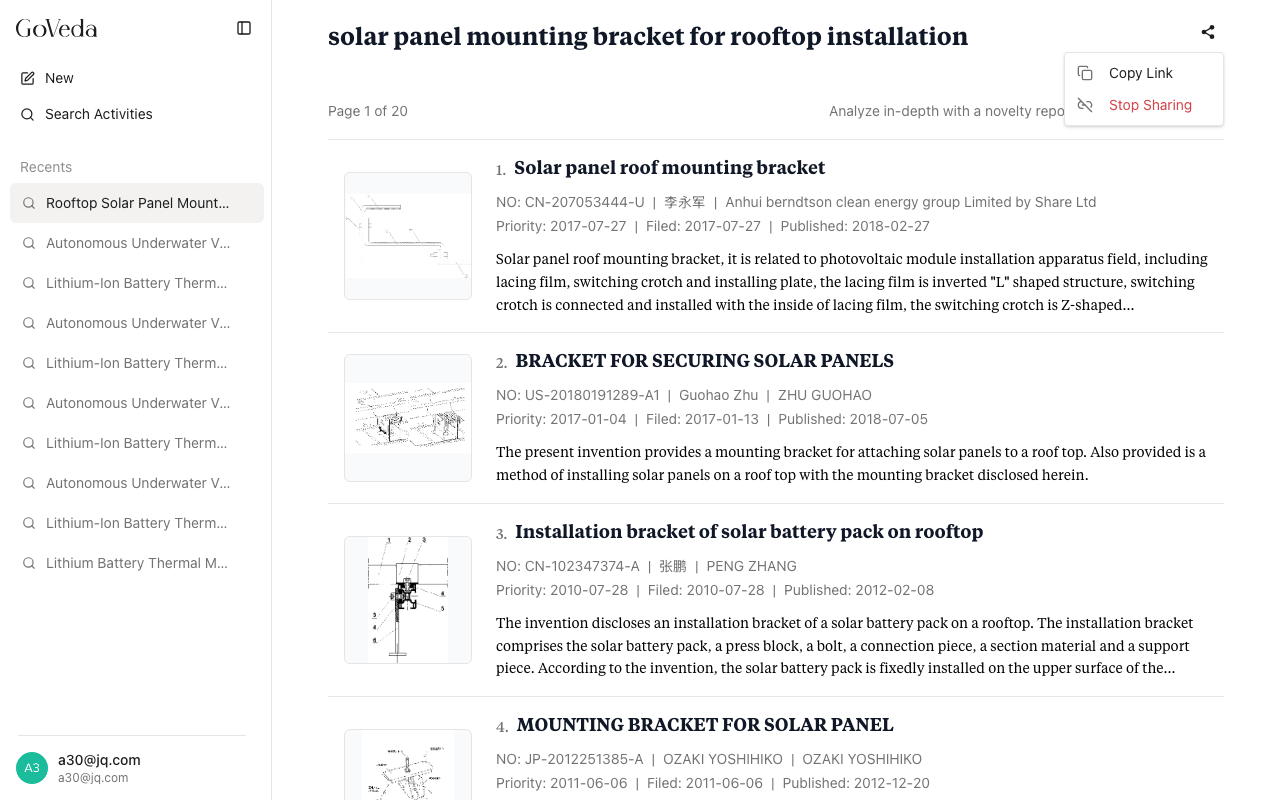
Click the share icon on the results page. Because the search is already shared, a dropdown menu appears.
Copy the link
Select Copy Link to copy the existing share URL to your clipboard.
Revoking a share
To stop others from accessing the shared search:
Open the share menu
Click the share icon on the results page.
Stop sharing
Select Stop Sharing from the dropdown menu.
Done
GoVeda revokes the share link. Anyone who tries to open the old URL will see an error.
Revoking a share does not delete your search or results. It only removes access for others.
Limitations
Share links do not expire automatically. Anyone with the link can view your search query and results without signing in. Revoke share links when access is no longer needed.
- Only the owner of a search can create or revoke its share link.
- Searches that failed or are still processing cannot be shared.
- Each search has one share link. Generating a new one returns the same link if one already exists.