Exporting and Sharing
Once a report is complete, three actions are available from the toolbar on the report page: PDF export, email, and share link. Each serves a different purpose.
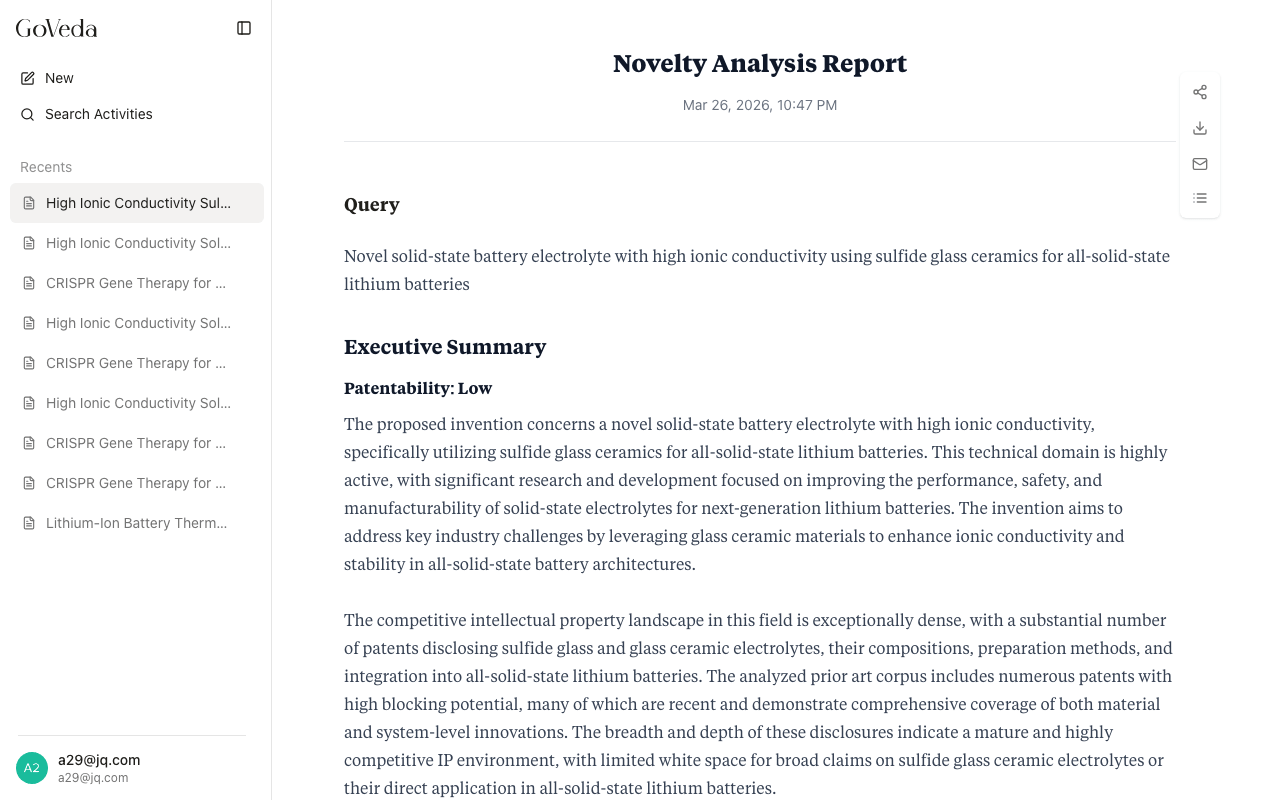
PDF export
To download a report as a PDF:
Open the report
Open the completed report.
Click Download
Click the Download icon (arrow pointing down) in the toolbar.
Save the file
The PDF is generated and downloaded to your browser.
The PDF filename is based on your invention description, for example: goveda-report-smartwatch-atrial-fibrillation.pdf.
What is included in the PDF
The PDF contains the same content visible on the report page. If the report is masked (not yet unlocked), the exported PDF reflects the preview version, not the full analysis. Unlock the report before exporting if you want the complete PDF.
Access requirements
- Sample reports: PDF export is available without signing in.
- Your own reports (masked): PDF export of the preview is available.
- Your own reports (unlocked): Full PDF export available.
- Shared reports: If you are viewing a shared report and want to export a PDF, sign in and click Get Your Full Report to create your own unlocked copy. You can then export from that copy.
- Anonymous reports (not signed in): Sign in to export a PDF.
Email delivery
To send the report to your email address:
Open the report
Open the completed report.
Click the Mail icon
Click the Mail icon in the toolbar.
Confirm or enter your email
For signed-in users, the report is sent to the email address on your account. No further input is needed. For users who are not signed in, a dialog appears asking for an email address. Enter it and confirm.
The email is sent asynchronously. Delivery usually takes under a minute. The email contains the report as a PDF attachment.
There is a 60-second cooldown between email sends for the same report.
Email preferences
Signed-in users can also enable automatic email delivery when a report finishes generating. This setting is in Settings > Profile under notification preferences. When enabled, GoVeda emails you the report without requiring a manual click.
Share links
A share link lets you give read-only access to a specific report. Anyone with the link can view the report without needing a GoVeda account.
To create a share link:
Open the report
Open the completed report (you must be the owner and signed in).
Click the Share icon
Click the Share icon in the toolbar.
Copy the link
A share URL is generated and copied to your clipboard. The icon changes to indicate the report is now shared.
Anyone with the link can view the report in read-only mode without signing in.
To revoke a share link:
Open the report
Open the report.
Click Share again
Click the Share icon again (it appears active when the report is shared).
Confirm revocation
Confirm that you want to stop sharing. The link stops working immediately.
Revoking a share is permanent for that link token. If you share again after revoking, a new link is generated.
What share recipients can do
Share recipients can read the report. They cannot:
- Export a PDF using your account’s credentials
- Send the report to your email
- Create or modify share settings
Recipients with a Pro subscription can click Get Your Full Report to generate their own unlocked copy of the report. This creates a separate report in their account history and charges 720 credits to their account. Your original report is not affected.
Limitations
| Action | Requires sign-in | Requires Pro |
|---|---|---|
| Export PDF (sample report) | No | No |
| Export PDF (own masked report) | Yes | No |
| Export PDF (own unlocked report) | Yes | Yes (to unlock) |
| Send email | Yes (or enter email manually) | No |
| Create share link | Yes | No |
| Revoke share link | Yes | No |