Your First Search
This tutorial walks you through running a patent search from start to finish. By the end, you’ll have search results on screen and know how to read them.
Create an account or log in
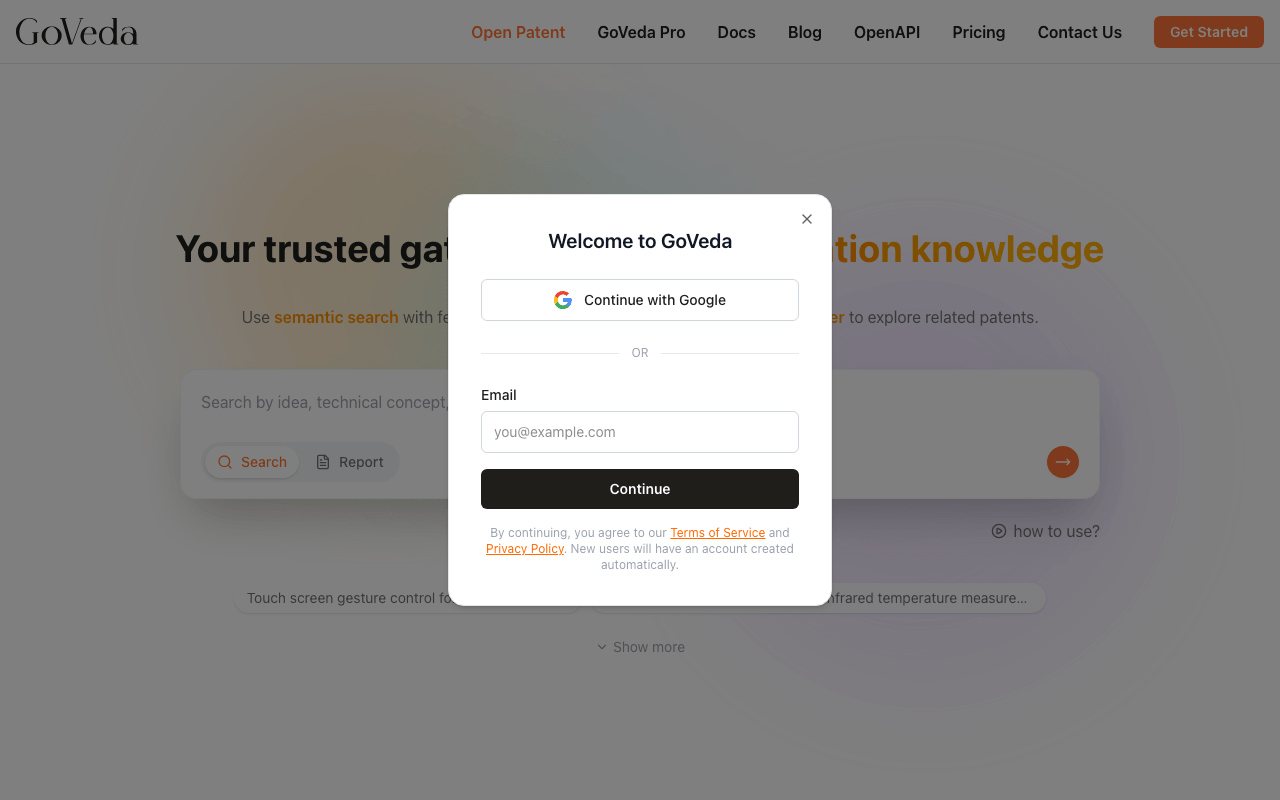
Go to goveda.com and click Get Started in the top-right corner. A sign-up dialog appears. The fastest option is Continue with Google. You can also enter your email to create an account with a password.
You can run searches without an account, but creating one lets you save your search history, share results, and generate reports.
Make sure Search mode is selected
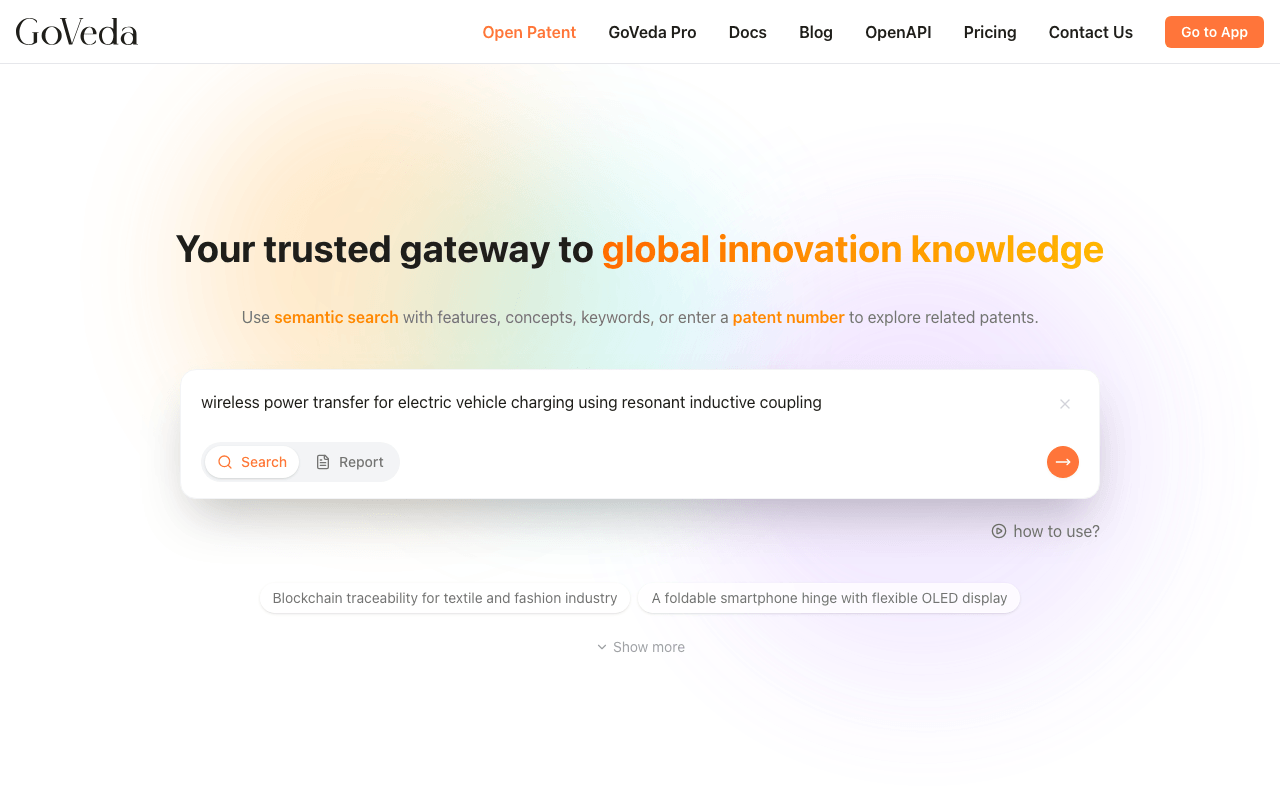
The input on the home page has two modes: Search and Report. For a patent search, confirm that Search is selected. You’ll see the toggle at the bottom-left of the input card.
If Report is selected, click Search to switch.
Enter your query
Type a description of the technology you’re searching for. GoVeda uses semantic search, so you don’t need to use specific patent vocabulary or classification codes. Write the way you’d explain the technology to a colleague.
For example:
- A foldable bicycle frame that collapses to fit in a backpack
- Using ultrasound to detect internal pipe corrosion without removing insulation
- A method for training a neural network to predict protein folding from amino acid sequences
A few things to know:
- Free accounts can enter up to 500 characters per search query. Pro accounts can enter up to 10,000 characters.
- If your query exceeds 500 characters and you’re on the Free plan, GoVeda will prompt you to upgrade before submitting.
- You can also enter a patent number directly (for example,
US11234567B2) to go straight to that patent’s page.
Press Enter or click the orange arrow button to submit.
Wait for results
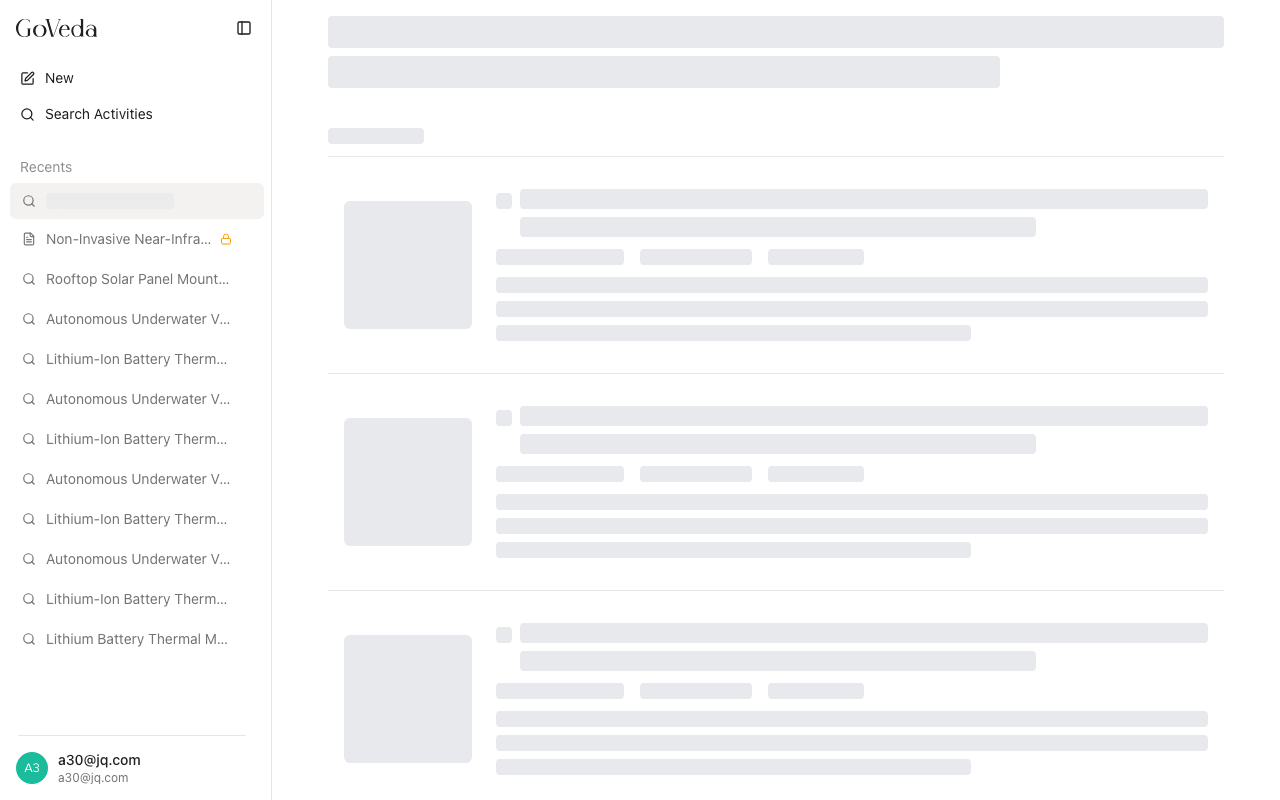
After submitting, GoVeda takes you to the search results page. You’ll see a loading skeleton while the AI processes your query. Most searches complete within a few seconds.
Read the results
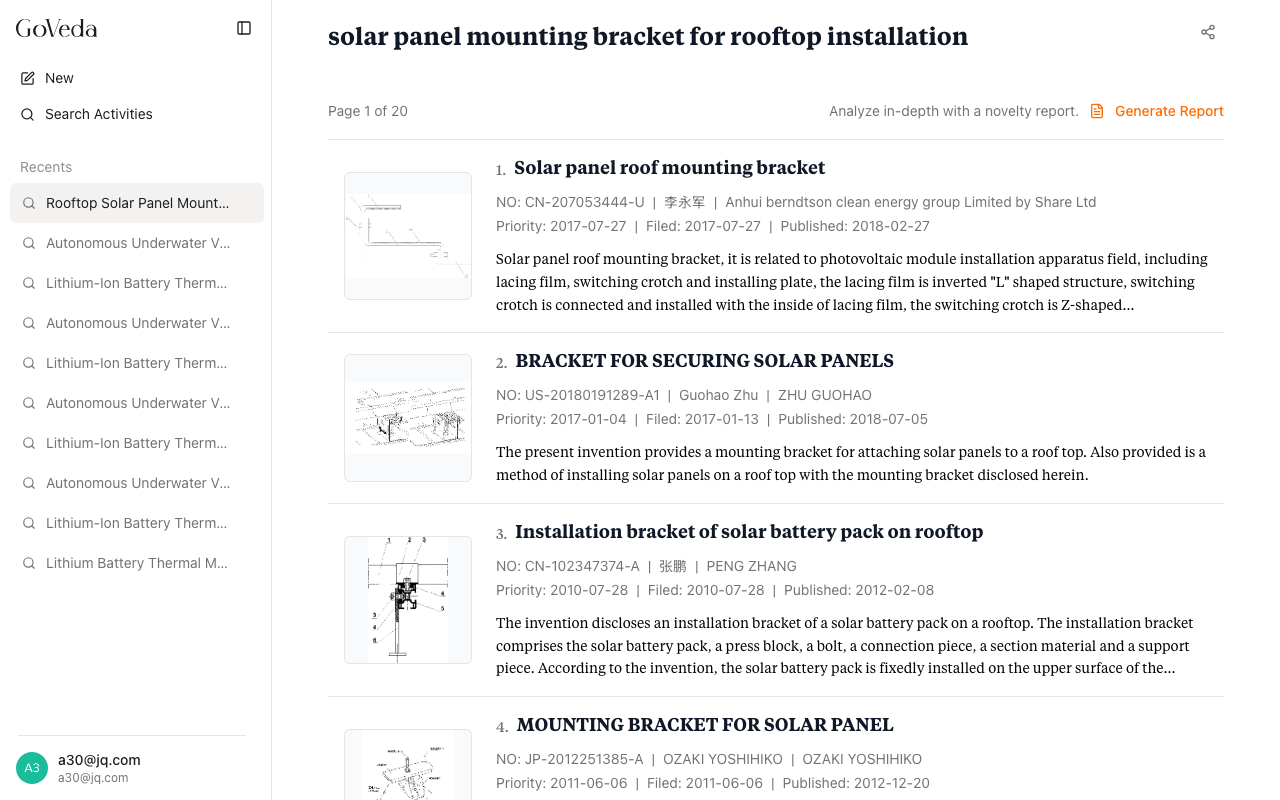
Once the search completes, you’ll see a ranked list of patents. Each result shows:
- Patent title — the official title of the patent
- Patent number — the jurisdiction-specific identifier, such as
US10234567B2 - Inventor and assignee — the person or company who filed the patent
- Key dates — priority date, filing date, and publication date
- Abstract excerpt — the beginning of the patent abstract, so you can quickly assess relevance
Results are sorted by relevance to your query. The most similar patents appear first.
Explore a patent
Click any result to open the Patent Viewer. The viewer organizes the patent into tabs:
- Details shows the abstract, claims, description, classifications, assignees, and a date timeline.
- Summary provides an AI-generated analysis with inline citation badges. Click any badge to jump to the exact passage it references.
- PDF renders the original patent office document.
- Family lists related filings in other jurisdictions.
- Legal shows status events like assignments, fee payments, and lapse notices.
- Citations shows prior art this patent cites and later patents that cite it.
Open the Drawings panel from the header to view figures alongside any tab. Switch to Dual View to read two tabs side by side.
To ask questions about the patent, click the Chat icon. You can ask things like “What does claim 1 cover?” or “How does this differ from prior art?” and the AI answers with references back to the patent text.
Use the back button to return to your search results, or use the navigation arrows to step through results without going back to the list.
Tips for better queries
GoVeda uses semantic search, so describing the problem and what makes your technology distinct will produce better results than short keyword queries.
A few habits that produce better results:
Describe the problem, not just the solution. “A sensor that detects when a car door is left open in rain” tends to work better than “car door rain sensor” because the full description gives the AI more to work with.
Be specific about what makes the technology distinct. If your invention has a particular mechanism or approach, include it. Vague queries return vague results.
Try different phrasings. If your first search doesn’t surface what you expected, rephrase the query from a different angle. Describe it as a method rather than a device, or try describing the end result rather than the mechanism.
Longer queries work better on Pro. Free accounts are limited to 500 characters, which is enough for most queries. If you have a detailed technical description, Pro accounts support up to 10,000 characters per query.
Use the exact patent number if you know it. Entering US10234567B2 takes you directly to that patent, with no ambiguity.
Next: generate a Novelty Report
Once you’ve run a search, you can turn your query into a full patentability analysis. See Your First Report.